
Working Log - Track work hours & attendance
Effortlessly manage your time card, track attendance, and customize shifts for perfect work-life balance!

- 1.1.92 Version
- 1.4 Score
- 156K+ Downloads
- Free License
- 3+ Content Rating

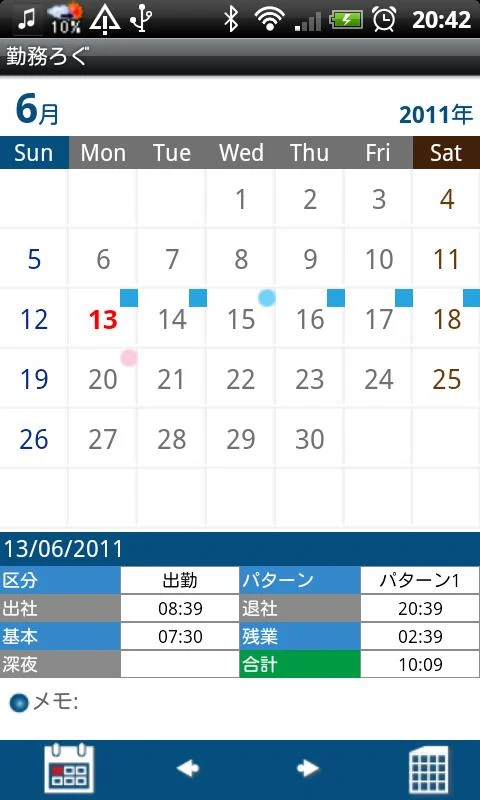
Features:
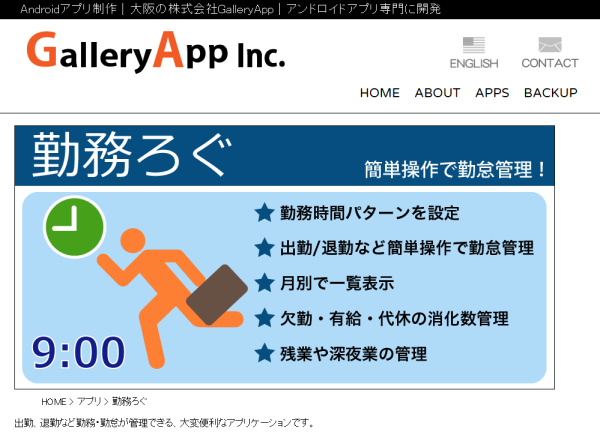
--- A straightforward in/out time card that allows you to manage and monitor your attendance as well as other details of your daily work!
--- Design your shift patterns so it can accommodate individuals who work on shifts too.
--- Store your daily work information, which will be shown in the monthly overview of the time card and on the calendar.
--- Keep track of absences, paid leave, total days of TOIL (time off in lieu), and support for overtime (OVT1, OVT2) hours, along with Early Working (EA) hours.
※ Pay version No advertisements
-- From the "Menu," select "Base Setting" to create your work shift patterns. Select "Base Setting" to navigate to the Settings screen.
Functions:
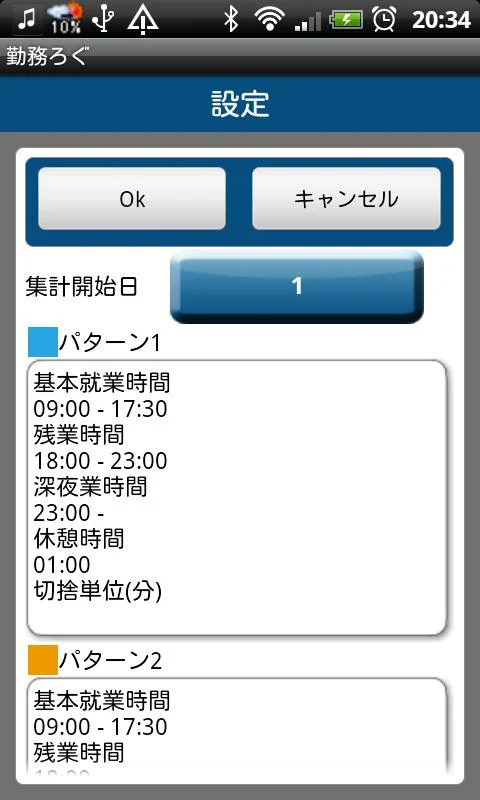
*Settings Screen*
1.Enter your company's starting day for counting. Tapping this button will open a calculator.
2.Create shift patterns by tapping each one, which will lead you to the Pattern settings screen.
*Pattern Settings Screen*
1.Press the "Color" button to choose a color for each pattern. There are 10 different colors available. *This color will appear on the calendar.
2.Input your company’s Base working hours and Overtime hours (OVT1 and OVT2).
3.To enter break time:For instance, if you have a one-hour break, input "01:00" and tap "OK."。
4.Once you've completed all entries, tap "OK" to return to the Settings screen.
5.In the Settings screen, tap "OK" again to save your data.
6.You can create three distinct patterns in the same manner and also change the names of those patterns.
*Calendar*
The buttons at the bottom left of the calendar include:
"Today" button: Tap this to return to today's date.
"Left" and "Right" buttons: These allow you to navigate dates to the left and right.
"Time Card" button: Access the Time Card screen here, where you can view your monthly attendance records.
*How to Log Attendance Time and Other Information for Your Daily Work.*
1.Tap "Touch here to enter" located at the bottom of the calendar.
2.This will direct you to the Working Hours screen.
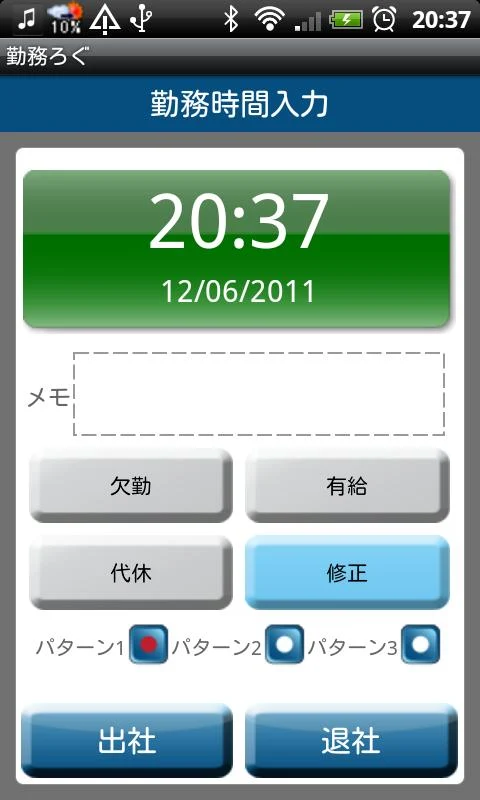
*Working Hours Screen*
From the top;
1.Time&Day display
2.Memo:Save notes here。
3.There are three options;
Work absence
Paid leave
TOIL (time off in lieu)
Select any of these options for the day. *Tapping these options will automatically direct you back to the calendar.
4.To edit previously entered data, tap the "Edit" button, leading you to the Edit screen.
5.Choose a shift pattern.
6.When you press the "IN" (arrival) button, the time will be saved automatically.
7.When you press the "OUT" (departure) button, the time will be saved automatically.
8.To modify arrival or departure times, tap the "Edit" button.
*Time Card Screen*
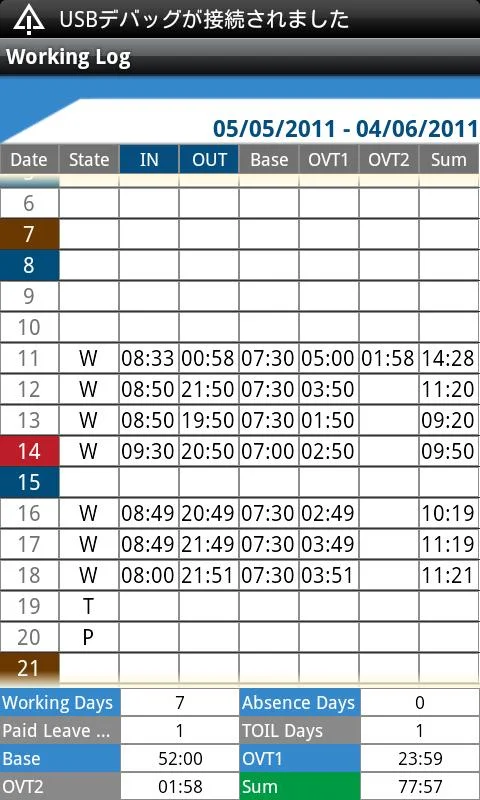
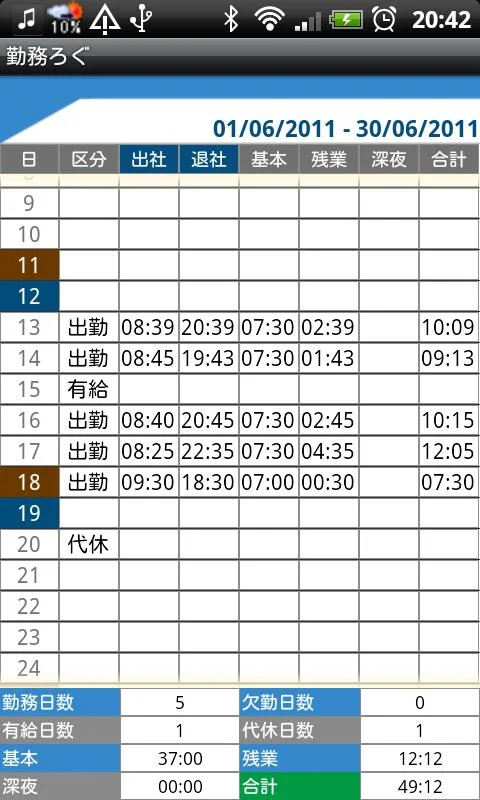
1.Tap the "Time Card" button on the calendar to access the Time Card screen. Here, you will find a list displaying Working Days, Absence Days, Paid Leave Days, TOIL Days, Base, Overtime (OVT1 & OVT2), and totals, allowing you to view attendance records at a glance.
2.Click the "Menu" button, then select the appropriate option to share the time card records via email.
*Menu Options*
1.Base Setting:Here you can create your working shift patterns and set the starting day of counting。
2.Mark:Tap "Mark" or "Mark2" → Select a mark to add to the calendar → Tap the desired date to apply the mark. The selected mark will appear on the chosen date。
*To delete a mark, select it again and tap twice.
3.Settings:Adjust the start day of the week for the calendar and more。
4.Password:Set up a password。
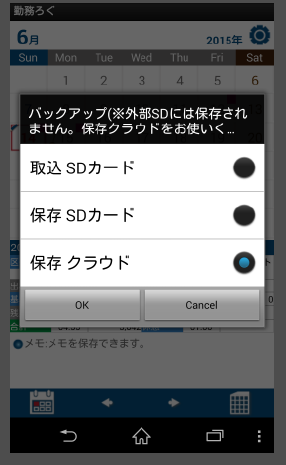
5.Backup:Save your data to an SD card。
Usage Tips:
1. Go to **Basic Settings** in the menu to create a shift (select color, fill in working hours/overtime/rest duration).
2. Click **Enter** at the bottom of the calendar, select the shift, and press the **Start/End get off work** button to record the time; select the corresponding option to request leave.
3. Click **Hourly Rates** to view the monthly summary, and select the option to share records via email.
4. You can add date stamps, set a password, and back up data using SD card. The paid version has no ads.
FAQs:
### 1. Who is this tool primarily for managing work time?
It's suitable for professionals who need to track their work schedules and calculate their hours. It's especially useful for **shift workers** (such as those in factories, restaurants, and retail). Rules can be set for different shifts, and it also helps ordinary workers clearly calculate leave and overtime without having to manually keep records.
### 2. How do shift workers set up their own shift rules?
First, go to "Basic Settings" from the menu. You can create up to three different shifts: select a unique color for each shift (for easy identification on the calendar), enter the company's normal work hours, two overtime calculation standards, and set break times (for example, enter "01:00" for a one-hour break). Save your time and select the corresponding shift when clocking in each day.
### 3. How do I record my work, leave, and overtime on a daily basis?
Click the "Enter" button at the bottom of the calendar to enter the working hours page:
- In and Out: After selecting a shift, click "In" or "Out." The system will automatically record the time. If you want to change it, click "Edit."
- Leave/Absent: Simply select "Absent," "Paid Leave," or "Toil." The calendar will automatically return to recording mode.
- Overtime: If you work more than the normal hours, the system will automatically calculate the overtime according to the pre-set overtime rules, eliminating the need for manual calculation.
### 4. How can I view and share my monthly work schedule?
Click "Time Card" in the lower left corner of the calendar to see a monthly summary: details such as the number of days worked, days off taken, and overtime worked, all clearly listed. To share, select the corresponding option in the menu and email your attendance records.
### 5. I'm worried about losing my data or having it viewed by others. Is there a solution? Can I customize the interface?
- Data Security: You can back up your attendance data to an SD card and set a password, preventing others from accessing or modifying it.
- Interface Adjustments: Go to "Settings" from the menu to change the calendar's start date (e.g., Monday as the first day of the first week). You can also add markers to your calendar—select a marker style and tap the corresponding date to add it (tap the marker twice to remove it), such as "Project Deadline" or "On Duty."
- Version1.1.92
- UpdateOct 20, 2026
- Developer株式会社GalleryApp
- CategoryBusiness
- Requires AndroidAndroid 11+
- Downloads156K+
- Package Nameinfo.androidx.workcalenf
- Signaturea0999c368a8de022ca79fb284a5b0483
- Available on
- ReportFlag as inappropriate
-
NameSizeDownload
-
17.42 MB
-
14.87 MB















Tracks hours and pay effectively.
Supports multiple jobs and tasks.
Simple interface for entering hourly rates.
Allows tracking of workout times alongside work hours.
Solid functionality for logging in and out, once figured out.
Potential for improvements based on user feedback.
Complex and difficult to navigate.
Lacks overtime calculation after standard hours.
Cannot log more than one time entry per day.
Missing features like leave records and weekly totals.
Poor support for shift workers with varying schedules.
Confusing setup process and unclear instructions.
Prone to technical issues such as force closing.