How to Make a TikTok with Photos and Videos?
For some reason, TikTok automatically applies a bunch of effects and transitions when you try to merge photos and videos using its built-in upload feature and editor. Follow this step-by-step guide to craft a stunning TikTok with photos and video clips, skipping that odd zoom effect entirely.
- Author: Shine
- Update: May 26, 2025

How to Make a Montage TikTok with Pictures and Videos
In this tutorial, I'll be utilizing Kapwing, a browser - based video editor. You're able to use Kapwing on your iPhone, Android device, PC, or tablet through a Chrome or Safari browser.
Step 1: Upload Your Media to Kapwing
Go to Kapwing.com and click "Get Started." I’m using a laptop with Chrome for this tutorial, but you can use any device (phone, tablet, PC) and browser (Chrome, Safari, Firefox) that supports Kapwing.
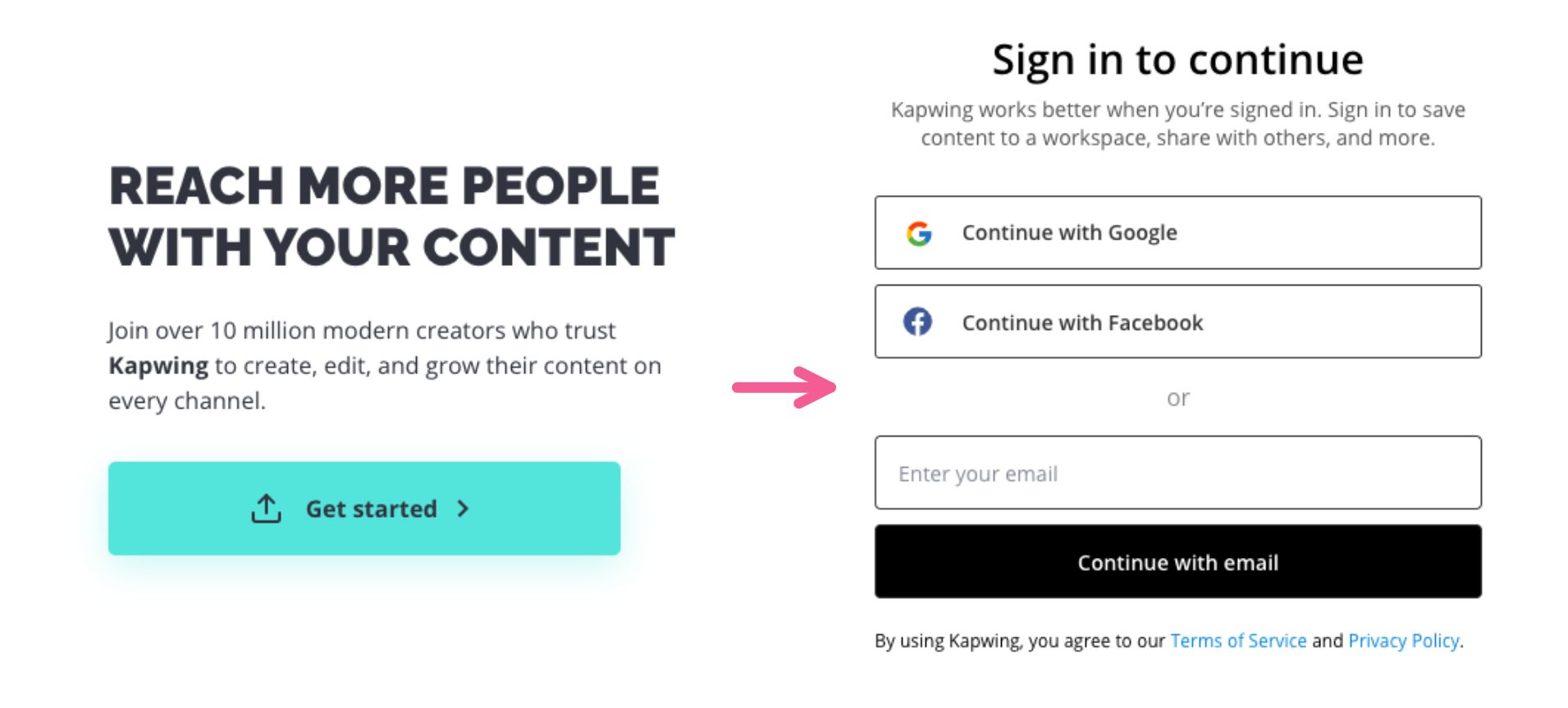
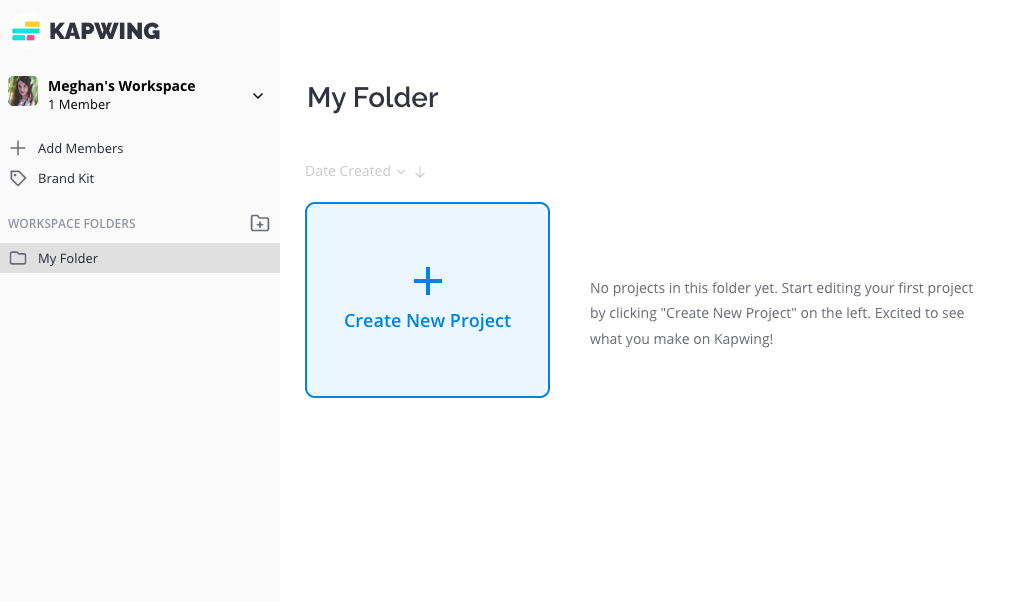
You'll be asked to sign in to proceed, after which you'll be directed to your personal workspace. Click "Create New Project" to launch the editor and begin crafting your video.
When you open your new project, you’ll see the upload screen. Since you’re creating content for TikTok, select the 9:16 TikTok/Instagram Story option under the Start with a blank canvas header. This aspect ratio is optimized for TikTok’s vertical feed, ensuring your video looks perfect when published.
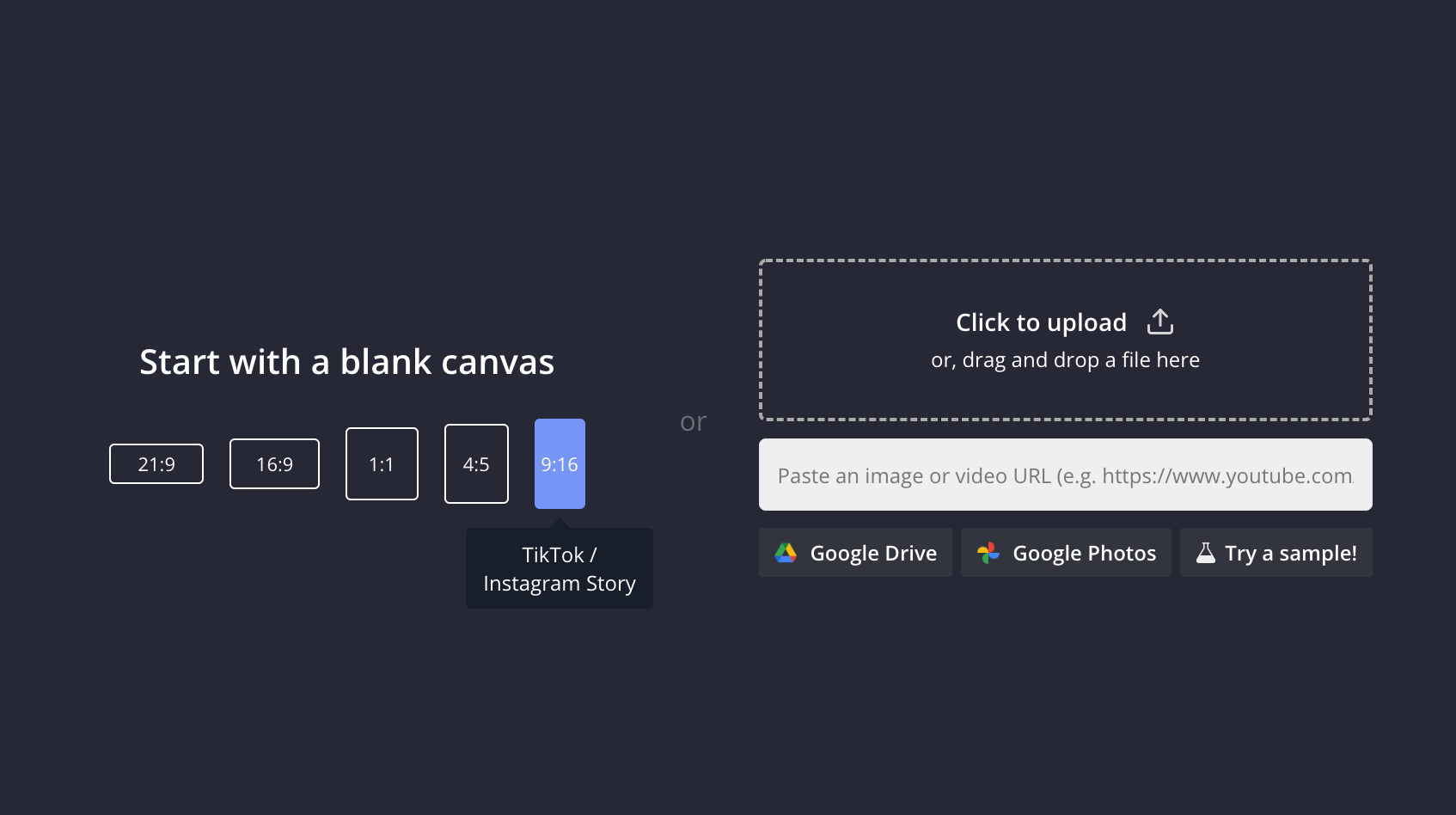
Now it’s time to upload your media files. You can either drag and drop your videos and photos directly into the studio, paste a URL to import content from the web, or use the "Click to upload" button to select files from your device. This flexibility allows you to seamlessly add content from multiple sources.
Step 2: Arrange and Edit Your Photos and Video Clips
Start adding your images and videos to the canvas. Click the plus button to automatically center the media on the blank canvas.

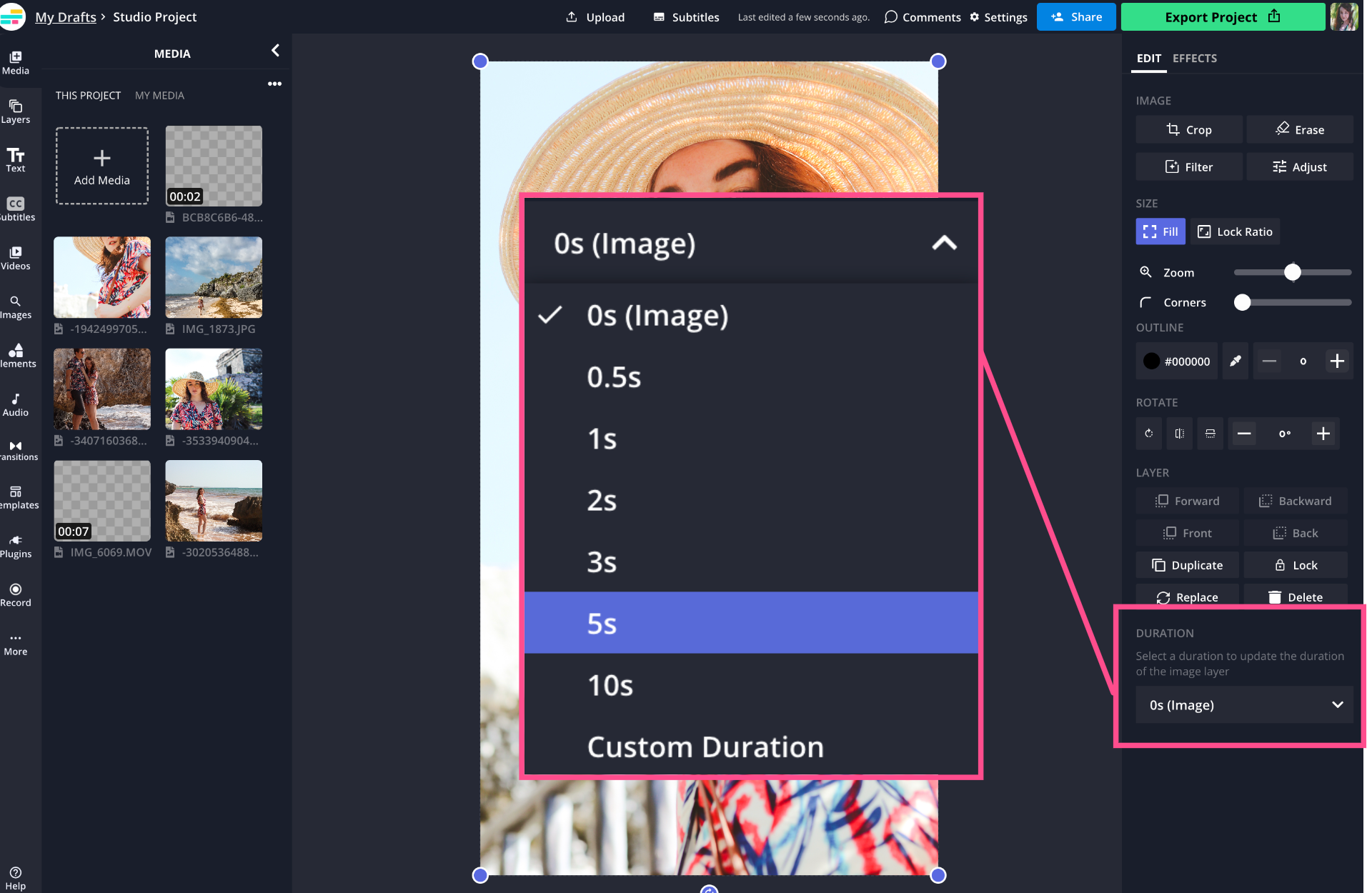
If the first clip in your TikTok is a photo, click Duration in the Edit menu on the right to convert the photo into a video clip. You can select one of the preset durations or enter a custom time length.
Step 4: Arrange Your Clips on the Timeline
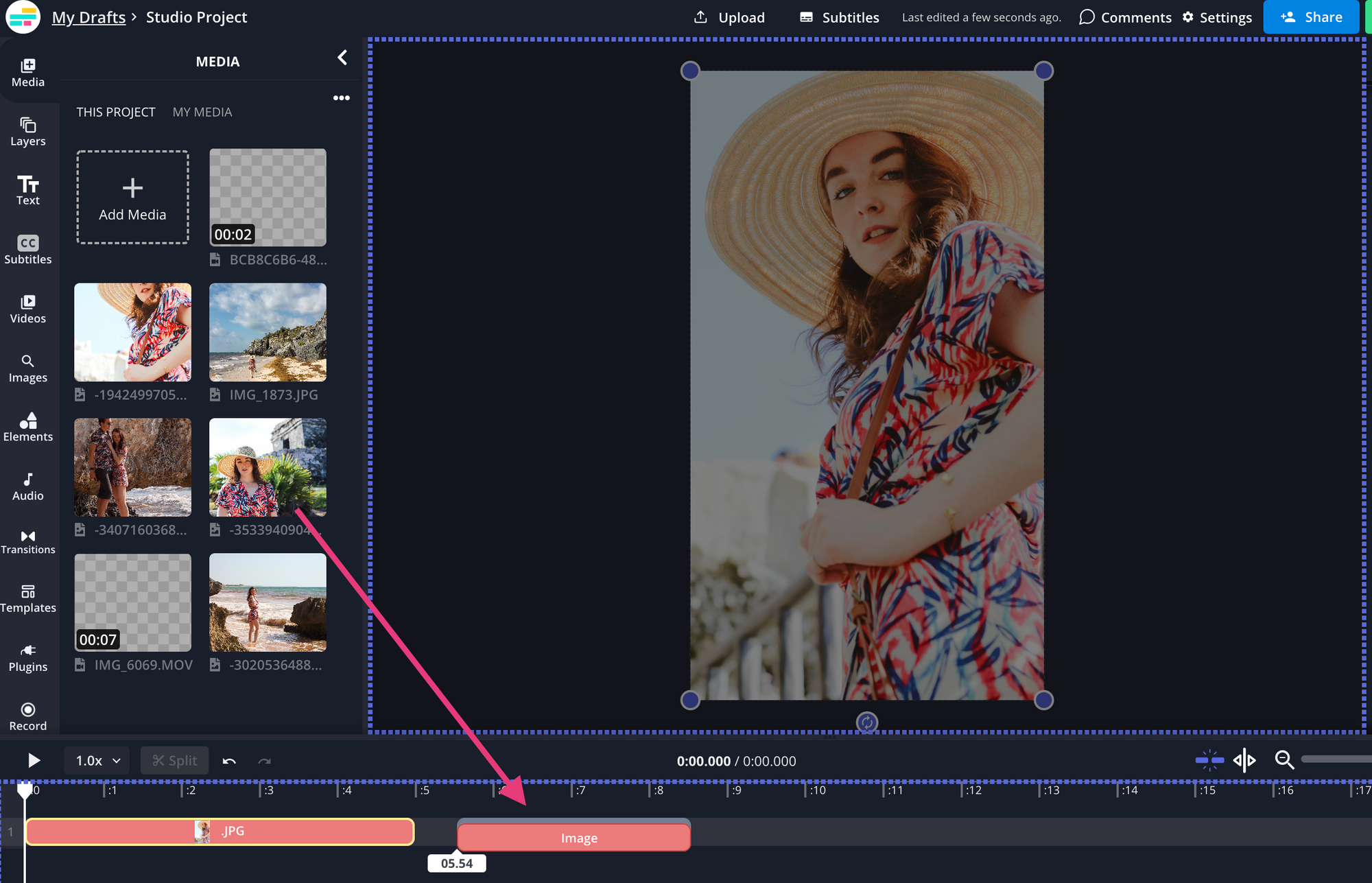
After uploading, the timeline will automatically appear at the bottom of the editor. Drag and drop your remaining photos and videos onto the timeline in your desired sequence. The first clip you added will already be in place—simply build out your story from there!
The native aspect ratio for TikTok videos is 9:16, but don’t worry if your photos aren’t already sized to this dimension. Here are three ways to adjust them:
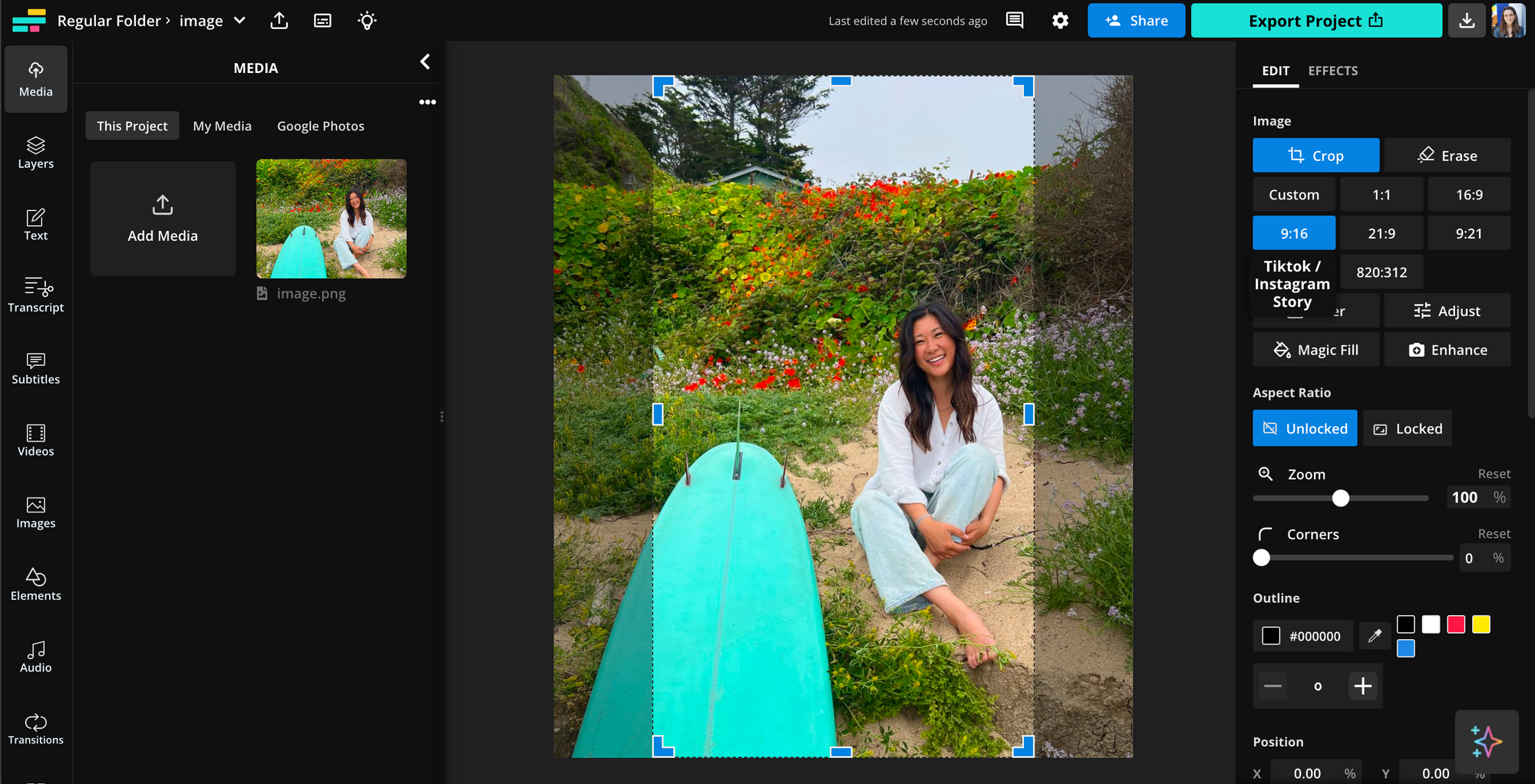
Crop your media to 9:16. Use the cropping tool in the right-side menu (or double-click the image), then select the 9:16 preset (labeled for TikTok/Instagram Stories) to ensure a perfect fit.
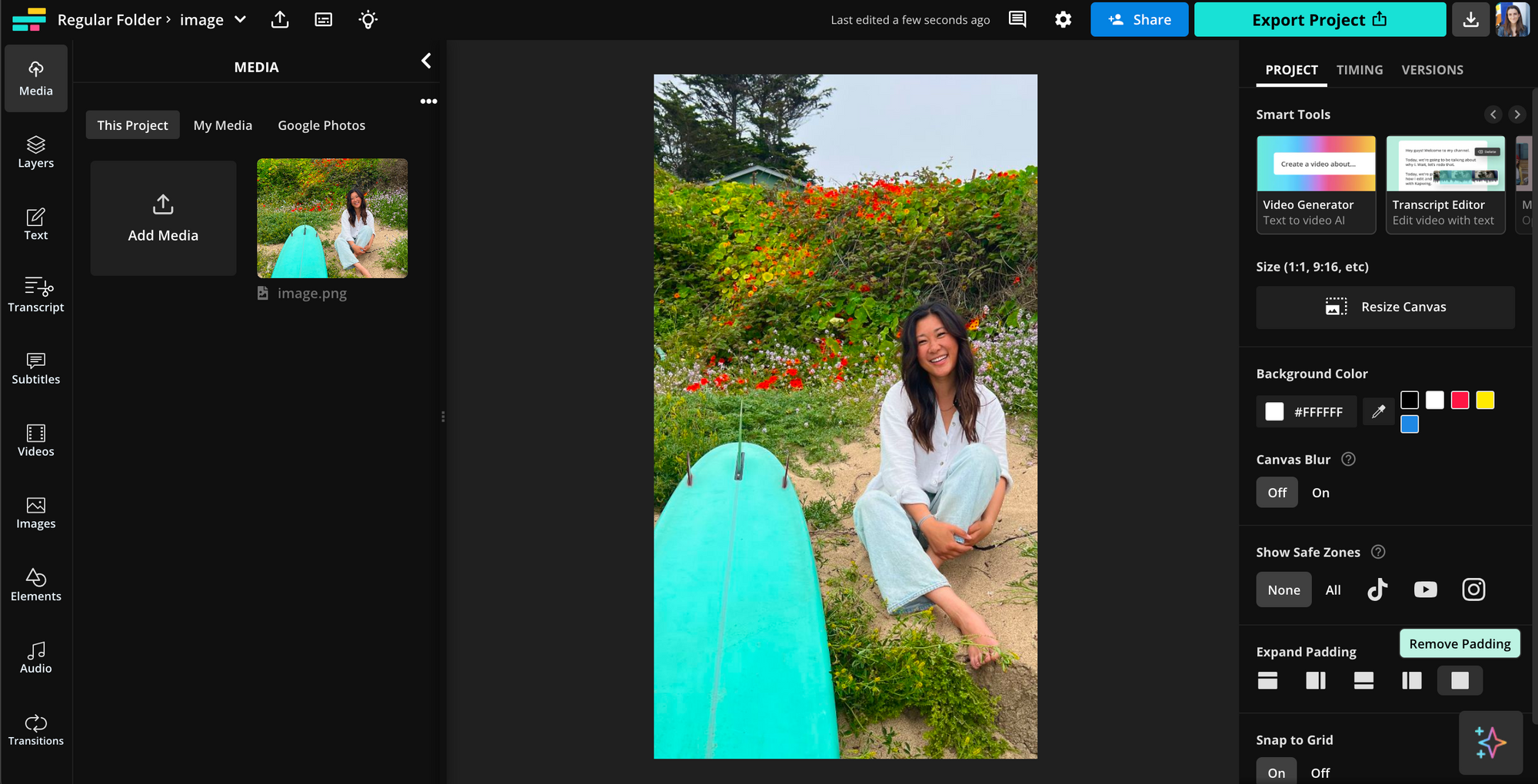
Then, remove the extra padding by clicking the "Remove padding" button.
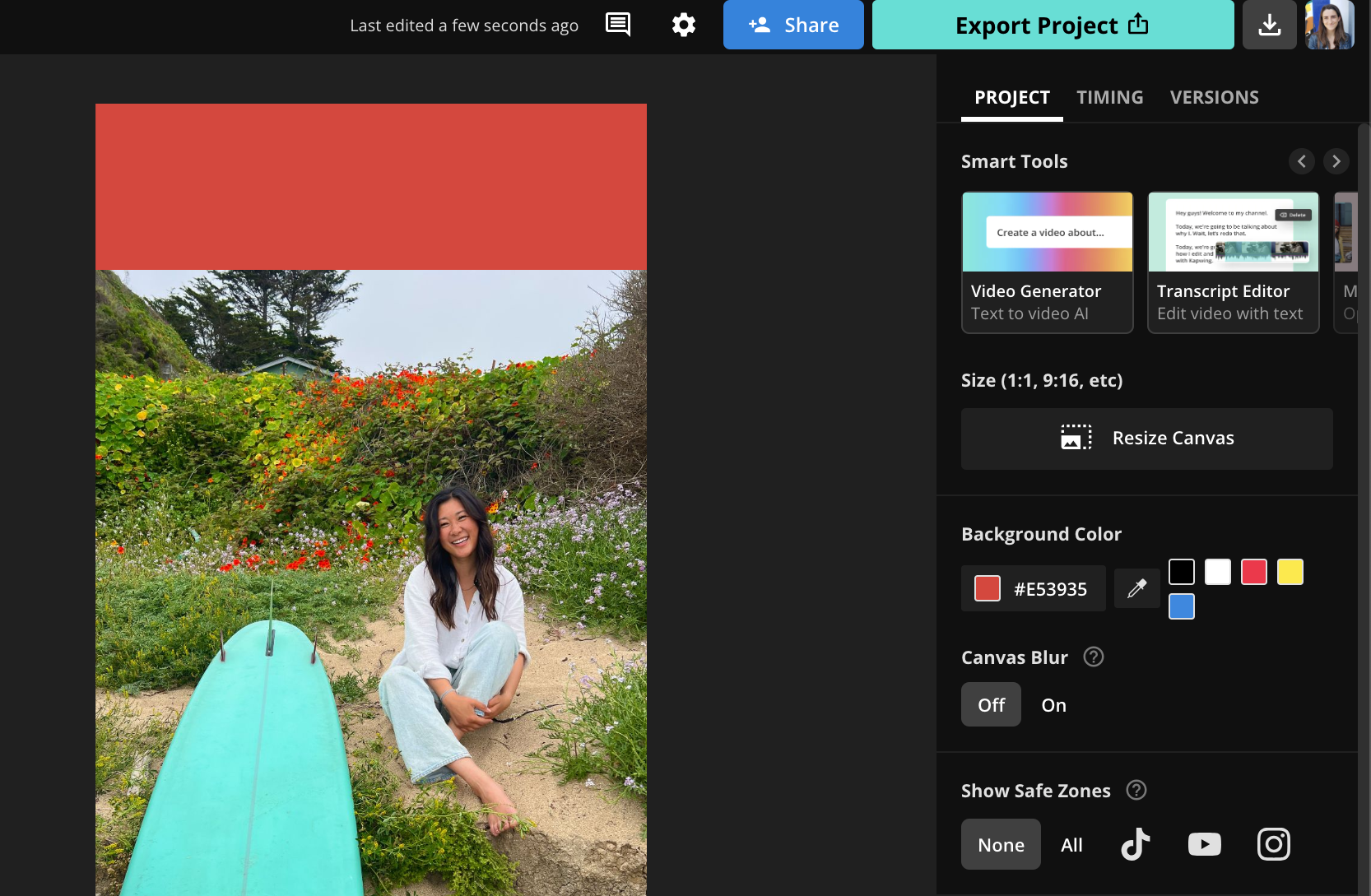
Add a colored background. Prefer not to crop your media? Keep the canvas’s default white background or customize it with a color of your choice. Here’s how:
With the canvas selected, go to Background Color in the right-side menu.
Pick a preset color, use the eyedropper tool to match a shade from your image, or open the HEX code editor to select a gradient or enter a specific HEX color code.
This keeps your original media intact while ensuring the 9:16 aspect ratio!
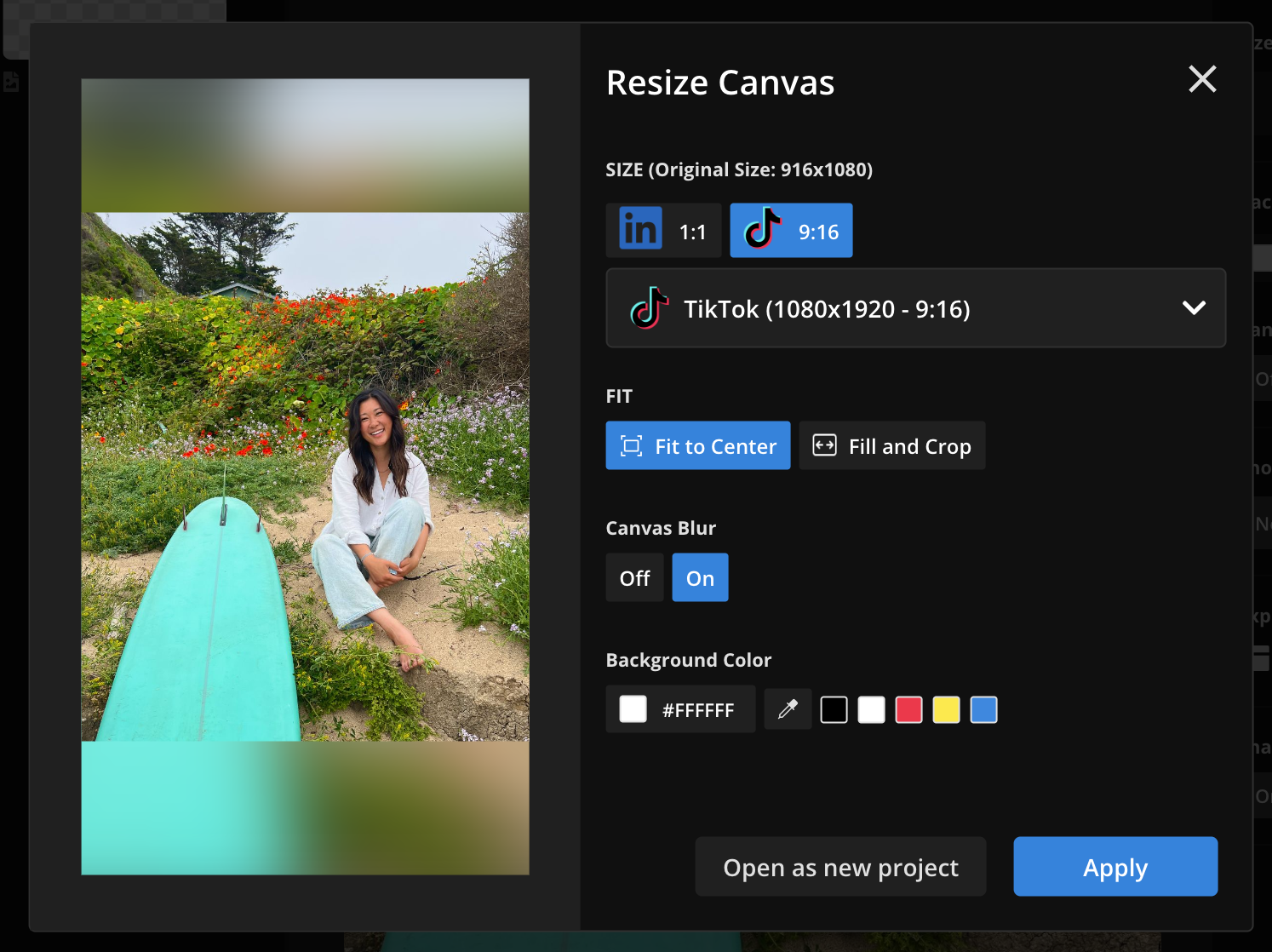
Add a blurred background. For another seamless option, you can apply a blurred background to your media. Here’s how:
With the canvas selected, toggle on Canvas Blur in the right-side menu.
The area around your photo or video will automatically become a blurred version of the media itself, creating a polished, cohesive look that fits the 9:16 aspect ratio without cropping.
At this stage, all your images and video clips should be properly sequenced and resized according to your preferences. You can finalize the project as is, or enhance it further by adding transitions between clips and incorporating text layers.
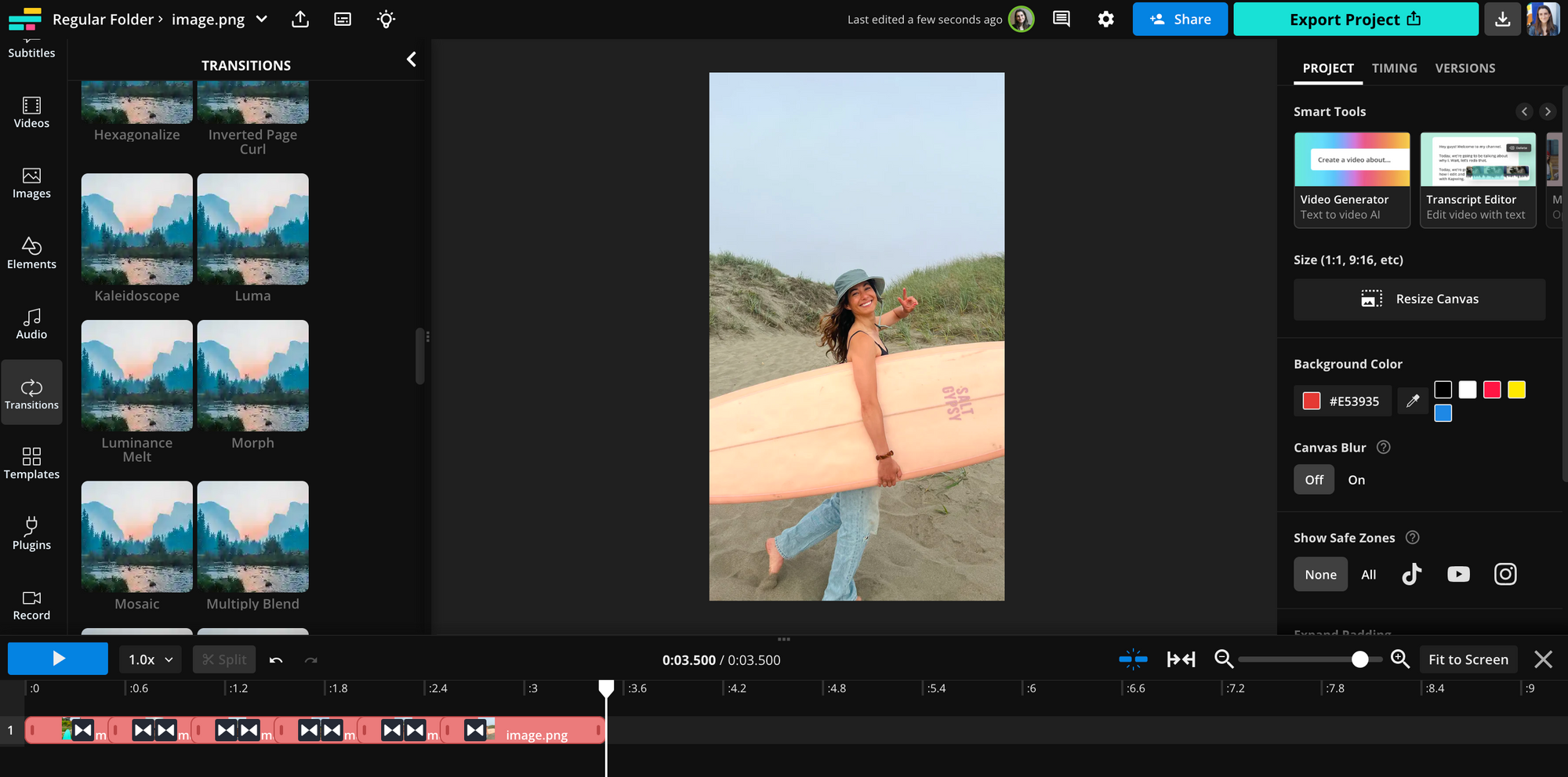
To insert transitions between clips, first select an image or video clip. Then, access the Transitions Library by clicking on the Transitions tab in the left - hand menu. Simply drag and drop your desired transition onto the Timeline to apply it between the selected clip and the adjacent one.
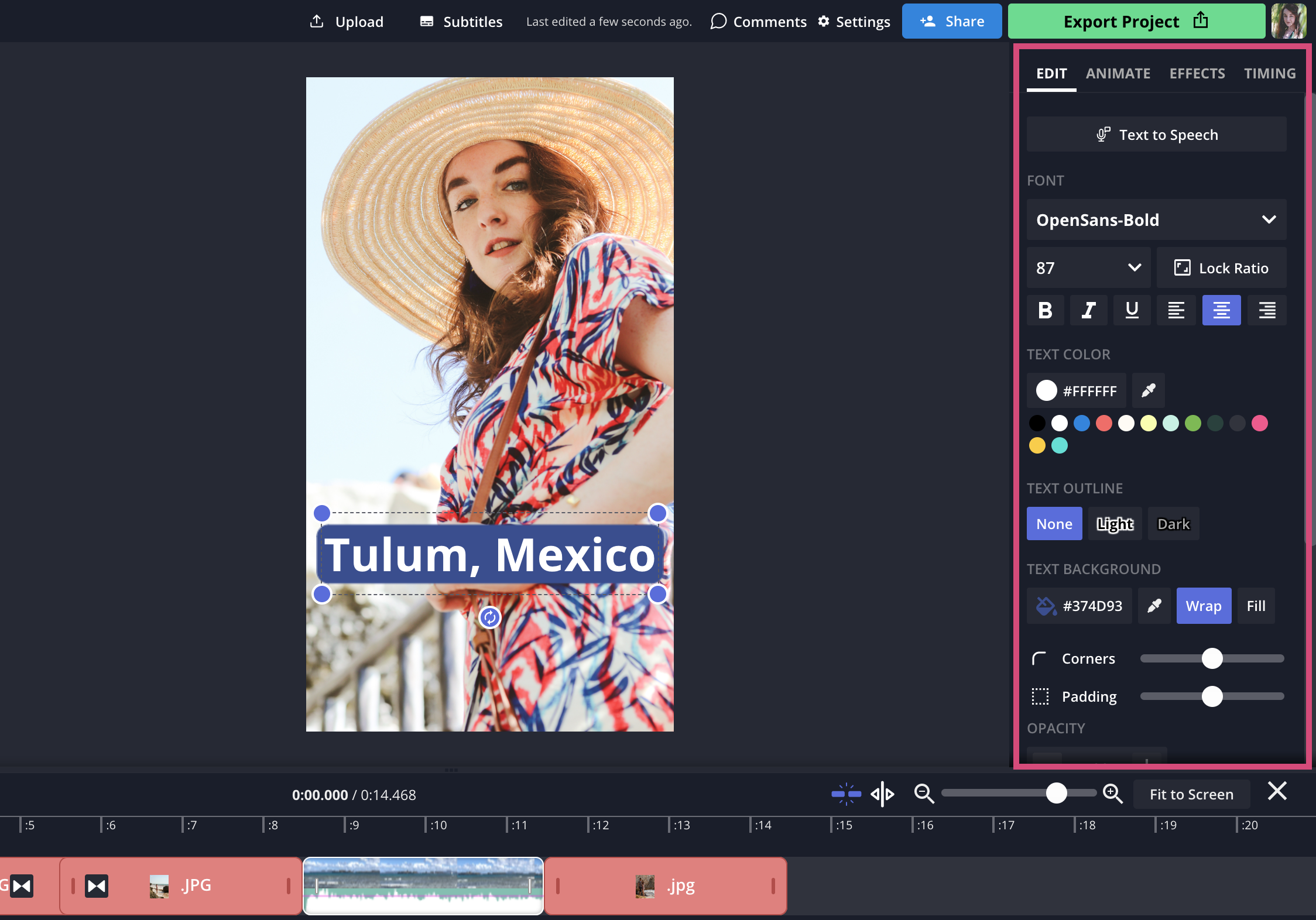
To incorporate text into your project, click on the Text tab located on the left side of the editor to open the Text menu. Once you've added your text, you can customize its appearance by adjusting the font, color, and background style using the options available in the right side menu.
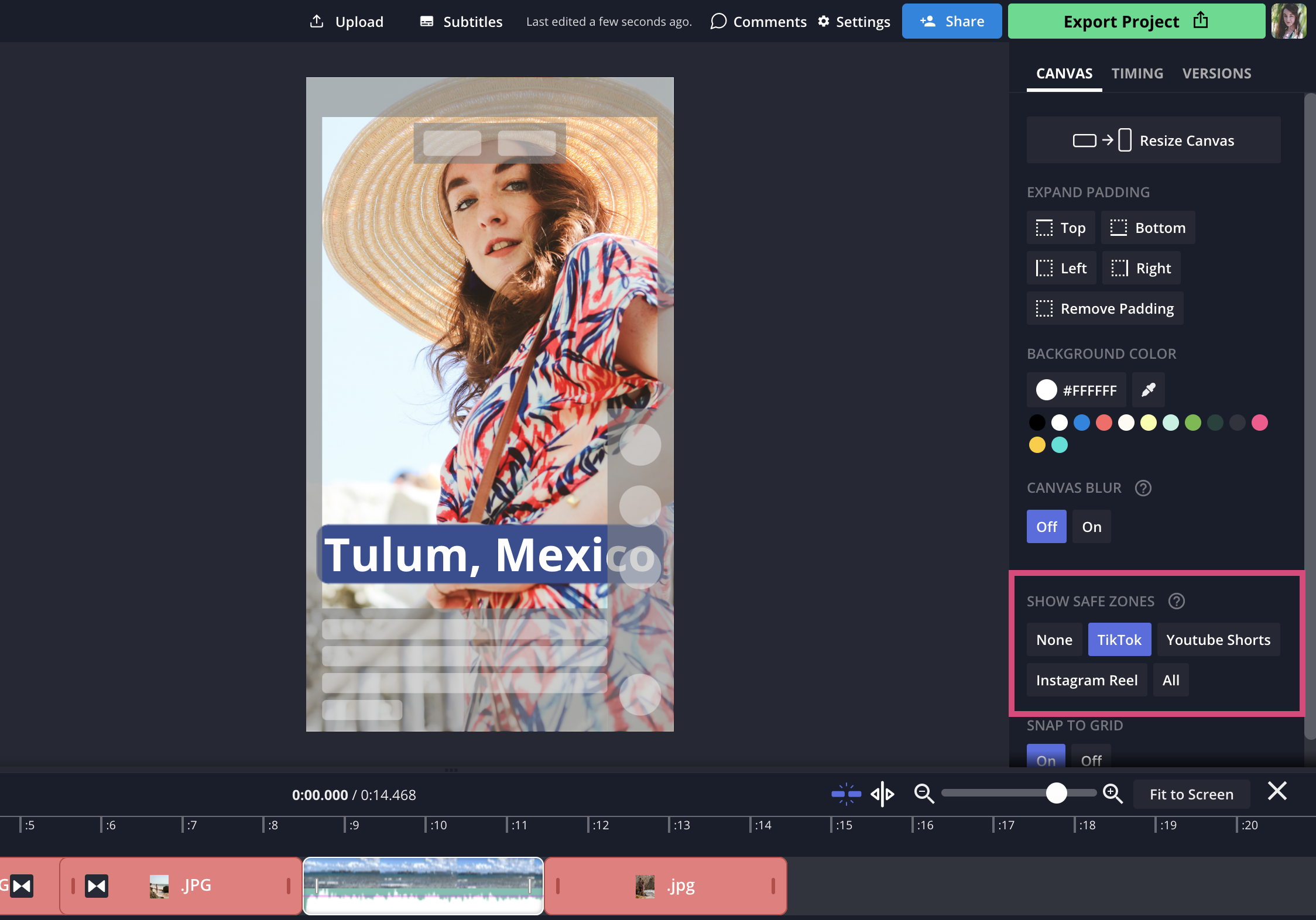
I also recommend using the Safe Zones filter to make sure that your text (or other elements) will be visible when you upload your video to TikTok. It will lay a filter over your project, showing where the UI elements will be in your published video — things like username and caption, side bar buttons, etc.
Step 3: Export, Download, and Share Your Video
Once you’re satisfied with your edits, it’s time to export your video.
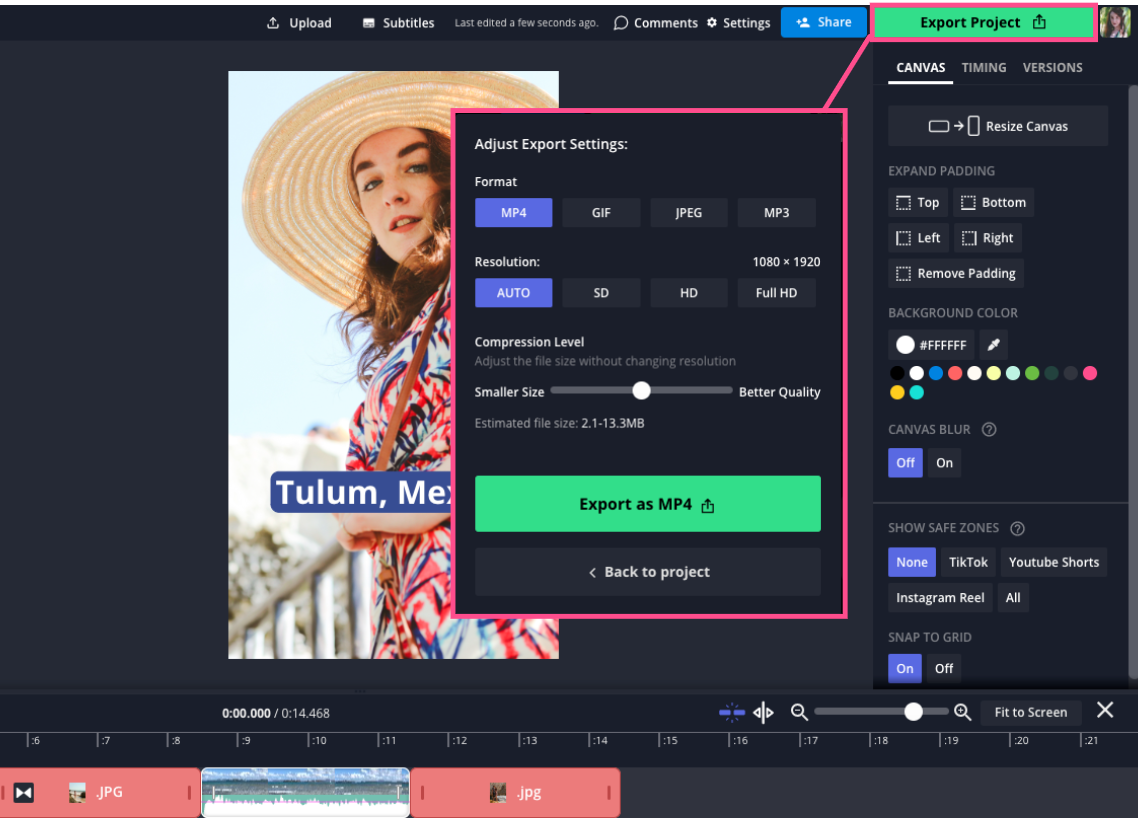
Click the Export Project button in the top-right corner of the editor. Select your preferred file format (typically MP4) and resolution settings (e.g., 1080p for high quality), then click Export to start the rendering process.
Once your video has finished exporting, the Download button will appear. Click it to save the video directly to your device, or use the sharing options on the download screen to post it directly to TikTok, Instagram, or other social platforms.
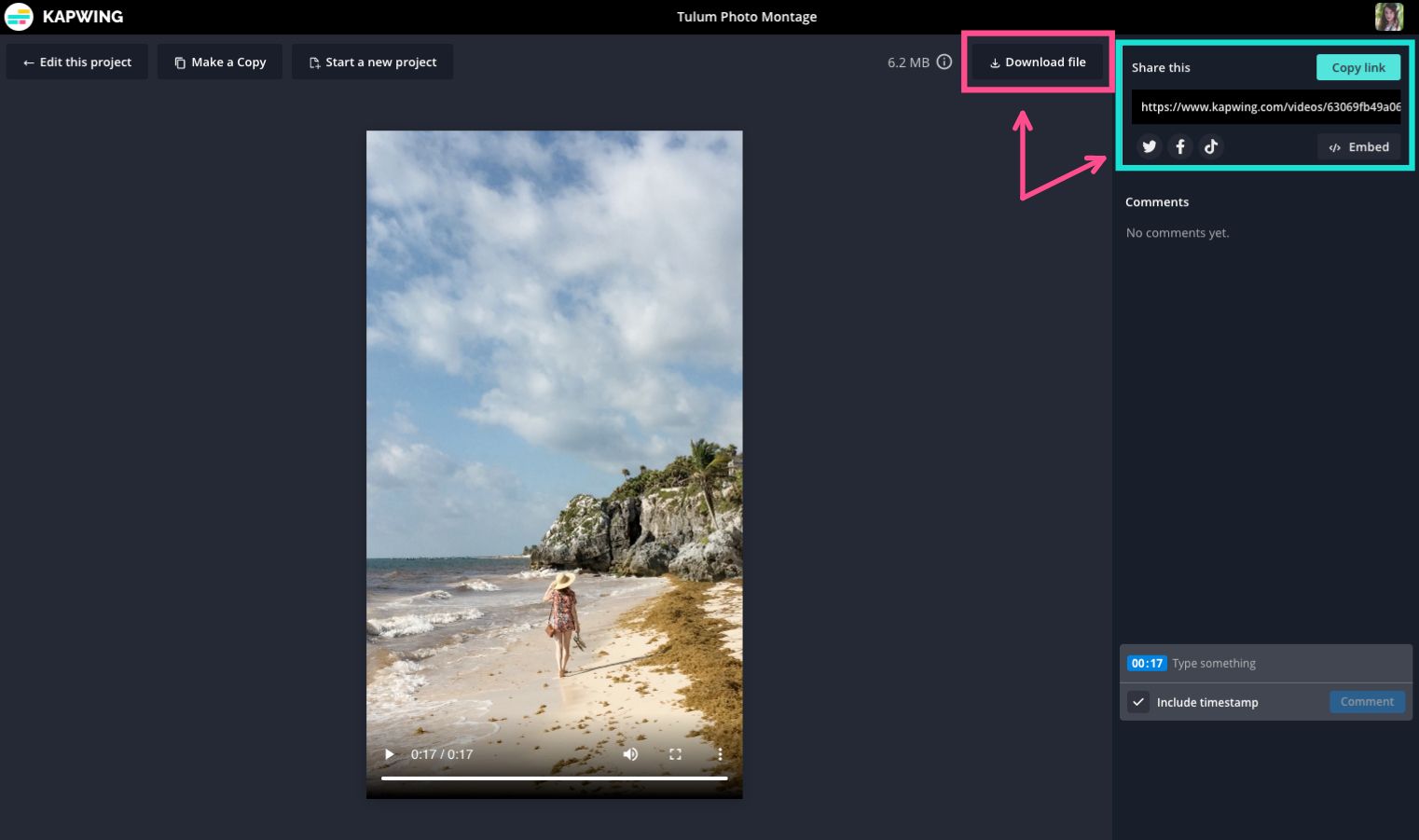
Once downloaded, copy the generated URL to share your video via link, or click the corresponding icon to post directly to TikTok. You can also share from the TikTok app itself—this is my top recommendation if you want to add trending audio, captions, hashtags, or tag other creators.
And that’s a wrap! Now, sit back and watch the likes roll in on your newly shared TikTok. This method is perfect for creating dynamic slideshows, just like this TikTok photography montage from Peach Surf Co.
For more TikTok tips, check out the related articles below. Subscribe to our YouTube channel for the latest trends, and follow us on Twitter to share questions or comments directly.