How to Install Minecraft Resource Packs?
There are literally thousands upon thousands of Minecraft resource packs available out there for players to carefully choose from. Each of these packs has the potential to introduce a vast array of unique and exciting features, making the gameplay experience almost limitless in terms of creativity and customization. Whether you want to transform the look of the game world, change the appearance of items and mobs, or add new textures and visual effects, there's a resource pack out there for you. In this guide, we'll walk you through the detailed steps on exactly how to add these amazing resource packs to both Minecraft Java and Bedrock editions, ensuring that you can start enjoying the enhanced gameplay right away.
- Author: Shine
- Update: Feb 26, 2025

What Do Minecraft Resource Packs Entail?
Similar to Minecraft mods, resource packs modify specific in-game features to enhance the player's experience.
Here are some examples of resource packs and their effects:
OCD Resource Pack: This pack improves graphics by removing harsh colors and noise, providing a smoother visual experience.
RealStuff64: It enhances the graphics to make them appear more realistic, offering a detailed and immersive environment.
NatureCraft HD Realism: This pack transforms the game's graphics into a nature-inspired style, blending natural elements with Minecraft's blocky world.
FeatherSong: It changes the graphics to a whimsical, medieval style, adding a fantastical touch to the game.
No Menu Click: This pack removes the sound effect associated with clicking on menus, providing a quieter gameplay experience.
No God No: It gives your character the voice of Michael Scott from The Office, adding a humorous twist to the game.
Queen Sound: This pack allows players to listen to songs by Queen while playing, enhancing the game's audio with iconic music.
Where to Find Minecraft Resource Packs
Resource packs are created by Minecraft enthusiasts who wish to share their customizations with other players. You can easily discover these packs through a quick Google search or by visiting fan sites such as ResourcePacks.net, MinecraftTexturePacks, and CurseForge. These platforms offer a wide variety of resource packs, allowing you to explore different styles and themes to enhance your Minecraft experience.
In the earlier iterations of Minecraft, resource packs were known as texture packs. It's important to note that you are only able to incorporate those older texture packs into your game provided that they are compatible with the specific edition of Minecraft that you are currently playing.
The Process of Installing Resource Packs in Minecraft Java Edition
Once you've identified a resource pack that matches the edition (Java or Bedrock) and version of Minecraft you are playing, you can proceed to add it to your game. This ensures compatibility and a smooth installation process.
1.Download the resource pack onto your computer. When you do so, the resource pack will be saved as a ZIP file on your computer.
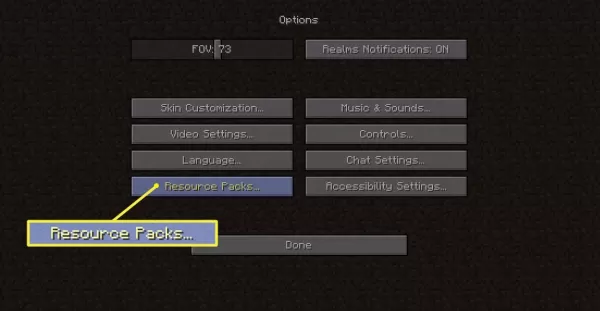
2.Once you are at the Minecraft menu screen, navigate to the "Options" section and then select "Resource Packs" from the available options.
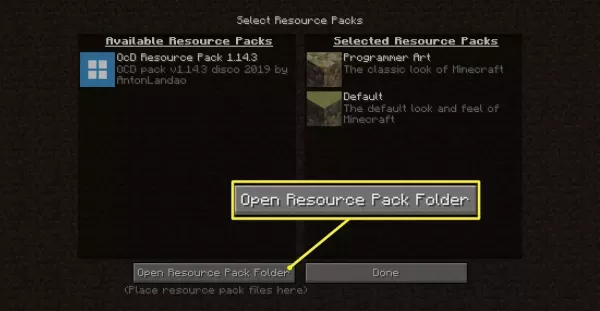
3.Drag the downloaded file (which should remain in its original format, such as .zip for Java Edition or .mcpack for Bedrock Edition) from your computer into the "Available Resource Packs" section within Minecraft. This action will add the pack to your list of available packs, allowing you to activate it for use in the game.
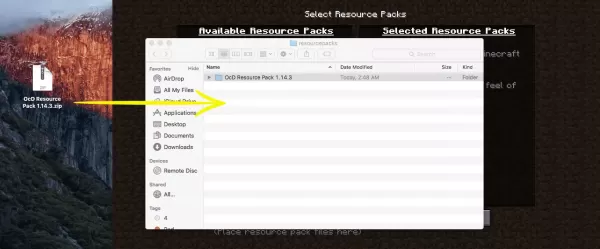
4.The freshly downloaded resource pack ought to show up within the menu. Click on "Open Resource Pack Folder" and proceed to move the resource pack file into the appropriate location within that folder to make the pack active and ready for use in the game.
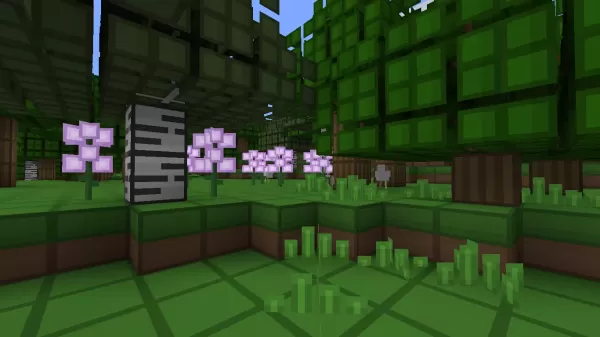
5.Your Minecraft world will now display the changes brought about by the new resource. As an illustration, this is what Minecraft appears like after the installation of the OCD pack.
How Can You Alternate Between Different Minecraft Versions
If you are engaged in playing the Java edition of Minecraft, you have the ability to switch among different previous versions of the game. By doing so, you will be able to make use of and enjoy the older resource packs that are compatible with those specific versions.
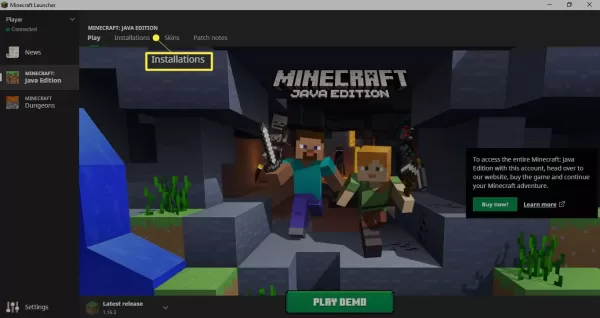
1.Launch the Minecraft Launcher and then click on the "Installations" option.
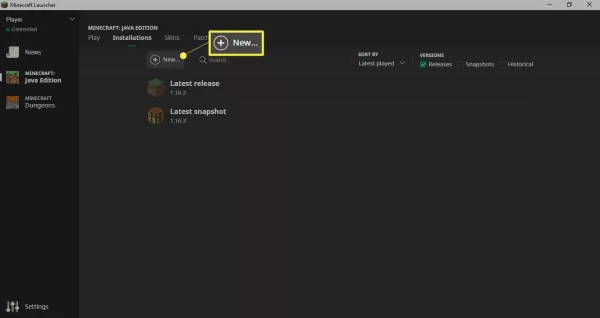
2.Click on the "New" button in order to initiate the creation of a fresh Minecraft installation.
3.Click on the drop-down menu labeled "Version".
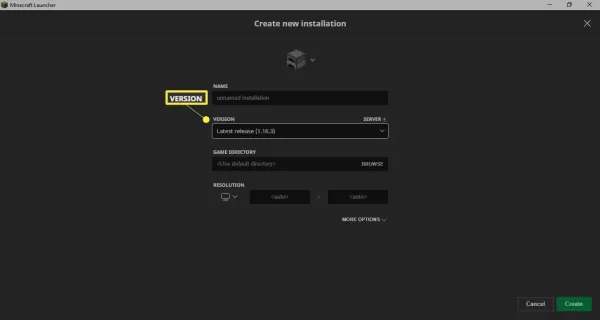
4.Choose the specific version of Minecraft that you wish to engage with.
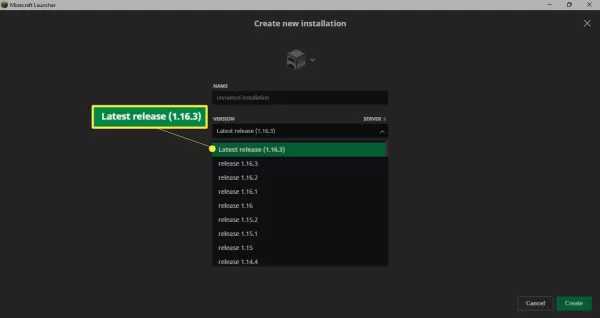
5.Select Create.
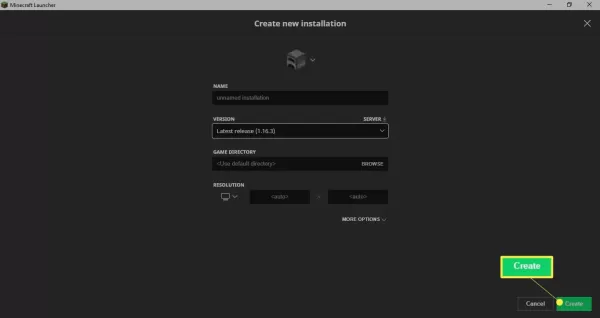
You can now install resource packs by following the steps outlined above. Once installed, you can select this new setup anytime you wish to play a different version of Minecraft, allowing you to switch between various customized experiences easily.
The Process of Installing a Resource Pack in Minecraft Bedrock Edition
Adhere to the steps provided below in order to install and enable resource packs for the Minecraft Bedrock edition.
1.Download the resource pack and then open the file with the mcpack extension. This file will seamlessly import itself into Minecraft without the need for any additional manual intervention.
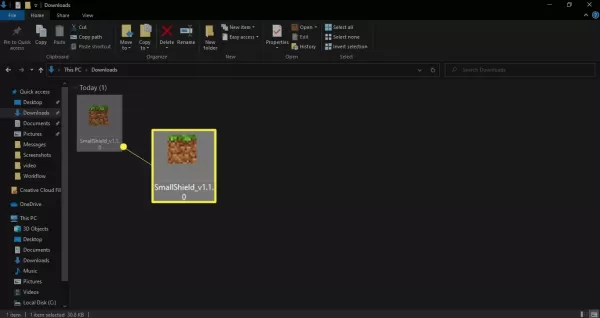
2.If Minecraft doesn't launch automatically, start the game. Then, once it's open, click on the "Settings" option.
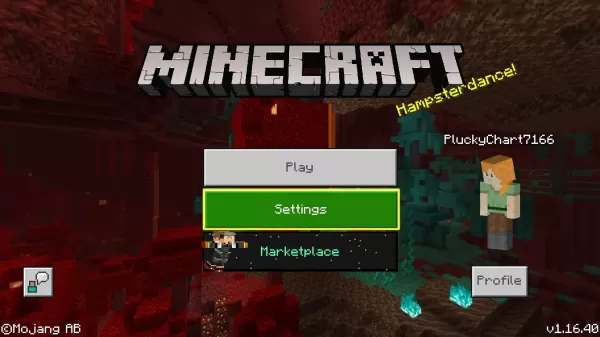
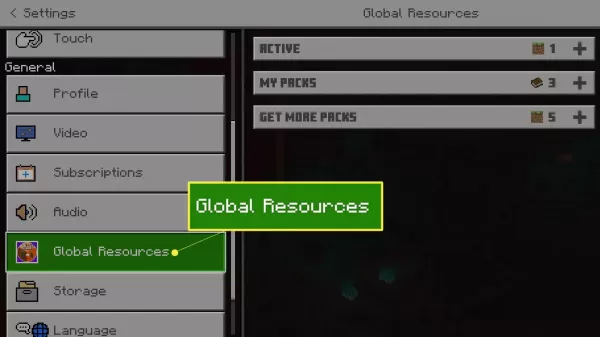
3.Click on "Global Resources" which is located in the left-hand pane.
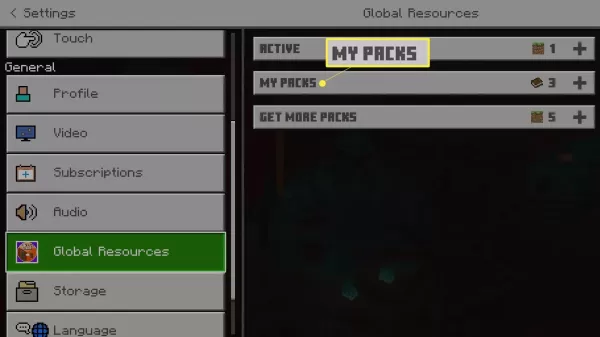
4.Click on "My Packs".
5.Choose the resource pack that you desire to activate.
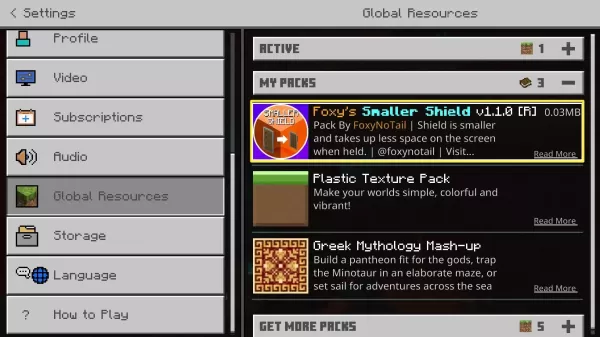
6.Click on the "Activate" option.
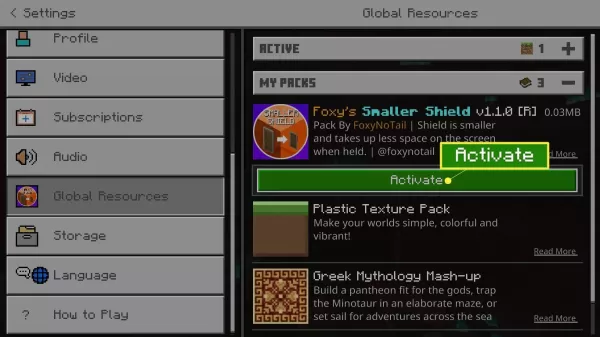
7.The pack will now show up in the "Active" tab. Subsequently, the resource pack will be implemented across all of your Minecraft worlds.
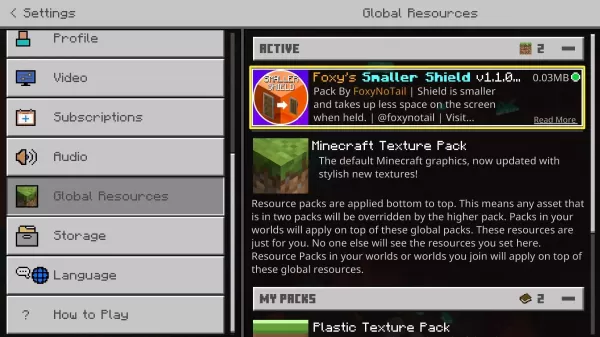
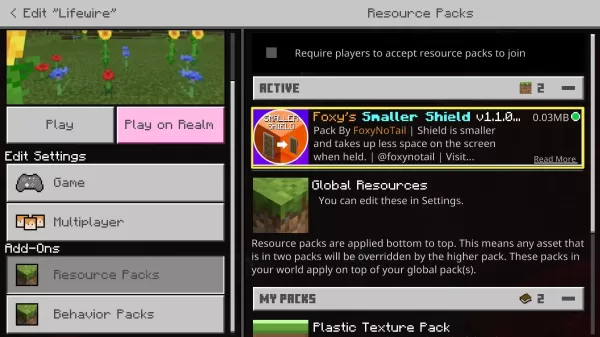
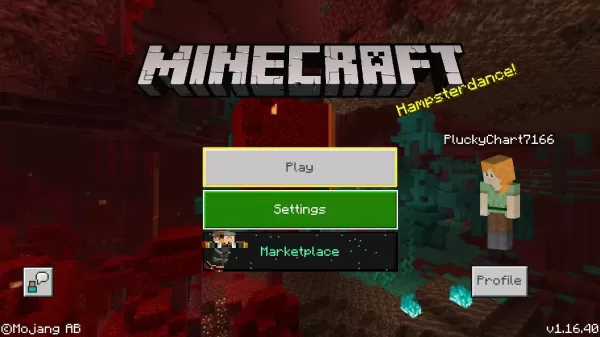
8.In case you wish to enable extra resource packs for a particular Minecraft world of yours, or if your intention is to apply resource packs solely to a specific world, click on the "Play" option located on the main menu.
9.Click on the pencil-shaped icon that is adjacent to your Minecraft world.
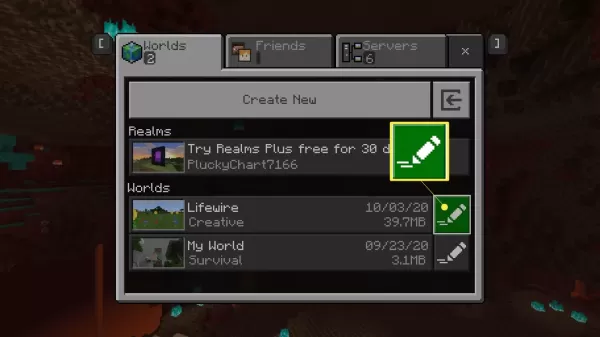
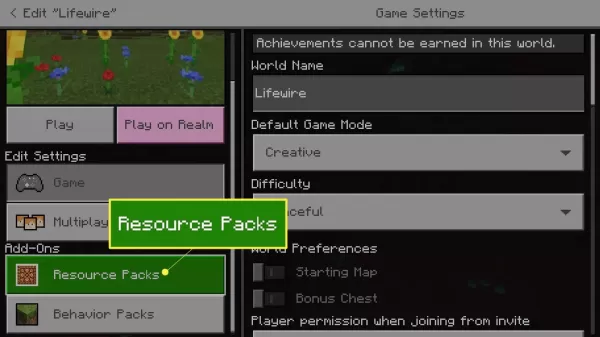
10.Click on "Resource Packs" which is situated in the left panel.
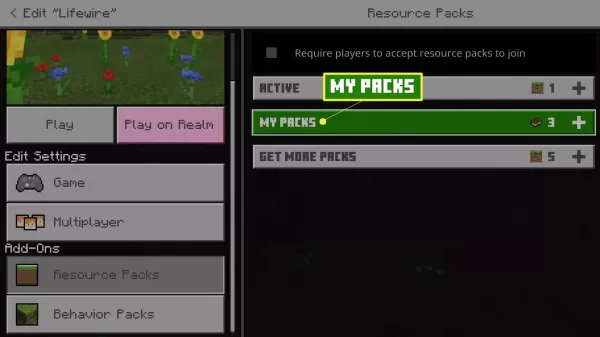
11.Tap on "My Packs".
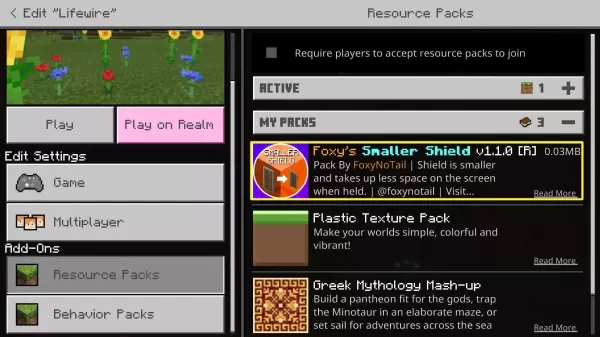
12.Pick out the resource pack that you are eager to turn on.
13.Hit the "Activate" button.
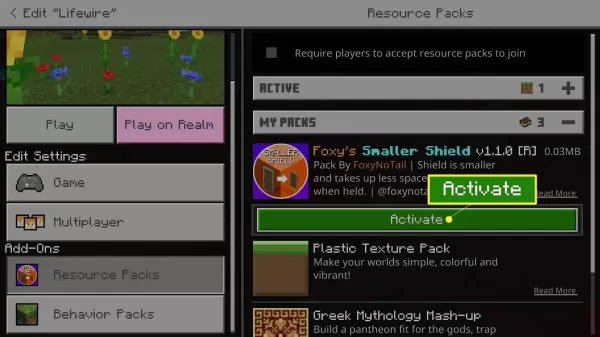
14.The pack will show up within the "Active" tab and will be implemented for your specific Minecraft world.