How to download YouTube videos?
Knowing how to download YouTube videos is useful in various situations, like traveling without internet or saving data by downloading over Wi-Fi.Downloading videos means no more buffering due to network problems. While YouTube Premium offers offline viewing, some users prefer other methods.Notably, YouTube has lifesaving videos, so offline access is important. For those worried about privacy or regional restrictions, a YouTube VPN could be a solution.
- Author: Shine
- Update: Mar 10, 2025

Ways to download YouTube videos on iPhone

Video-sharing platform for watching, sharing, and creating content.
Downloading YouTube videos on iPhones and iPads is somewhat challenging because Apple strictly regulates the apps in its App Store. Jailbreaking the device provides more possibilities, but if you don't wish to take that step, here is the most optimal and simplest method.
1.First, download the Documents by Readdle app and open it.
2.Next, click on the compass - shaped icon within the app. This will launch the built - in web browser. Then, navigate to the website www.videosolo.com/online - video - downloader/.
3.Once on the website, copy a YouTube video link. Paste this link into the provided text box and tap the 'Download' button. Shortly after, the video will be decoded, and a list of various output format and quality choices will be generated.
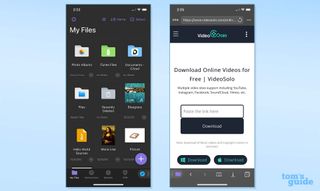
4.Click on the “Download” button corresponding to the desired output option.
5.Input a name for the video and select the download location.
6.Click on the “Downloads” tab in the bottom navigation bar of the Documents app to view the videos you have downloaded.
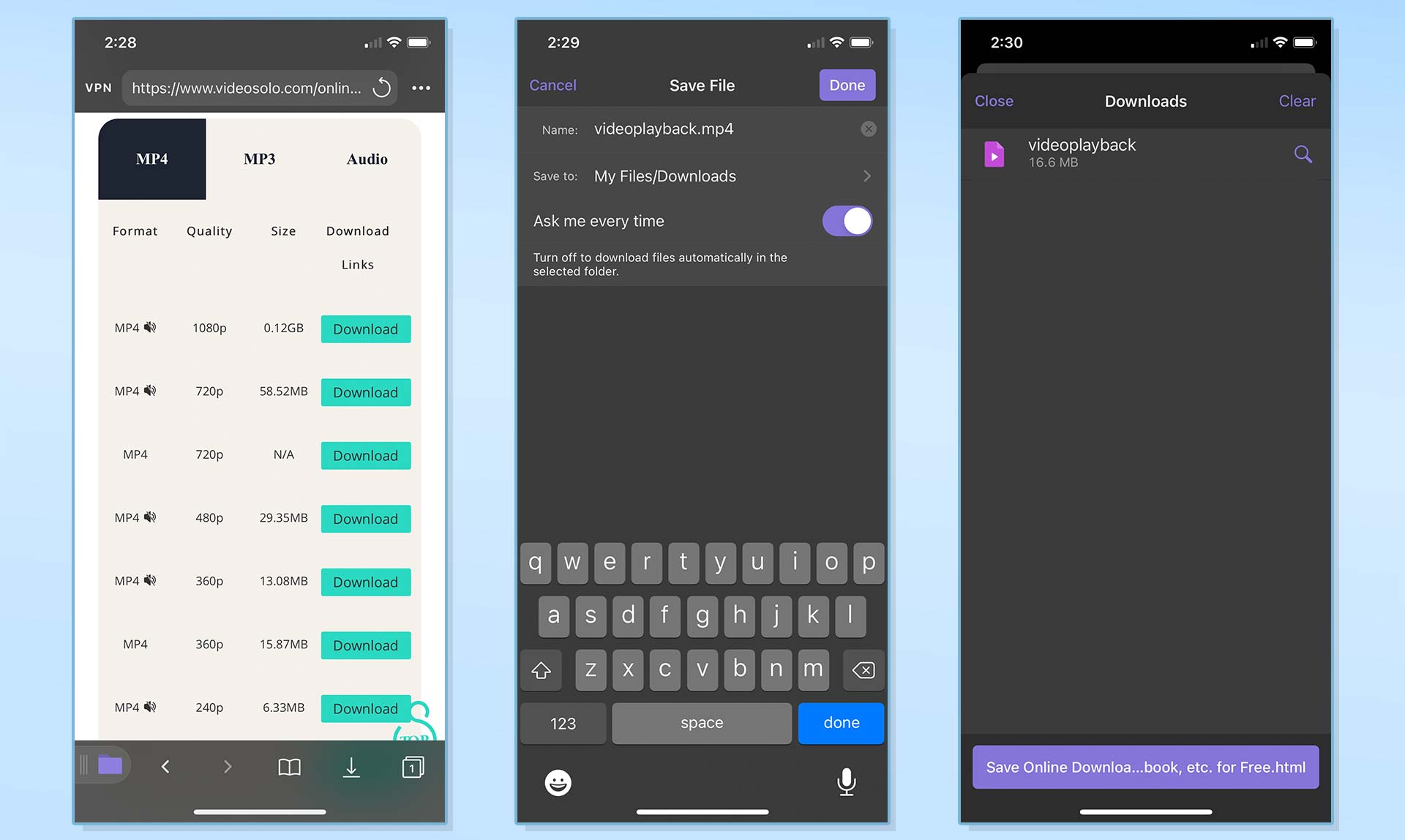
7.To transfer your downloaded videos to the internal storage of your iPhone or iPad, return to the home screen of the Documents app and open the Downloads folder.
8.Locate the specific video you wish to save. Then, tap on the three - dot icon adjacent to it.
9.Select the “Share” option and subsequently choose “Save Video”.
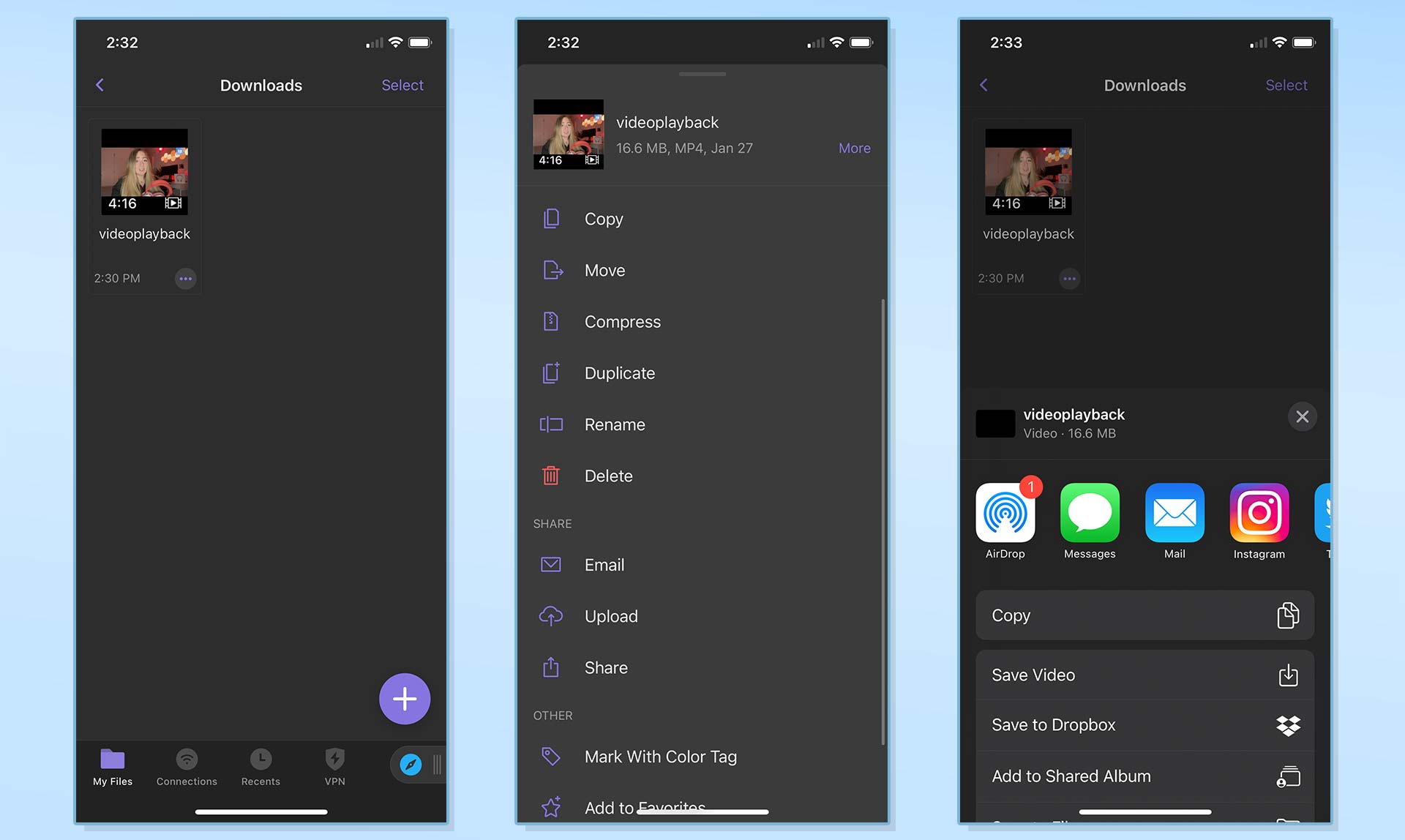
10.Launch the iOS Photos application, and you will be able to find your video within it.
The way to download YouTube videos on Android
It is not feasible to download YouTube videos using an Android app from the Google Play store. This is because Google has imposed a prohibition on such video downloading tools.
Nevertheless, you are able to obtain a YouTube downloader for your smartphone or tablet. The way is to install an APK file that comes from sources outside of the Google Play store. A prime example of such a reliable option is TubeMate, which we highly recommend. Below are the steps on how to make use of it.
1.Download and install TubeMate on your Android phone. You might have to adjust your security settings.
2.Launch TubeMate and search for a YouTube video.
3.Click on the green “Download” button.
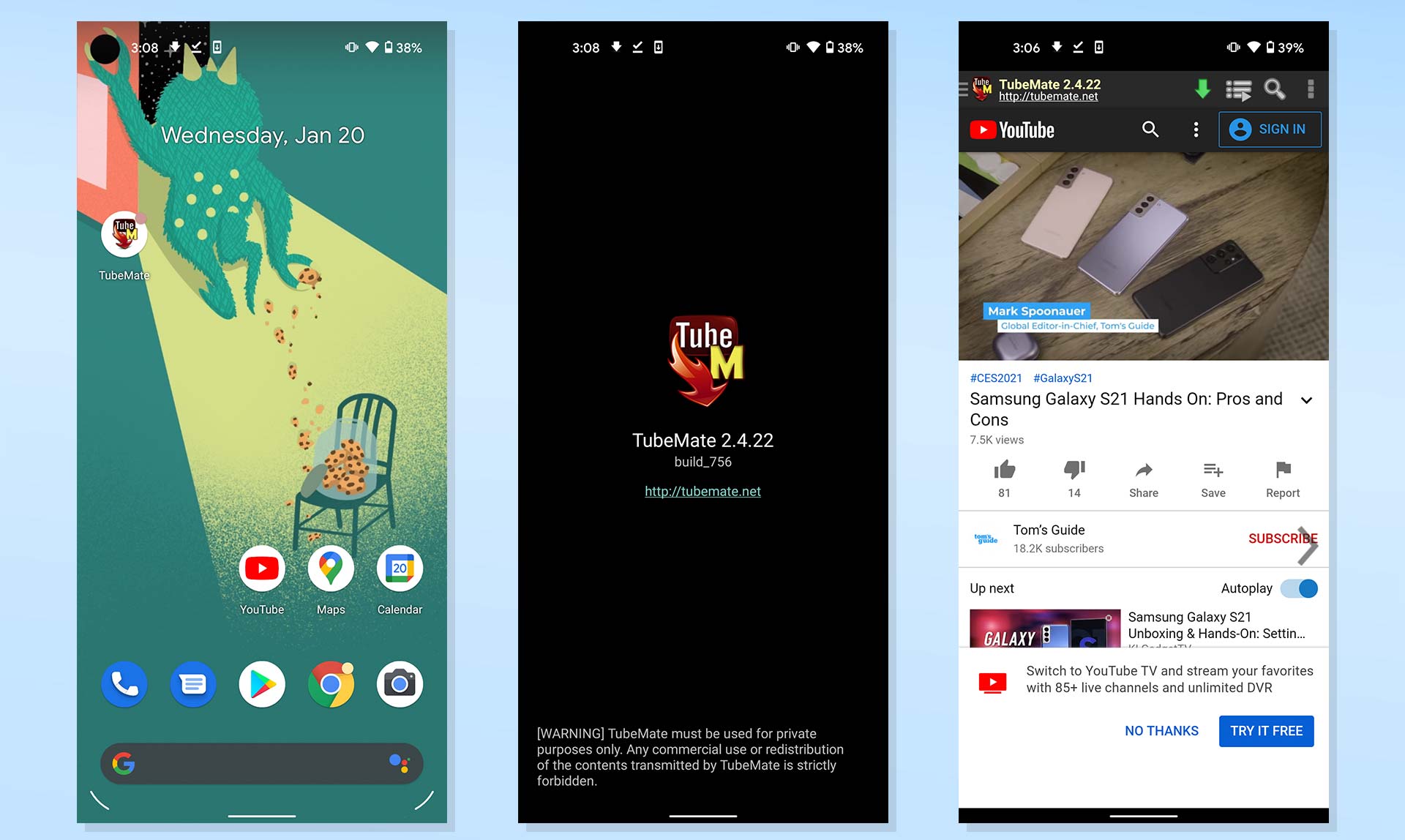
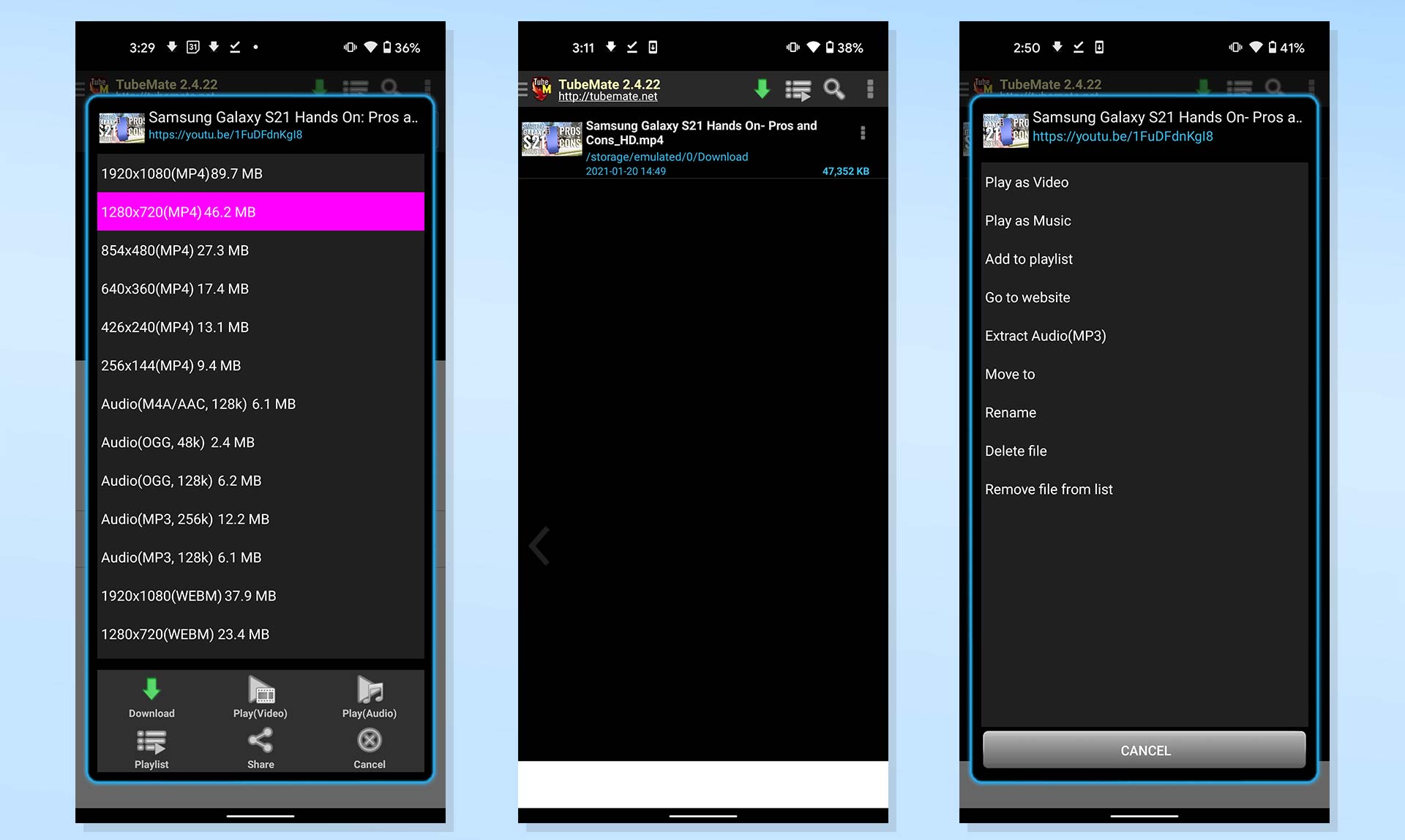
4.Select from the provided list of quality and format choices. Then, click the green "Download" button.
5.To locate your video, tap the "Downloads List" icon in the bottom menu. Alternately, you can access the Downloads list by tapping the three - dot icon in the upper - right corner of the TubeMate menu.
6.Tap the three - dot icon adjacent to a video. From there, you can save it to a different location. Additionally, you have the option to rename the video and carry out other operations.
ow can YouTube videos be downloaded onto a PC
The most optimal approach to downloading YouTube videos onto a Windows personal computer is by making use of 4K Video Downloader. You should adhere to the identical steps that we previously detailed for downloading YouTube videos on a Mac.
Nonetheless, there exists an alternative method to save YouTube videos to your PC. That is by utilizing the outstanding and free software, VLC Media Player. The following are the steps on how to carry out this process.
1.If the VLC Media Player isn't already installed on your Windows PC, download and install the most recent version of it.
2.Copy the URL of a YouTube video so that it is saved to your clipboard.
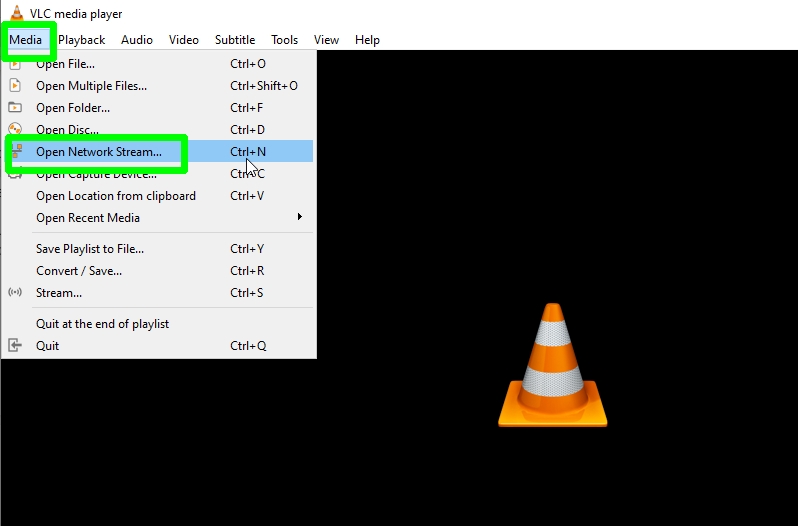
3.Launch VLC and click on the "Media" menu located in the top-left corner of the interface. Then, choose the option "Open Network Stream" from the dropdown menu.
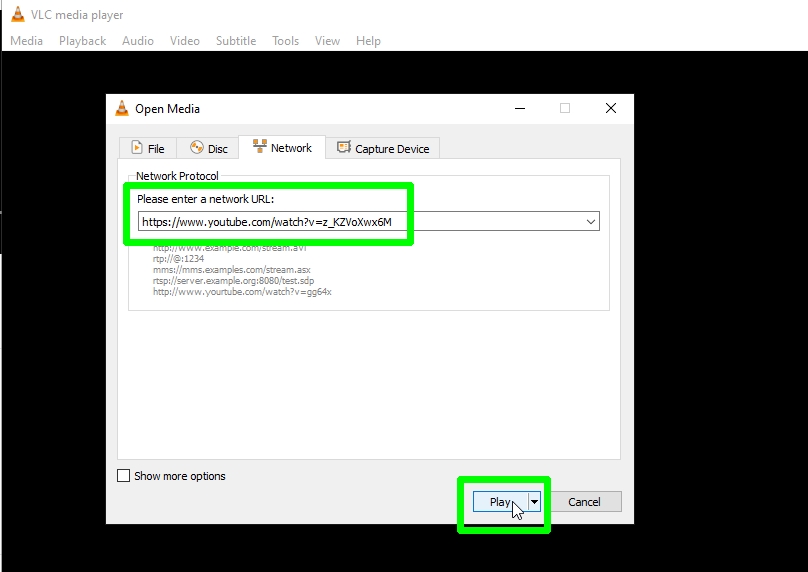
4.Paste the URL of the YouTube video that you have copied into the box designated for the network URL, and then click on the "Play" button. Subsequently, the YouTube video will commence playing within the VLC Media Player.
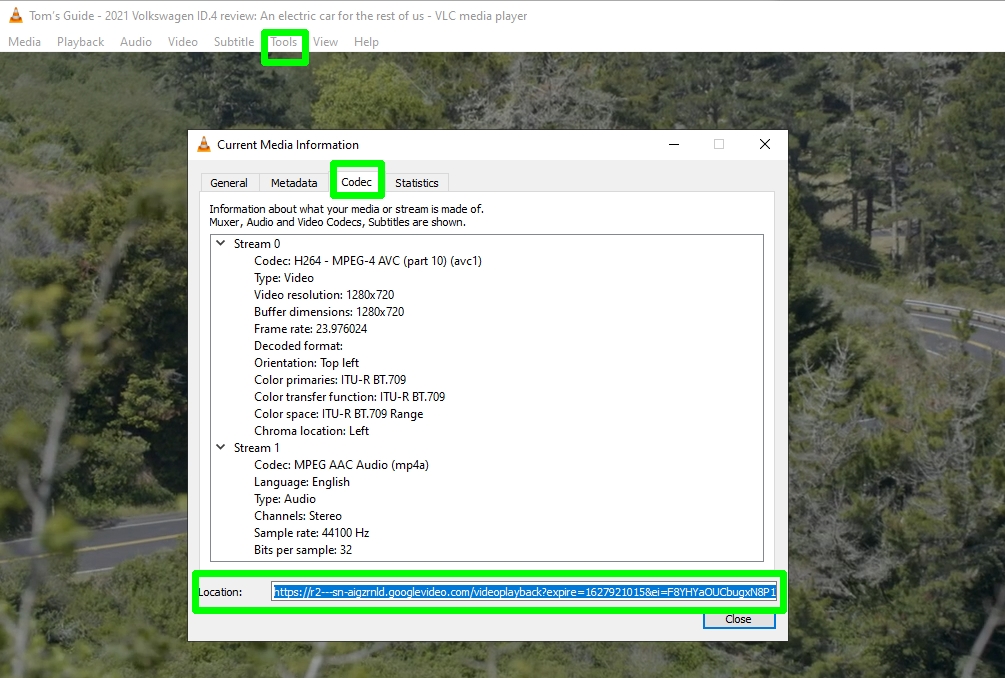
5.Now, navigate to "Tools" and then select "Codec Information". After that, copy the lengthy URL from the "Location" box which is situated at the bottom part of the window.
6.Paste the copied URL into the address bar of your web browser and then click the "OK" button. Subsequently, the video will start playing in a new browser tab.
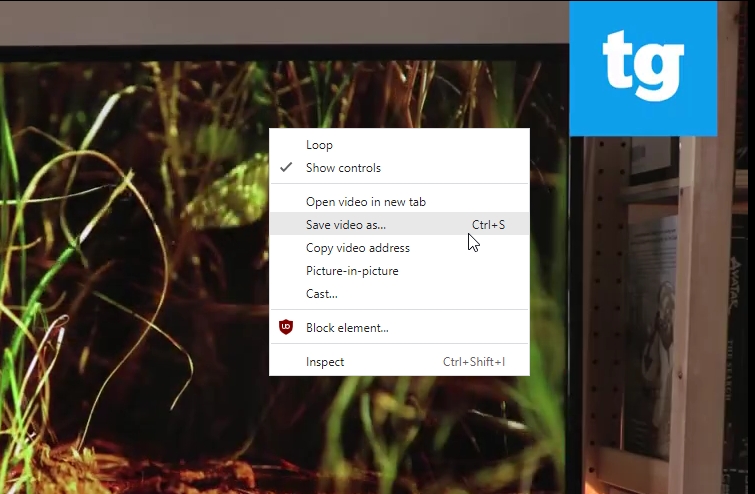
Perform a right-click on the video within the tab and select the option "Save video as..." from the context menu. This will allow you to download the YouTube video in the MP4 file format.