How to Cancel Steam Subscriptions?
Setting up a subscription on Steam is easy, but canceling one is trickier. It takes a little bit of work, but you can cancel a recurring subscription on Steam and prevent any further charges.
- Author: Shine
- Update: Dec 30, 2024

How to Cancel a Recurring Subscription on Steam
Steam subscriptions involve monthly fees for online services, such as those for various MMO games or game libraries like EA Play. These subscription payments will continue indefinitely until you instruct Steam to cancel them.
It's crucial to understand that simply uninstalling a game or service from Steam does not cancel any active subscriptions associated with it. You must specifically request Steam to stop the recurring payments if you no longer wish to use the service.
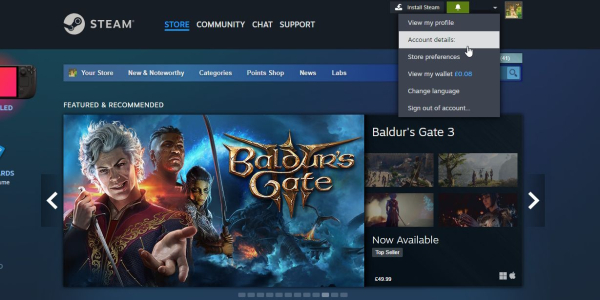
To begin the cancellation process for a subscription on Steam, open the Steam desktop app and click on your display name in the top-right corner. From there, select "Account details."
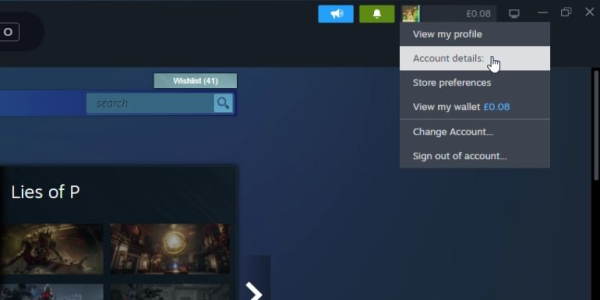
If you prefer to cancel your subscription via the Steam website, the steps are almost identical to those for the client. The only distinction is that the username selector appears differently on the web version compared to the Steam client.
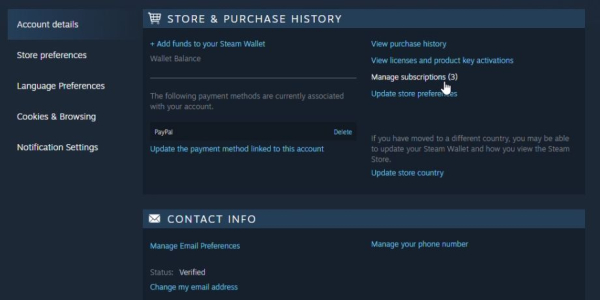
Under "Store & Purchase History," click on "Manage subscriptions." The number next to this text indicates how many services you have on record, including those that have been canceled.
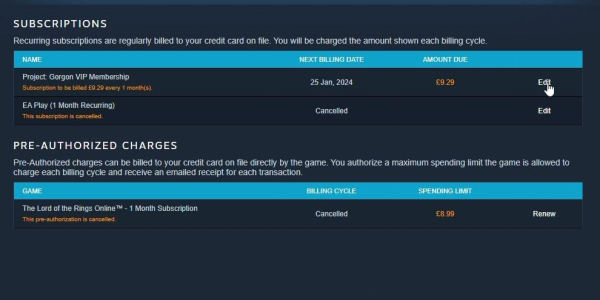
In the following window, locate the subscription you wish to cancel and click on "Edit."
Then, choose the "Cancel my subscription" option and click on "Apply."
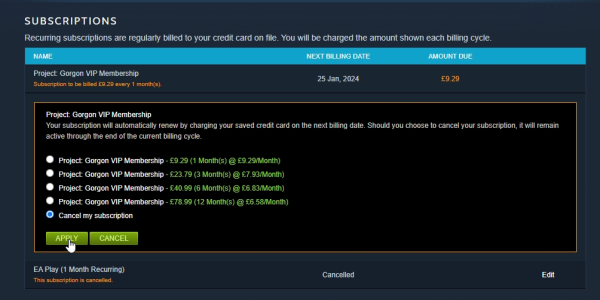
This will terminate your subscription to the service or game on Steam.If you wish to reactivate your subscription, simply follow the same steps above and select the option you want to subscribe to.
Can You Get a Refund for a Steam Subscription?
It is possible to request a refund for a game on Steam if it does not meet your expectations, but did you know that subscriptions can also be refunded? Although the rules are more stringent, you can still obtain a refund if you accidentally subscribe to a service that you do not wish to continue.
To request a refund for a subscription, you must submit your application within 48 hours of purchasing it. You will only qualify for a refund if you have not launched the game or service during that time. Even a single instance of opening it will be considered as having used the subscription, which means you won't be eligible for a refund.
To initiate the refund process, follow the standard procedure for game refunds. As you navigate through the menus, pay attention to the "DLC You Own" section. Locate your subscription in that section, click on it, and then apply for a refund just as you would for a game.
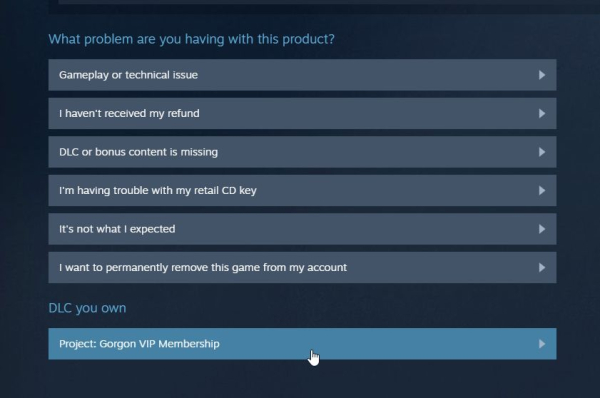
Although canceling an MMO or EA Play subscription through Steam requires a few steps, it is necessary to prevent future charges on your selected payment method. If you decide to reactivate your subscription later, simply follow the same steps again to turn it back on.
Managing Steam Workshop Subscriptions
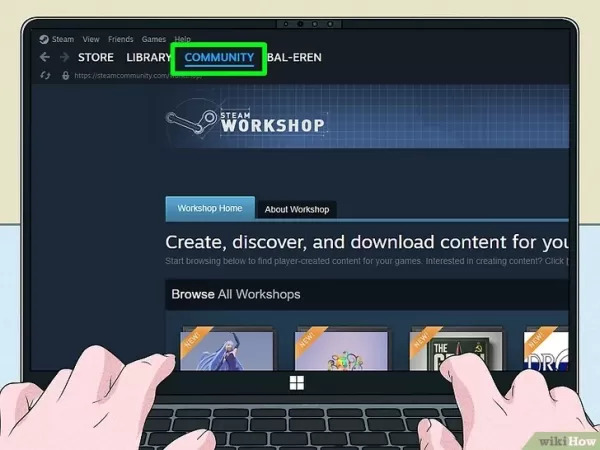
Click on the Community tab in Steam. This will take you to the main Community Activity page, where you can view popular game hubs and your recently played games. You can find the Community tab at the top of the page, located next to the Store and Library sections, both in the Steam app and on the website.
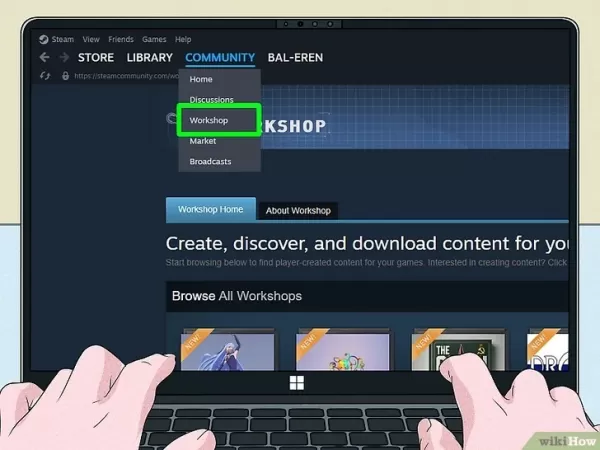
Click on the Workshop tab to see all the available Workshops. In this section, you will find a list of popular Workshops. Select the View All Available Workshops option at the top of the list, then scroll down and click on the Your Workshop Items section located on the right side of the screen. The Steam Workshop features player-created content, allowing you to subscribe to mods for various games.
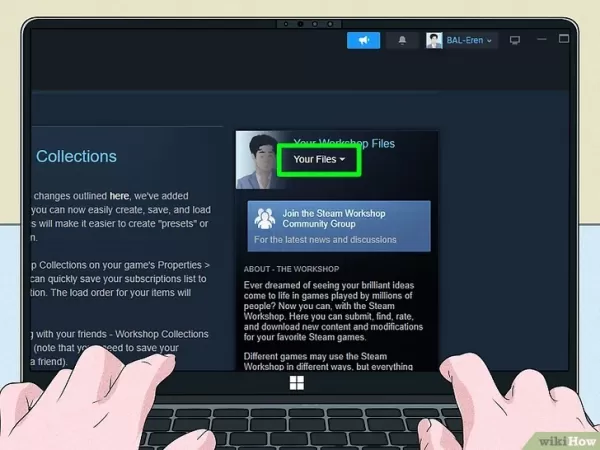
Select Your Files, then go to the Subscribed Items tab. You will find the Subscribed Items section on the right side of the screen, located under Items and Favorited. On the Subscribed Items page, you can view your Workshop subscriptions, rate them, and unsubscribe if desired.To unsubscribe from an item in your Workshop files, click the button next to it that says Subscribed. When you hover over this button, it will change to say Unsubscribe, and clicking it will confirm your action. Additionally, you can sort your subscriptions by name, creation date, upload date, or subscription date.