
Net Signal Pro:WiFi & 5G Meter - WiFi & Cellular Signal Checker
Discover optimal WiFi & cellular signals effortlessly while you roam, ensuring the best connectivity anywhere you go!
- 2.9 Version
- 3.2 Score
- 219K+ Downloads
- Free License
- 3+ Content Rating

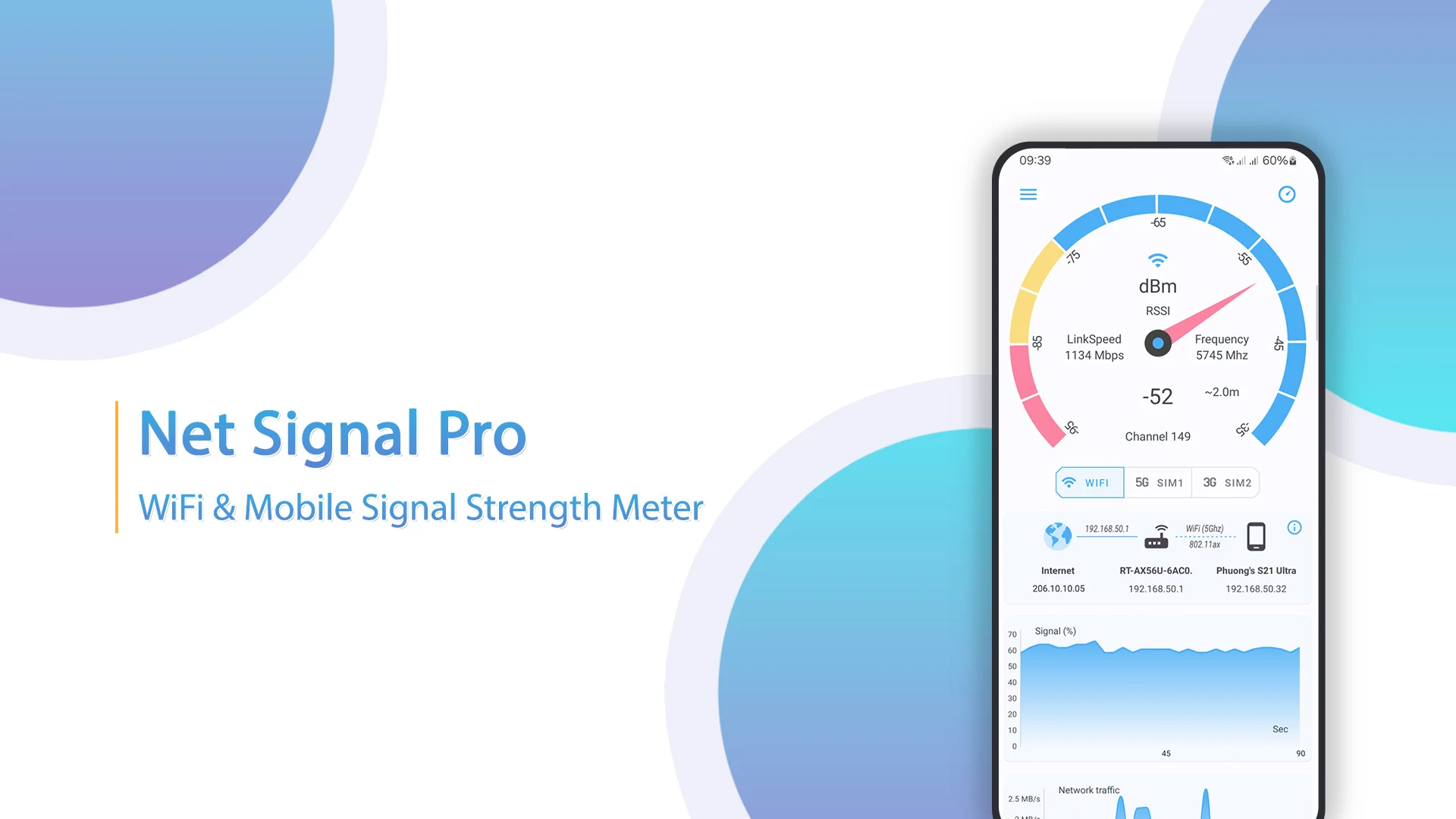
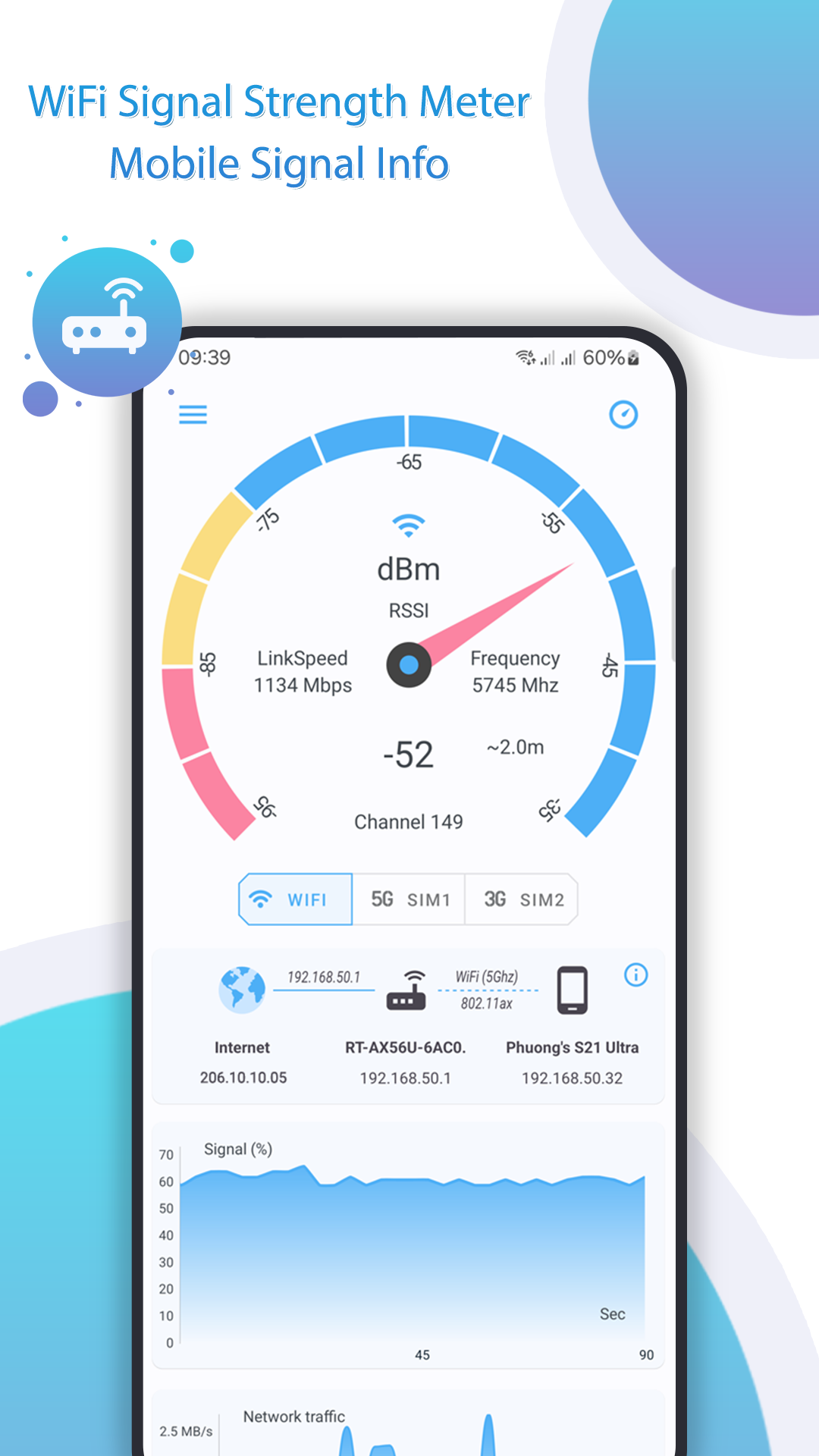
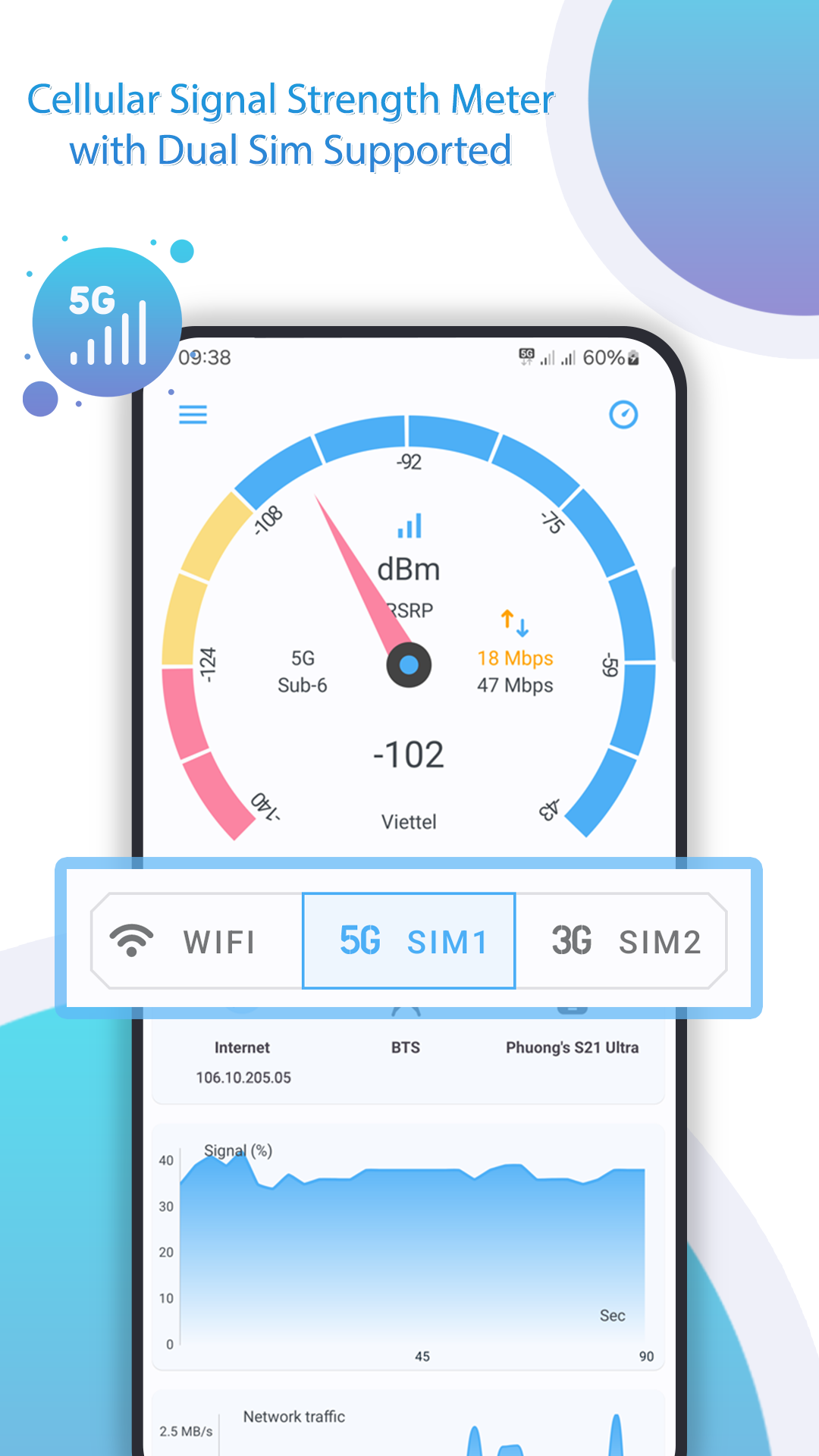
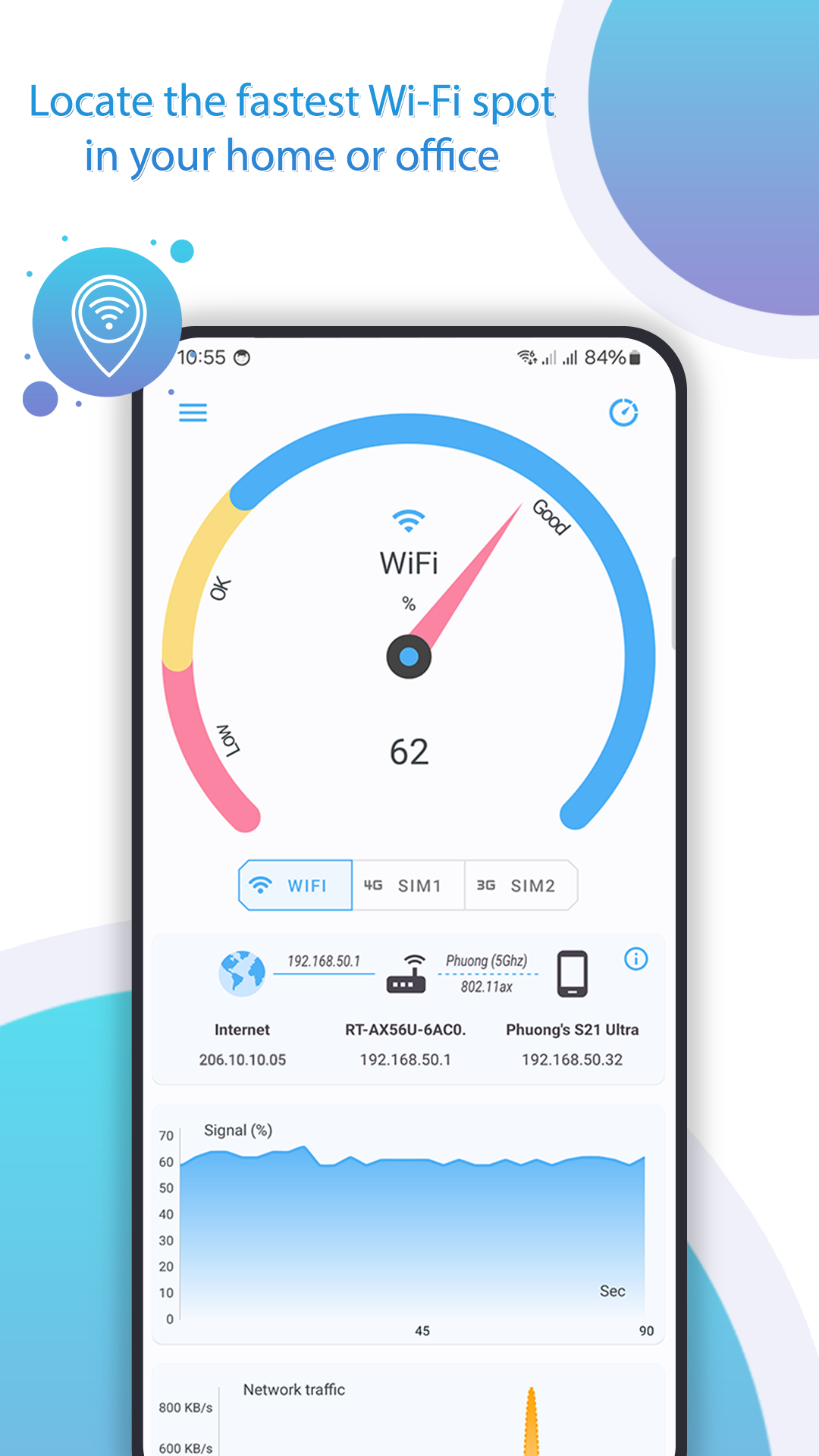
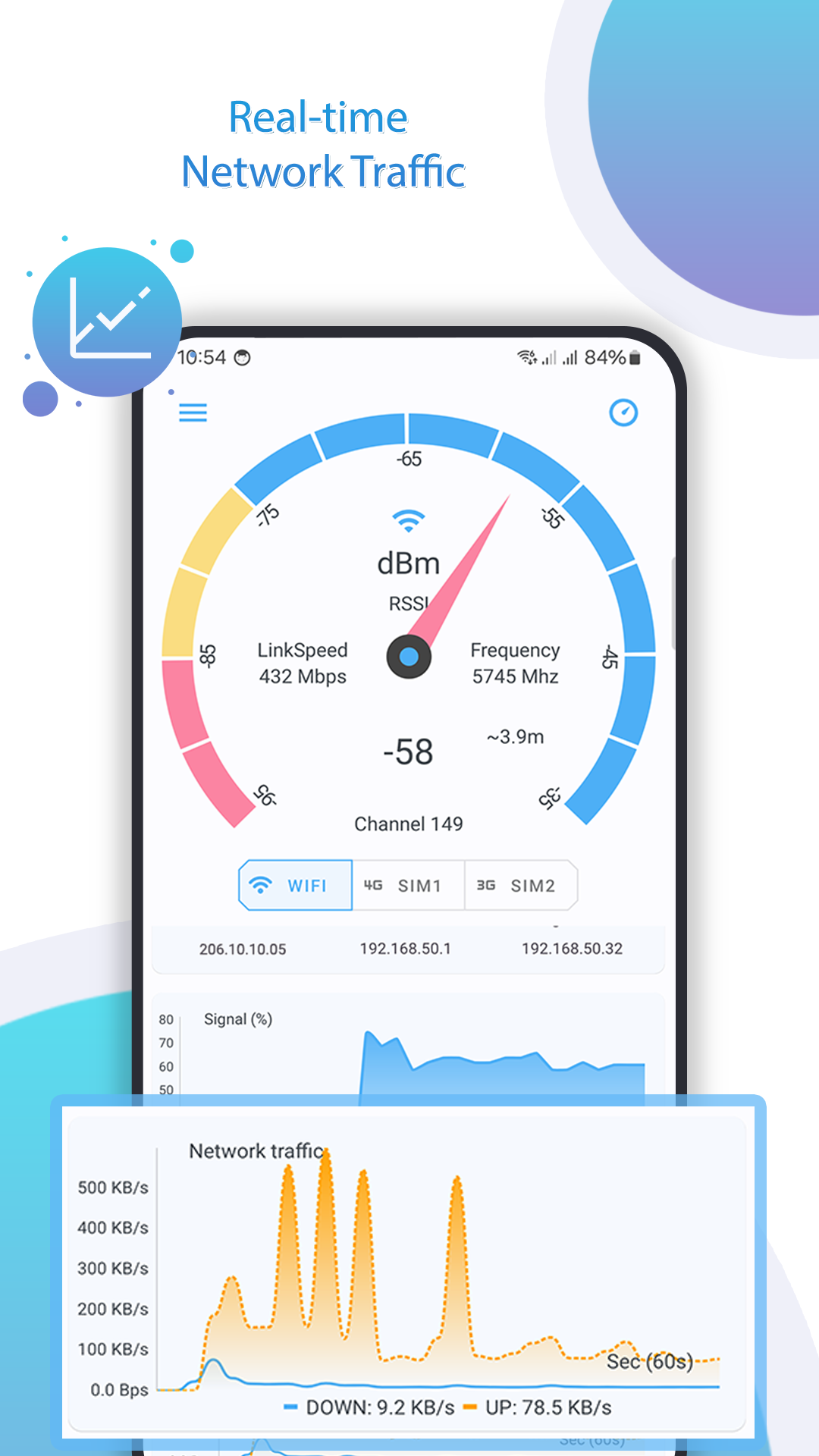
This application serves as a beneficial resource for assessing both WiFi and cellular signal strength from your mobile device, enabling you to identify optimal areas for connectivity to install smart home gadgets.

Key Features:
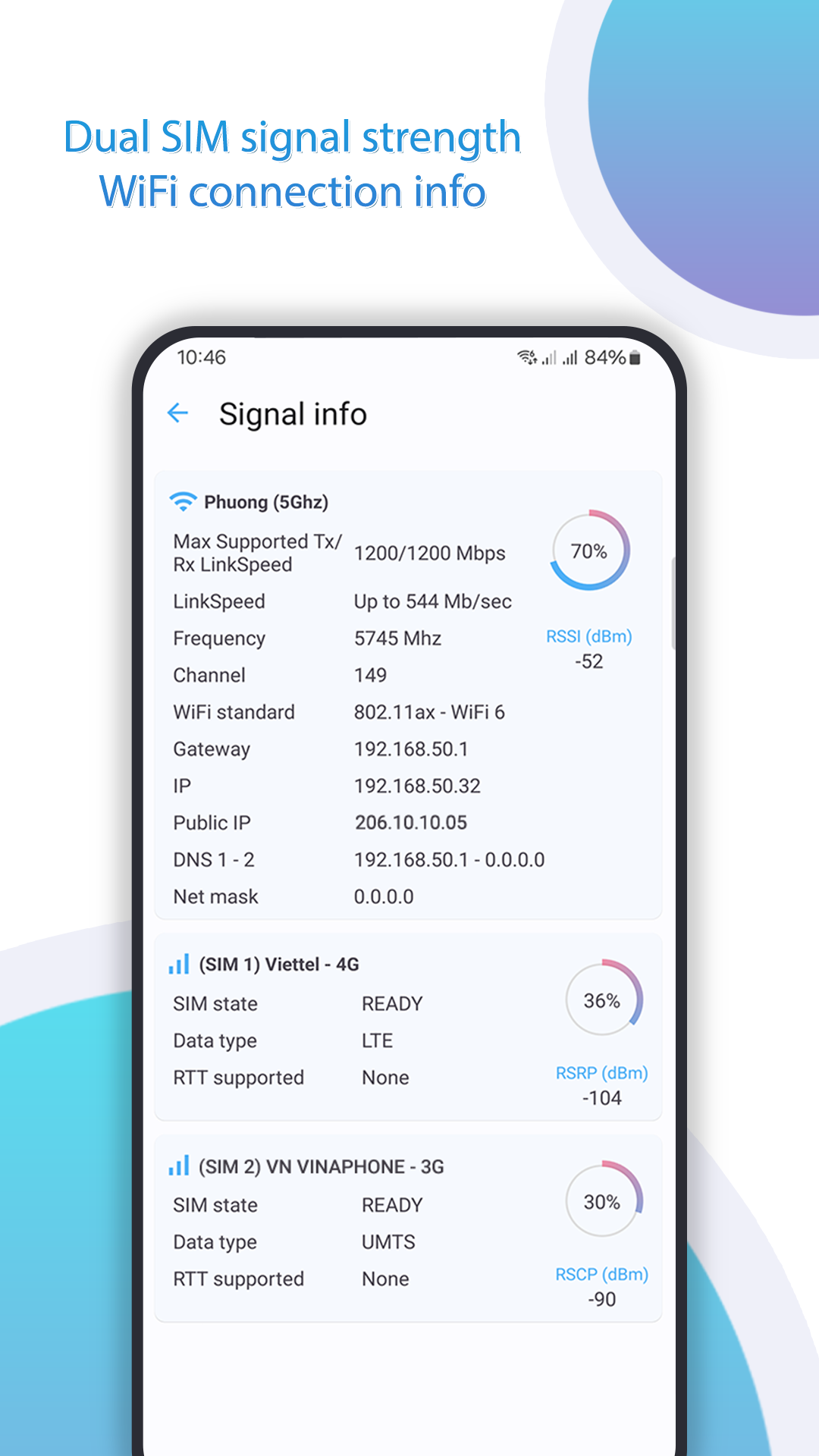
- Information on cellular signals
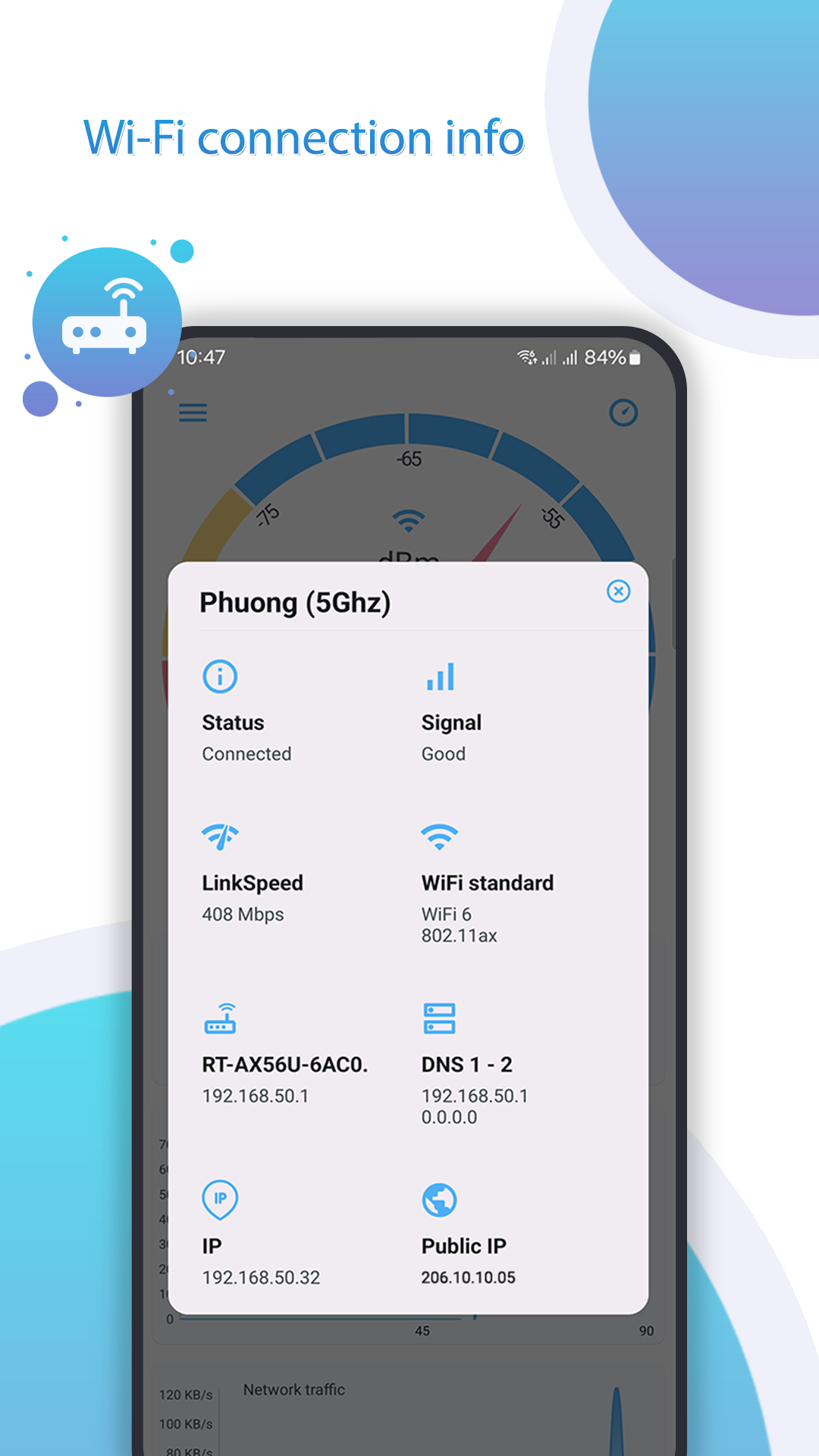
- Details regarding WiFi signals
- Precise readings of WiFi and cellular signal strength
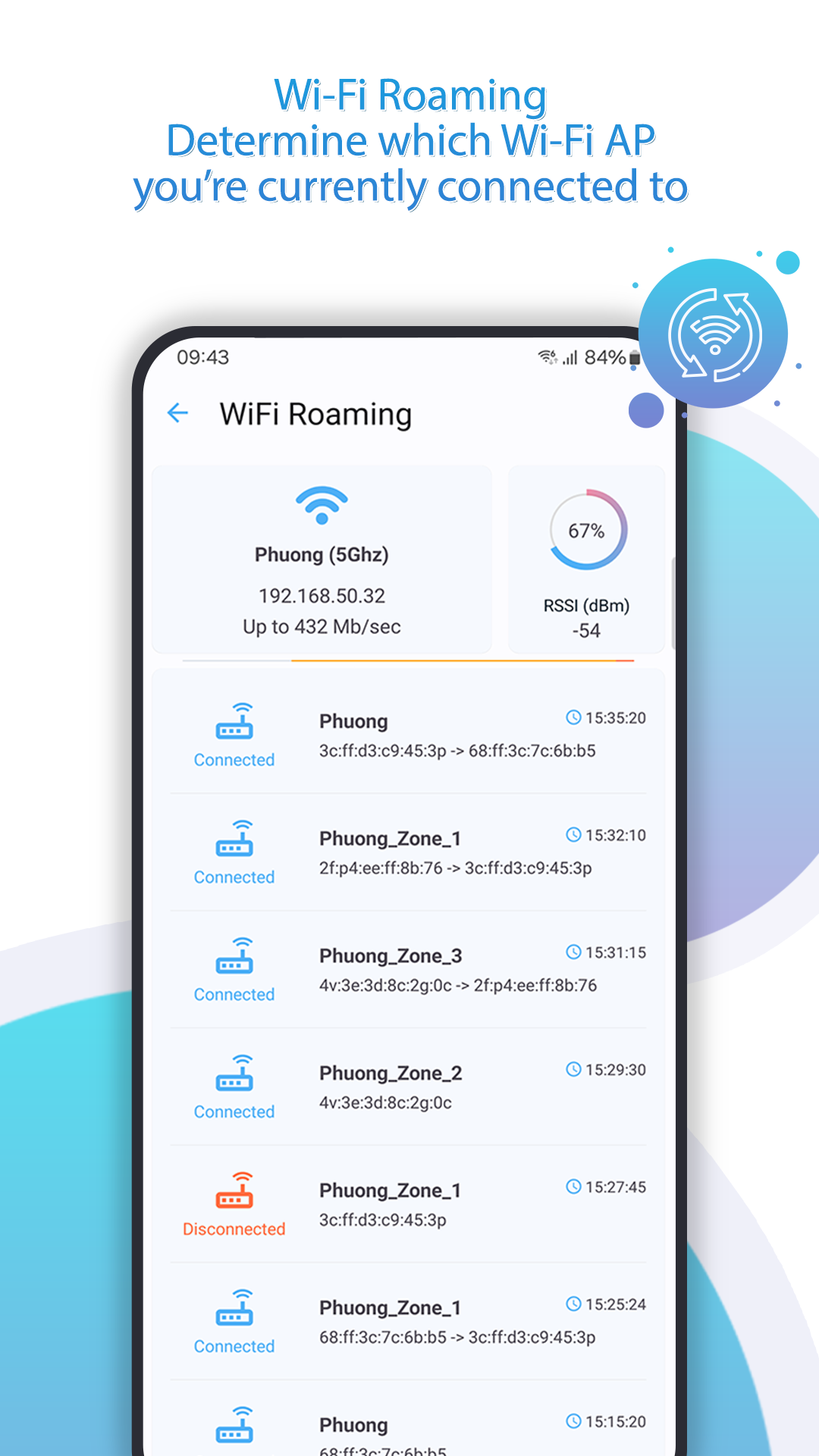
- Support for WiFi roaming
- Ping testing functionality
For Cellular Signals:
Observe 2G, 3G, 4G, and 5G signals, including details about network operators, SIM operator, device type, network category, and strength measured in dBm, along with the IP address, etc.
For WiFi Signals:
Access information such as Wi-Fi name (SSID), BSSID, maximum speed of Wi-Fi, IP address, public IP, network capabilities, channel frequency, subnet mask, gateway IP address, DHCP server, DNS1, and DNS2 addresses, among others.
Regarding WiFi Roaming:
Discover which Wi-Fi access point your device used to connect to the network; this includes the router's name, network ID, and connection time.
Usage Process:
1. **Download and Install**: Search for "Signal Test" apps in your phone's app store, download, and install.
2. **Open the App**: Tap the icon to launch the app, and you'll be taken directly to the main interface without any complicated login steps.
3. **Select a Test Type**:
- Cellular Signal: Automatically displays 2G/3G/4G/5G strength, carrier, and other information.
- WiFi Signal: Switches to the WiFi page, which automatically displays the name, signal strength, and speed of the currently connected WiFi.
4. **Use Additional Features** (select as needed):
- Test Network Stability: Find "Ping Test" and tap to start checking latency.
- Track WiFi Roaming: View the name of the currently connected router and the connection time on the WiFi page.
5. **Find the Best Signal**:
Move your phone around different areas, viewing real-time signal data to locate the strongest signal.
The application continually refreshes signal strength data, allowing you to move about your home, workplace, or any location where you are connected to WiFi or cellular networks to locate the most reliable connection.
If you enjoy using this app, we appreciate your feedback through ratings. Thank you!
Application Experience:
This signal testing app offers a convenient and efficient user experience. After downloading and installing, you can directly access the main interface without logging in. With one click, you can view details such as the operator and dBm signal strength of 2G-5G mobile networks, as well as information like the WiFi name, channel, and speed.

It also supports Ping tests to check network stability and tracks WiFi roaming records. Real-time updated signal data helps you quickly locate the best signal area. It's compatible with smart home installations and other scenarios. Clear guidance is provided for issues such as data not displaying. Overall, it's simple to operate, practical, and fully meets your daily network signal testing needs.
Related Questions and Answers:
Q: The WiFi signal strength displayed in the app is a negative number (dBm). How can I tell if the signal is good? Are higher values better?
A: dBm is a standard unit of signal strength and is inherently negative. The closer the value is to 0, the stronger the signal. Generally speaking, a signal below -50dBm is excellent, allowing for smooth streaming and downloading; -60 to -70dBm is considered good, and generally stress-free for daily use; below -80dBm is considered poor, potentially causing lag and disconnections. Avoid such areas when installing smart devices.
Q: I can't see detailed cellular network information, such as base stations and signal strength, after opening the app. What's wrong?
A: It's most likely due to inappropriate permissions or settings. First, make sure GPS positioning is enabled on your phone and that the app has been granted location access. Android users, especially those using Xiaomi's MIUI system, may need to always allow "Access phone information" in the app's settings. If you have a dual-SIM phone, some older operating systems may only display the primary SIM card's signal. This problem is usually resolved after a system upgrade.
Q: I see a full WiFi signal using the app, but my smart device keeps disconnecting. Why is this?
A: A full signal doesn't necessarily mean the network is stable. You can use the app's Ping test to check network latency and packet loss. High latency and high packet loss may indicate overloading of the router or interference on the channel. You can see the channel frequency on the app's WiFi page, and switching to a less busy channel can improve the situation. Additionally, obstructions caused by walls can cause the signal to appear "inflated," making actual transmission unstable. It's recommended that you move your device closer to the router.
Q: My phone shows it's connected to a 5G network, but I can't see 5G signal information in the app. Is the app broken?
A: It's not necessarily an app issue. Try turning off WiFi first, as some phones will pause 5G signal detection when connected to WiFi. If you're in a weak signal area, your phone may only display a 5G icon but not actually be connected to the 5G network. Move closer to a base station and test again. Additionally, some new Huawei models don't currently support 5G signal display; this is a system adaptation issue.
Q: I'm looking to choose a location for my smart camera in my home. How can I find the best spot using this app?
A: Hold your phone at each candidate location for 1-2 minutes and check the app's real-time signal data. Ideally, the WiFi signal should be above -70dBm. Also, use a ping test to confirm latency is below 50ms and there's no packet loss. If the camera supports cellular network backup, also check the 4G/5G signal strength at that location (at least -90dBm) to ensure it can connect to the network even when WiFi is disconnected. Mark the spot with the most stable signal for your preferred installation location.
- Version2.9
- UpdateOct 23, 2026
- DeveloperPhuongpn
- CategoryTools
- Requires AndroidAndroid 9+
- Downloads219K+
- Package Namecom.phuongpn.wifisignalstrengthmeterpro
- Signature4af2139fd61a382883137003d51f5cdd
- Available on
- ReportFlag as inappropriate
-
NameSizeDownload
-
2.91 MB
-
2.60 MB
-
3.95 MB


















Accurate signal measurement
Lightweight and fast refreshing
No advertisements in pro version
User-friendly interface
Useful for troubleshooting connectivity issues
Provides detailed connection information
Helps optimize router placement
Clean and clear display design
Allows comparing different locations for signal strength
Limited functionality for non-WiFi signals
Not fully compatible with Android 13
Lacks ability to scan all nearby WiFi networks
Doesn't show 5G signals consistently
Poor support for IPv6 and future standards
Can be buggy on some devices
Minimal guidance for less tech-savvy users
Missing essential features like speed test
Complaints of poor translation and app reliability