
Max Ruler - Measure Length & Distance
Discover innovative methods to measure length & distance accurately using your device's sensors and intuitive interface.

- 1.2.1.AF Version
- 1.3 Score
- 143K+ Downloads
- Free License
- 3+ Content Rating

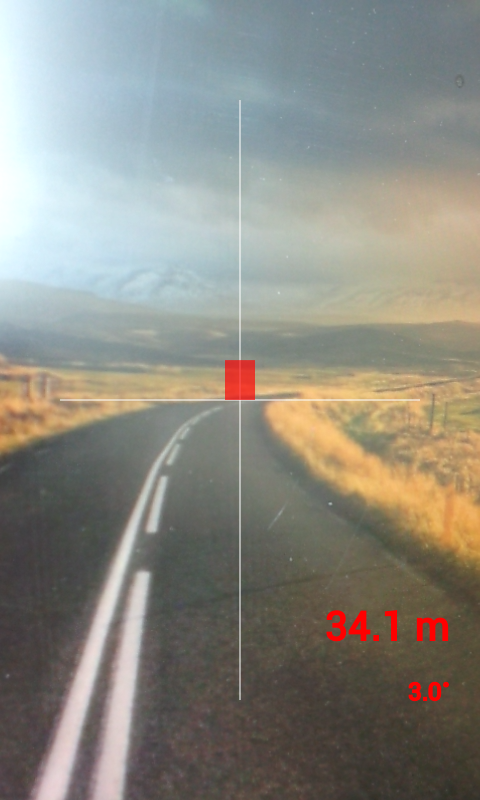
This application is designed to measure length and distance using different methods.
Main Features:
1.Multiple measurement techniques:Gravity Sensor, Camera, Touch Screen, and Acceleration Sensor。
2.Calibration:The calibration feature enables easy and precise measurements when determining angles with the sensor。
Instructions:
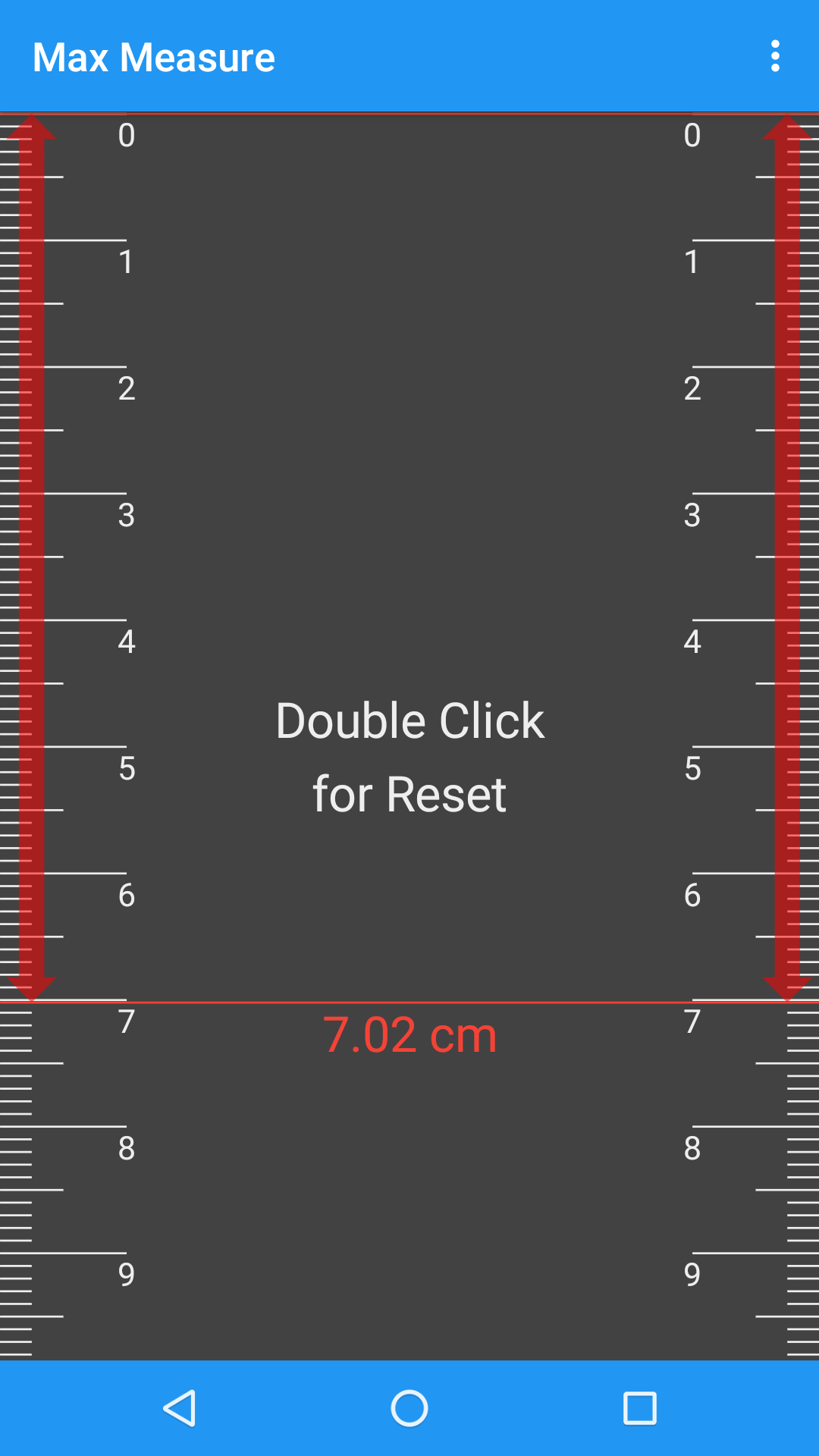
1.Ruler Mode
1) Utilize the screen ruler just like a traditional ruler.
2) Obtain the exact length by tapping on the screen.
2.Measuring Tape Mode
1) Align the object being measured with the device.
2) Slide the device while touching the screen.
3) Repeat step 2 multiple times and view the measured value.
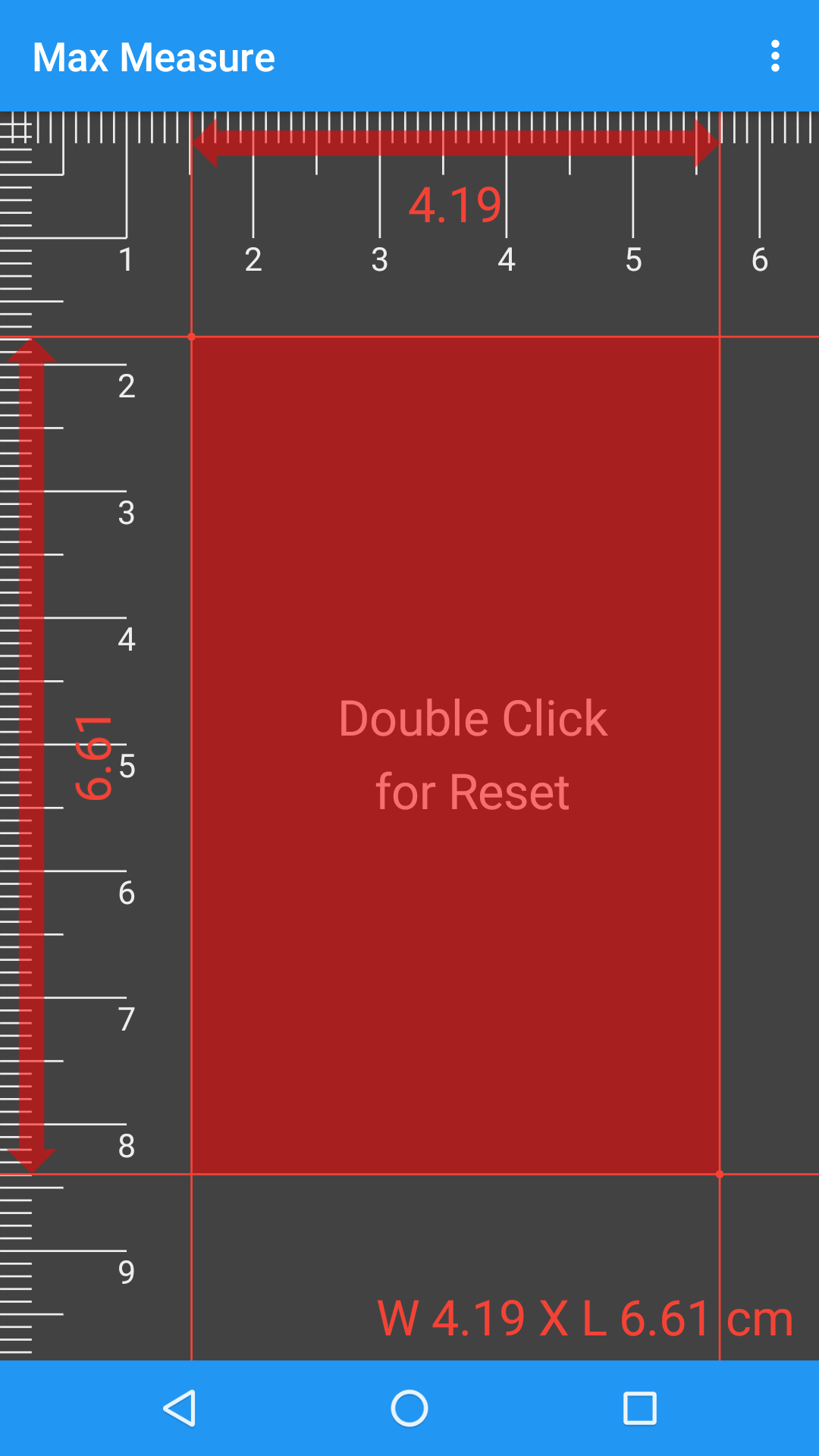
3.Rate of Length Mode
1) Adjust the crosshair to align with the object being measured.
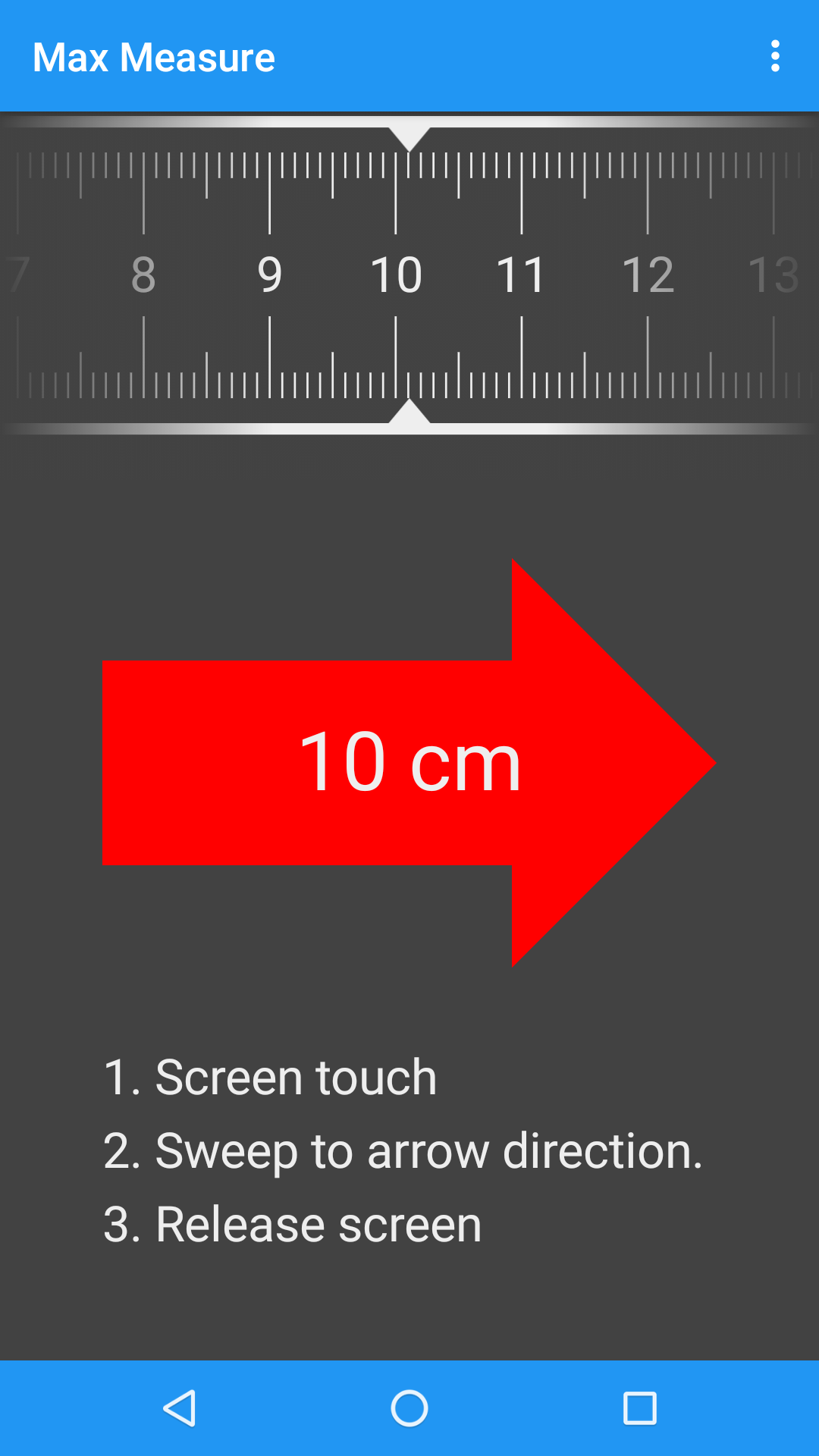
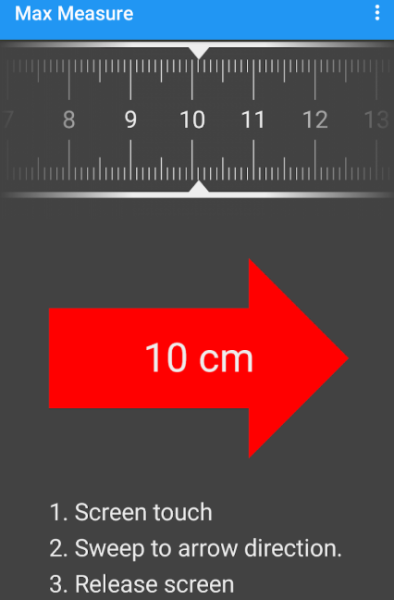
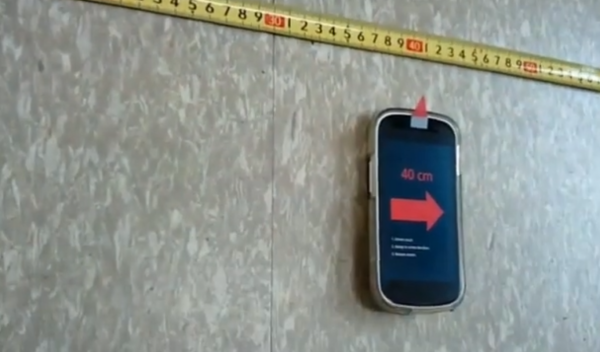
4.Sweep Mode
1) Touch the screen.
2) Sweep in the direction of the arrow.
3) Release your touch as if you were dragging and dropping on a PC.
4) If there are significant errors in the measured length, position your device on a level surface for measurement, then touch the screen for 2 seconds and access the calibration menu.
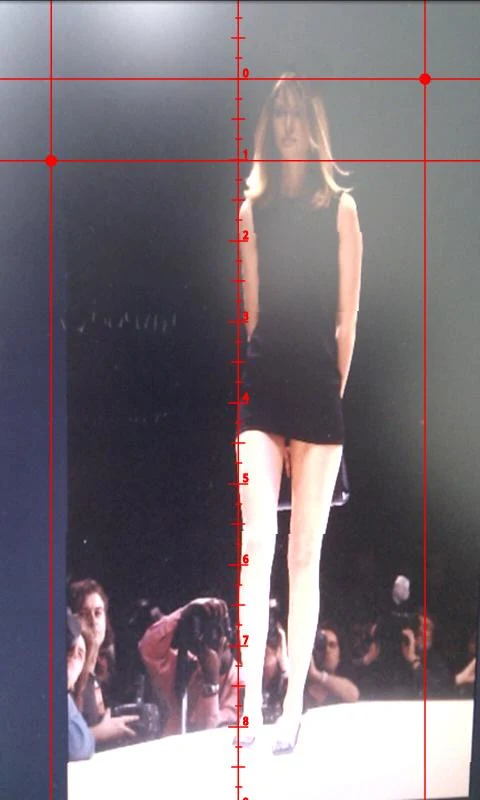
5.Distance Mode
1) Set your height in the menu under Setup.
2) Position your device at eye level and ensure the crosshair on the screen is centered on the bottom of the object.
3) Read the distance displayed on the screen.
Warnings:
1.There may be some tolerance due to the device's sensor accuracy.
2.Each mode has an optimized range for measurements:
Ruler Mode: 0–10 cm (varies with screen size)
Sweep Mode: 0.1–1.5 m
Distance Mode: 1–30 m
3.It is advisable to use a protective wrap or case, particularly in Sweep Mode.
Applicable Scenarios:
1. **Short Object Measurement (0–10cm)**: Use **Ruler Mode** to directly tap the screen like a traditional ruler to measure small items, such as stationery or the width of a mobile phone.
2. **Medium Length (0.1–1.5m)**: Select **Sweep Mode**, suitable for measuring tables, books, etc. Simply sweep the device smoothly along the edge of the object. Remember to use a protective case for your phone.
3. **Extra-Long Objects (Exceeding Screen Length)**: Use **Measurement Tape Mode**. Slide the device close to one end of the object and repeat the operation to accumulate the length, such as measuring a 15cm pen.
4. **Long Distance Measurement (1–30m)**: Use **Distance Mode**. After entering your height, hold the device to eye level and aim at the bottom of the target to measure distant objects, such as the width of buildings across the street or a sports field.
FAQs:
1. **Do I need to calibrate before measuring objects with this app? When is calibration necessary? **
Calibration isn't required for all modes, but it's essential if you're experiencing significant measurement errors. For example, if your length measurement using "Sweep Mode" is significantly inaccurate, or if the data fluctuates significantly when measuring angles using the sensor, place the device on a level surface and press and hold the screen for 2 seconds to bring up the calibration menu. Calibration will improve the accuracy of your results. For simple, everyday short-distance measurements (such as using Ruler Mode), recalibration is generally not necessary if you've previously calibrated the device and the device hasn't been severely impacted.
2. **I want to measure the length of a table (approximately 1.2 meters). Which mode is best? What precautions should I take? **
"Sweep Mode" is a good choice. Its optimized range is 0.1–1.5 meters, which covers the entire length of a table. Important: Touch the screen to activate it, then sweep the device steadily along the edge of the table, following the on-screen arrows. Release your hand after the sweep. Also, remember to use a protective case to prevent damage to the device from rubbing against the edge of the table while sweeping.
3. **When using "Distance Mode" to measure the distance to a building across the street, why do I need to enter my height first? What happens if I enter it incorrectly? **
You need to enter your height because "Distance Mode" uses your height as a reference, combined with the viewing angle when the device is held at eye level, to calculate the distance to the target (equivalent to using "height + eye height" as the measurement reference point). If you enter your height incorrectly, for example, if you enter 1.5 meters when you're actually 1.7 meters, the calculated distance will be shorter than the actual value; if you enter it too high, the distance will be longer. Therefore, it is important to enter your actual height accurately.
4. **My phone screen is small. Can I use "Ruler Mode" to measure objects longer than the screen? For example, a 15cm pen? **
It's difficult to measure directly because "Ruler Mode" is optimized for a range of 0–10cm, which varies with screen size (smaller screens may have a smaller range). A 15cm pen is beyond this range, and forcing a measurement will result in significant error. In this case, it's recommended to switch to "Tape Measure Mode." Hold the phone against the end of the pen, touch the screen, and slide the phone along the pen. Repeat this several times to accumulate the total length.
5. **Errors in measurement results are normal, but what factors generally contribute to these errors? How can we minimize them?**
Errors are primarily affected by two factors: the device itself, such as sensor accuracy and screen touch sensitivity; and the way it's used, such as hand shaking while scanning, not holding the device at eye level in distance mode, or improper calibration. To minimize these errors, try calibrating on a level surface, keeping the device steady during operation, selecting a mode that matches the range of the object being measured, and averaging multiple measurements to get results closer to the actual value.
- Version1.2.1.AF
- UpdateOct 20, 2026
- DeveloperMAXCOM
- CategoryTools
- Requires AndroidAndroid 4.4+
- Downloads143K+
- Package Namecom.maxcom.maxmeasure
- Signature2929e20ddc9a408f0839f22b39139ee9
- Available on
- ReportFlag as inappropriate









Various measurement methods
A calibration function improves sensor accuracy and reduces errors.
The operation logic is clear, and each mode has simple steps, making it easy for beginners to use.
This depends on the accuracy of the device's sensor; low-cost devices may have significant errors.
Each mode has a limited range, making accurate measurements difficult outside of this range.
Hand shaking during operation can easily affect results, and additional protective equipment is required.