
Change Video & Audio Format - Video & Audio Converter
Transform your media effortlessly with fast conversions, high-quality compression, & user-friendly editing tools for any device.

- 224610 Version
- 1.3 Score
- 187K+ Downloads
- Free License
- 3+ Content Rating

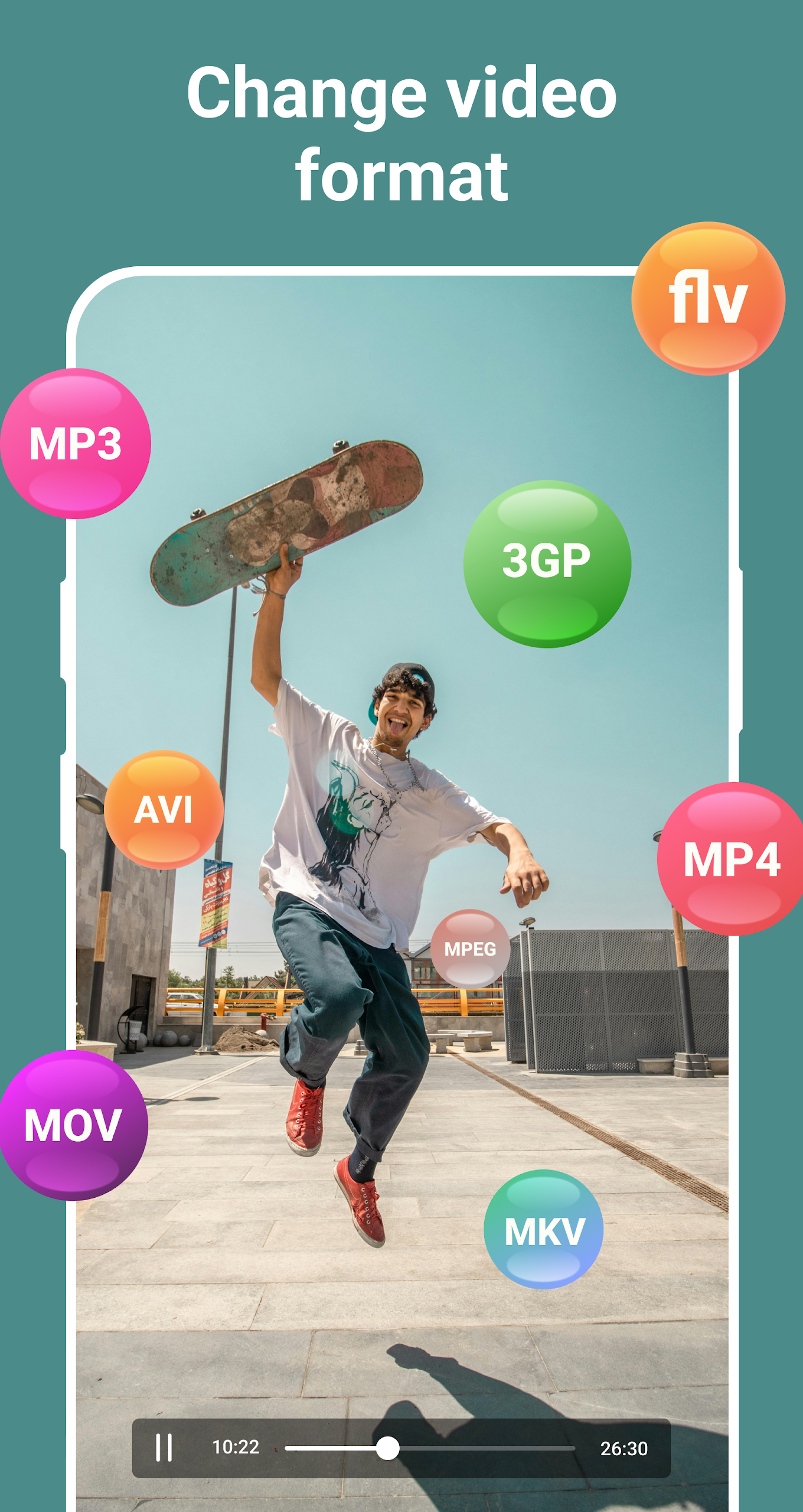
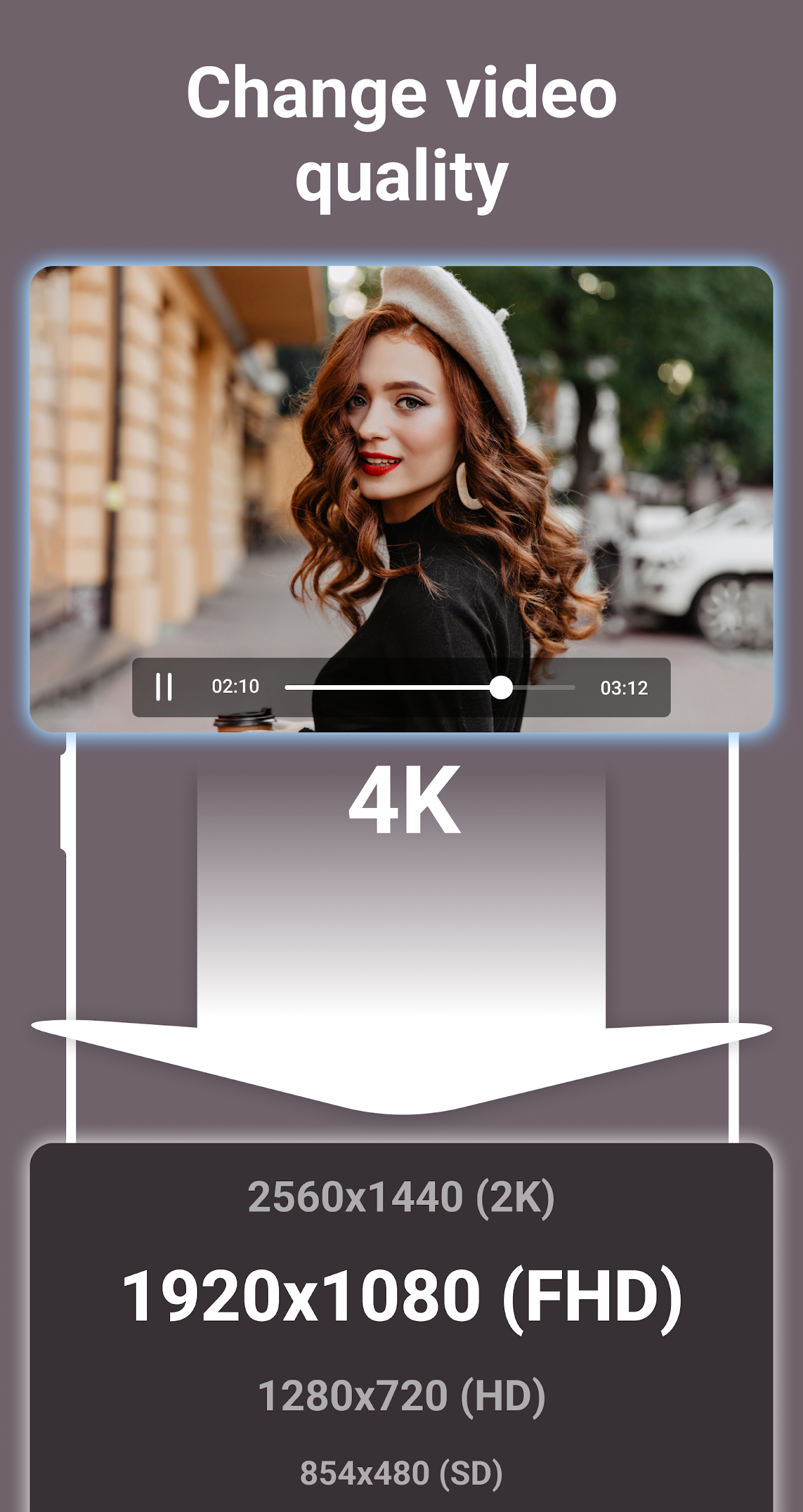
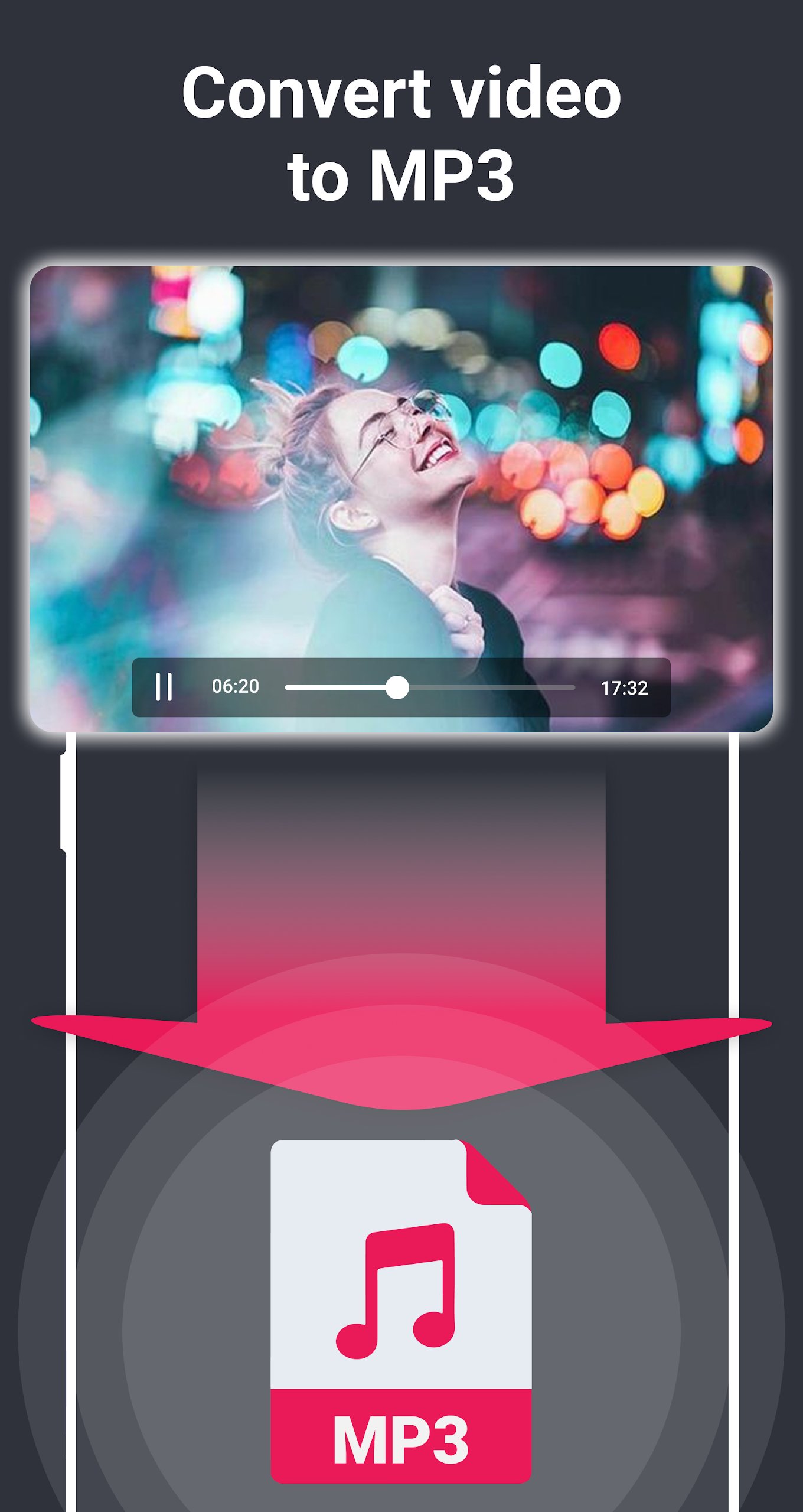
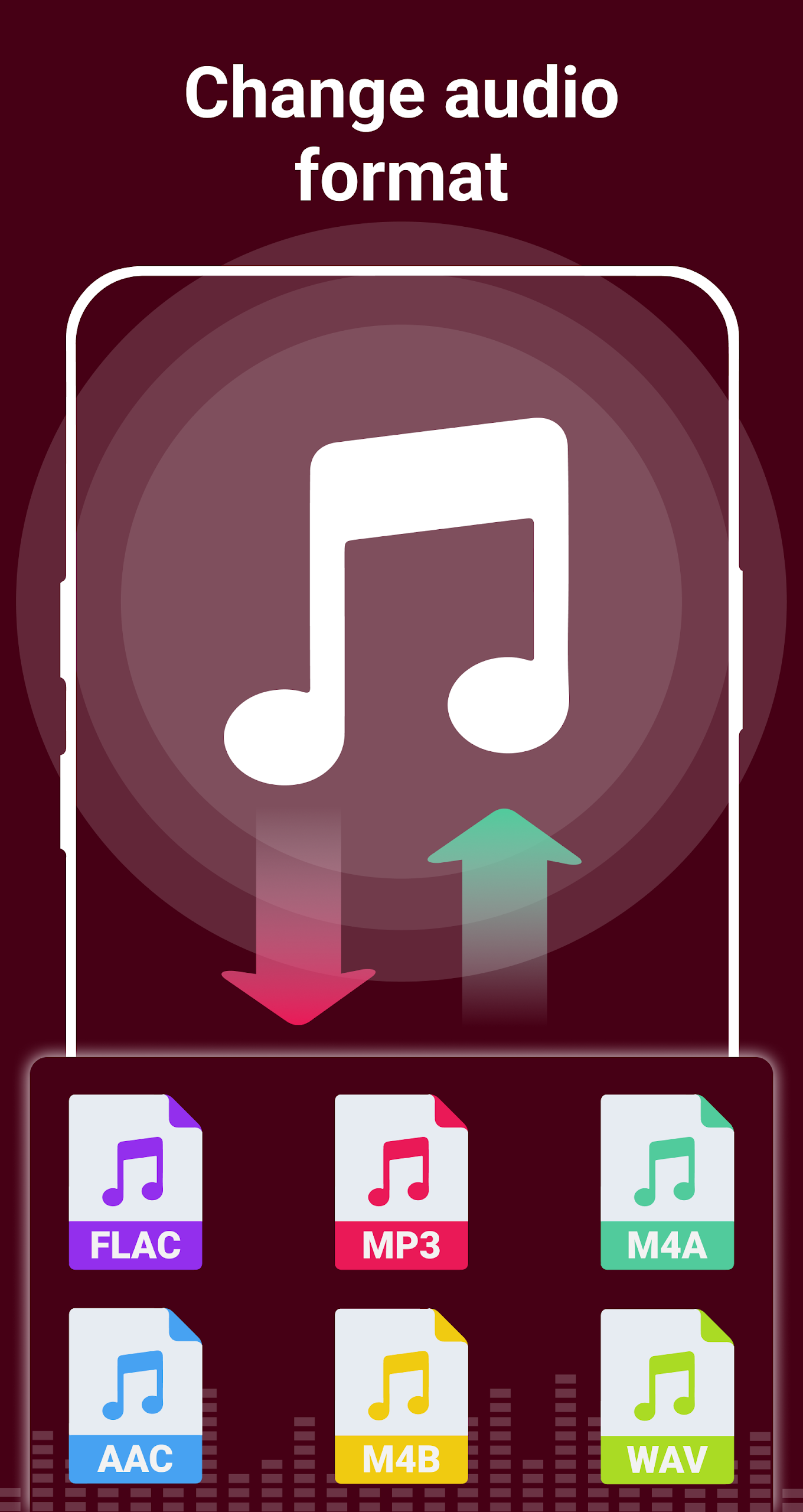
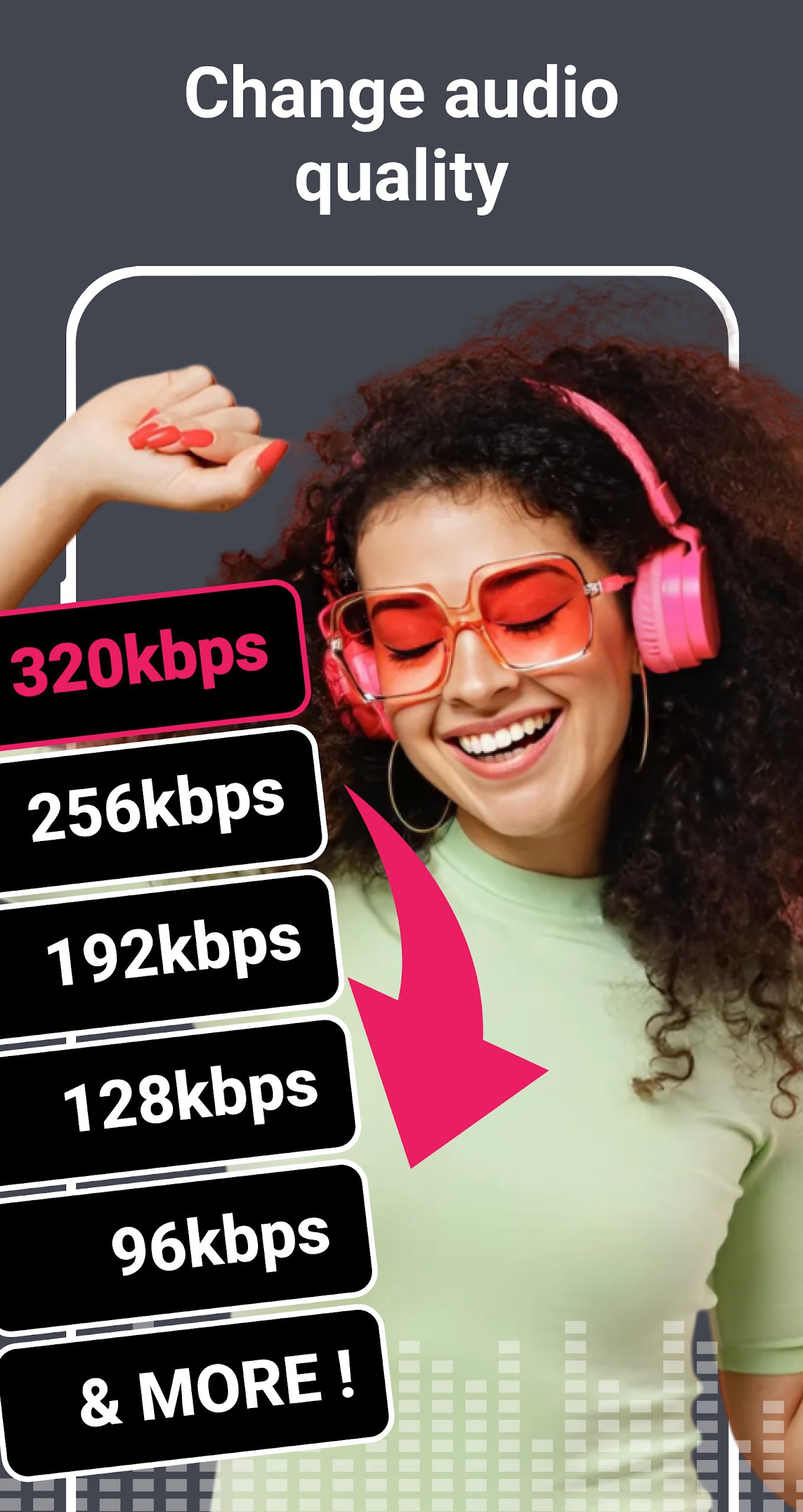
An all-in-one solution for converting audio and video files.
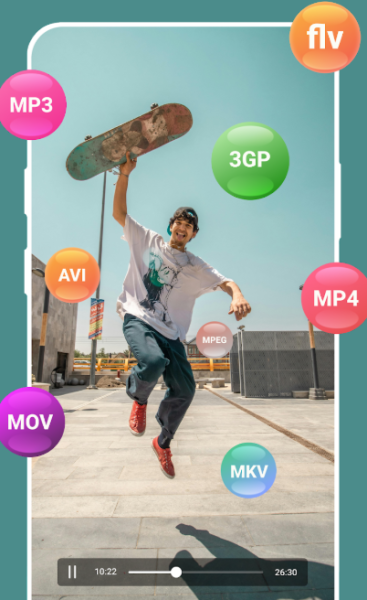
Quickly transform your films and music in the most efficient manner. Store media in any format suitable for various devices or platforms.
This application serves as a robust converter for both video and audio files, as well as a compressor for them. It is capable of converting video formats such as 3GP, AVI, FLV, MKV, MOV, MP4, MPEG, and WMV. Additionally, it supports the conversion of audio formats including AAC, FLAC, M4A, M4B, MP3, WAV, among others. The app also includes features for video editing, such as reducing video size and changing audio bitrate.
Main features include:
- Easy steps for converting videos to any desired format.
- Option to select custom resolutions for output videos.
- Simple process for converting audios into any required format.
- Ability to choose a custom bit rate for output audio.
- MP4 converter: Convert videos to MP4 or convert MP4 files into other formats.
- MP3 converter: Change audio files to MP3 or switch MP3 files to other formats.
- Compress video clips of any dimension while maintaining high quality.
- Extremely fast video conversion and compression capabilities.
- Decrease the file size of video content.
- User-friendly and straightforward interface.
We appreciate your thoughts regarding this app; sharing your reviews and suggestions will assist us in enhancing future versions! Thank you!
How to Use:
1. **Format Conversion**: Select video/audio conversion, import the file, set the output format (MP4/MP3, etc.), and customize the resolution/bitrate. Start the process.
2. **Video Compression**: Select the compression function, import the video, and automatically compress it to high definition or manually adjust parameters to quickly reduce file size.
3. **Batch Processing**: Add multiple files in batches, set parameters uniformly, and start batch conversion/compression with one click.
4. **Storage Settings**: Defaults to saving to the media library; you can customize the save path (e.g., SD card) in the settings.
5. **Tips**: When adjusting resolution, check "Maintain Aspect Ratio" and "Prioritize Quality"; when compressing large files, reserve 1.5 times the storage space; supports pause and resume download; select MP4/MP3 format for cross-device use.
FAQs
### 1. Will selecting "Custom Resolution" when converting a video cause blurring? Can I manually adjust the image quality parameters?
As long as the resolution is set appropriately, blurring is generally not noticeable, and manual image quality optimization is supported. Forcibly stretching a low-resolution video to a higher resolution may cause the image to appear out of focus. However, when converting from a high-resolution to a low-resolution, selecting "Maintain Aspect Ratio" and enabling "Prioritize Image Quality" mode will maximize detail preservation. Additionally, some versions allow manual adjustment of the frame rate and bitrate on the "Custom Resolution" page to further balance image quality and file size.
### 2. Will compressing large videos consume a lot of phone memory? Can I pause the compression process?
Compression primarily uses temporary storage space, not permanent memory consumption, and it can be paused. Before compressing large files, it's recommended to ensure that your phone has at least 1.5 times the file size remaining. Temporary files are automatically deleted after compression is complete, leaving no remaining files. If you need to pause the compression process midway, simply tap the "Pause" button. The next time you open the app, you'll be prompted to "Continue where you left off" without having to start over.
### 3. Can I batch convert multiple audio/video files? For example, I could convert 10 FLAC audio files to MP3 at once.
Batch conversion is supported, making it highly efficient. On the "Audio Conversion" or "Video Conversion" page, select "Batch Add" to import multiple files of the same type. Then, set the output format and parameters. Click "Start Conversion" and the app will automatically process them one by one, eliminating the need to manually process them one by one. This makes it ideal for batch processing.
### 4. Where are the converted files automatically saved? Can I customize the save path?
By default, they are saved to a dedicated folder in the phone's "Media Library," but custom paths are supported. In the app's "Settings - Storage Location," you can manually choose to save to the phone's internal storage, SD card, or a specific folder for easy access later. Some versions also support "Automatically share after conversion," allowing you to directly send files to cloud storage or social media apps, reducing manual file transfer steps.
### 5. After compressing videos using this app, can I guarantee that they will play properly on my phone, tablet, and TV?
As long as you choose a universal output format, it's generally compatible with multiple devices. We recommend using MP4 and MP3 as the preferred compression format, as these two formats are universally compatible with devices like phones, tablets, TVs, and projectors. To play on a specific device, select a supported format in "Output Format" or check "Device Compatibility Recommendations" within the app.
- Version224610
- UpdateOct 21, 2026
- DeveloperDesa Mobi
- CategoryVideo Players
- Requires AndroidAndroid 5.0+
- Downloads187K+
- Package Namecom.desa.mediaconverter
- Signature7ddc6bef1648646ea3512c645b4fdcde
- Available on
- ReportFlag as inappropriate
-
NameSizeDownload
-
14.20 MB
-
14.20 MB
-
14.81 MB

















Easy to use
All-in-one converter
Options for storing videos
Smooth and fast format changing
Free with bearable ads
Performs video conversion nicely
Provides useful options for conversion
Effective at serving its purpose
Excessive ads in the app
Issues with file support
Slow conversion speeds
Limited conversion for longer clips
Problems with converted file sizes
Poor functionality reported by users
Difficult navigation through channels
Useless for certain media types