
Paint - Draw, Sketch & Art - Draw & Paint Freely
Unleash creativity with versatile brushes, intuitive tools, and easy sharing to craft stunning digital art effortlessly
- 3.5 Version
- 1.2 Score
- 552K+ Downloads
- Free License
- 3+ Content Rating

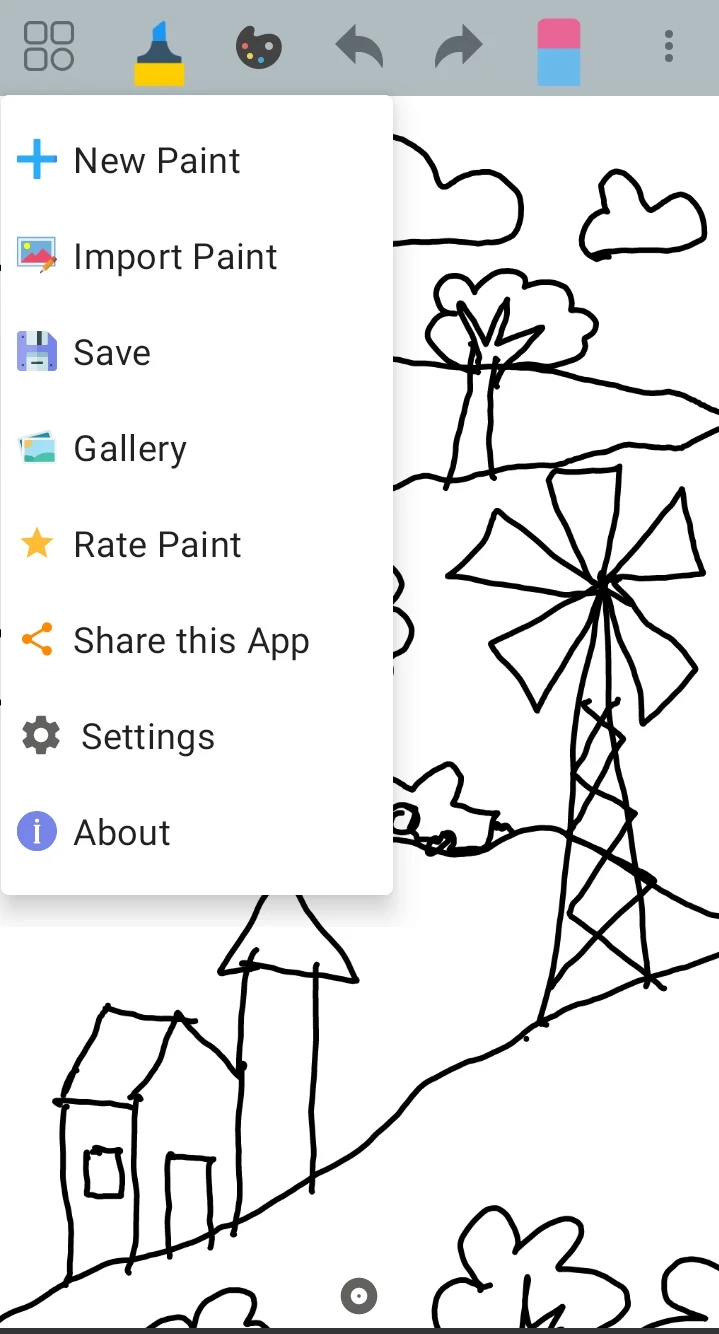
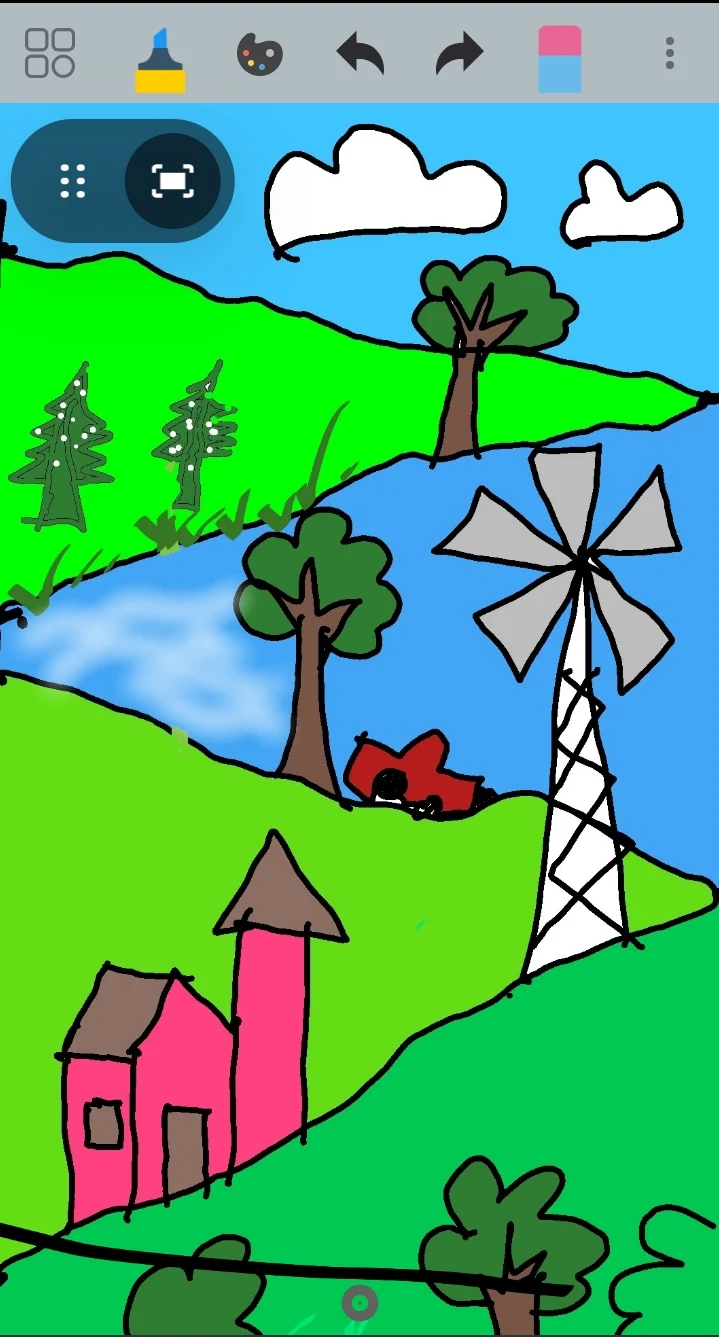
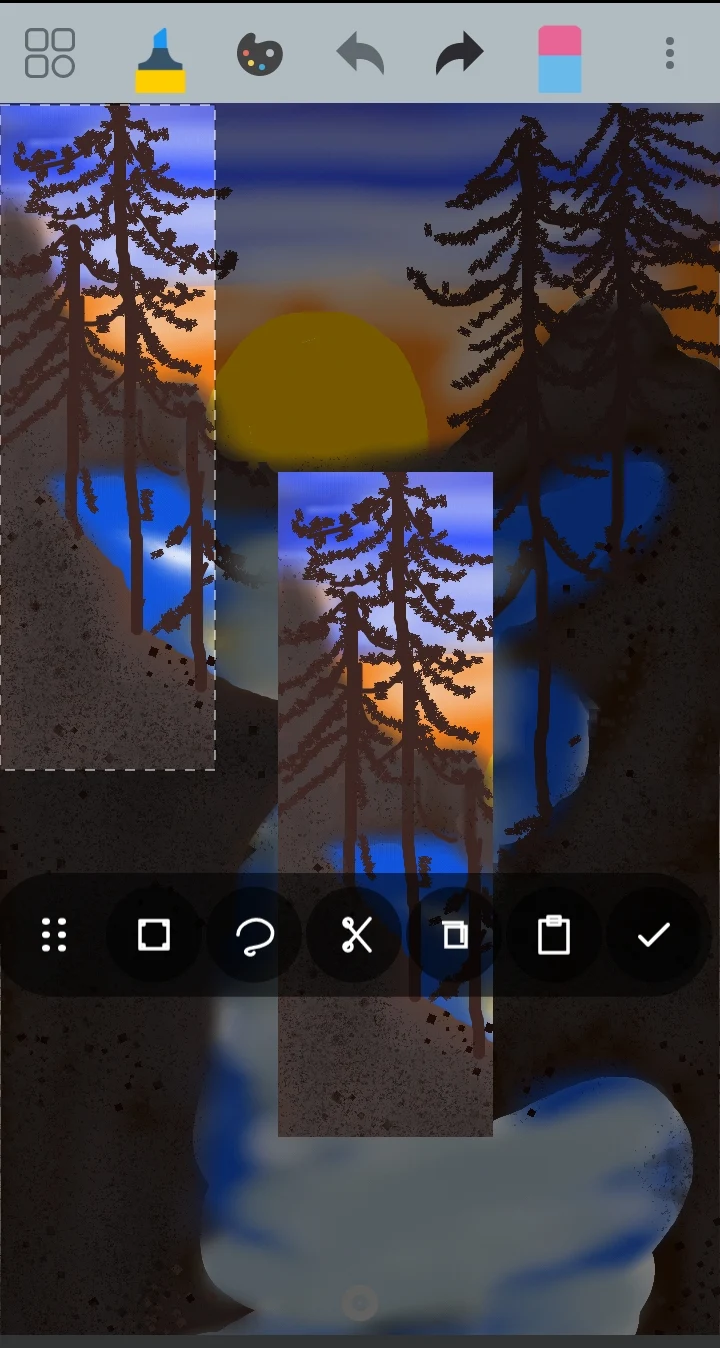
Paint
1. App Overview
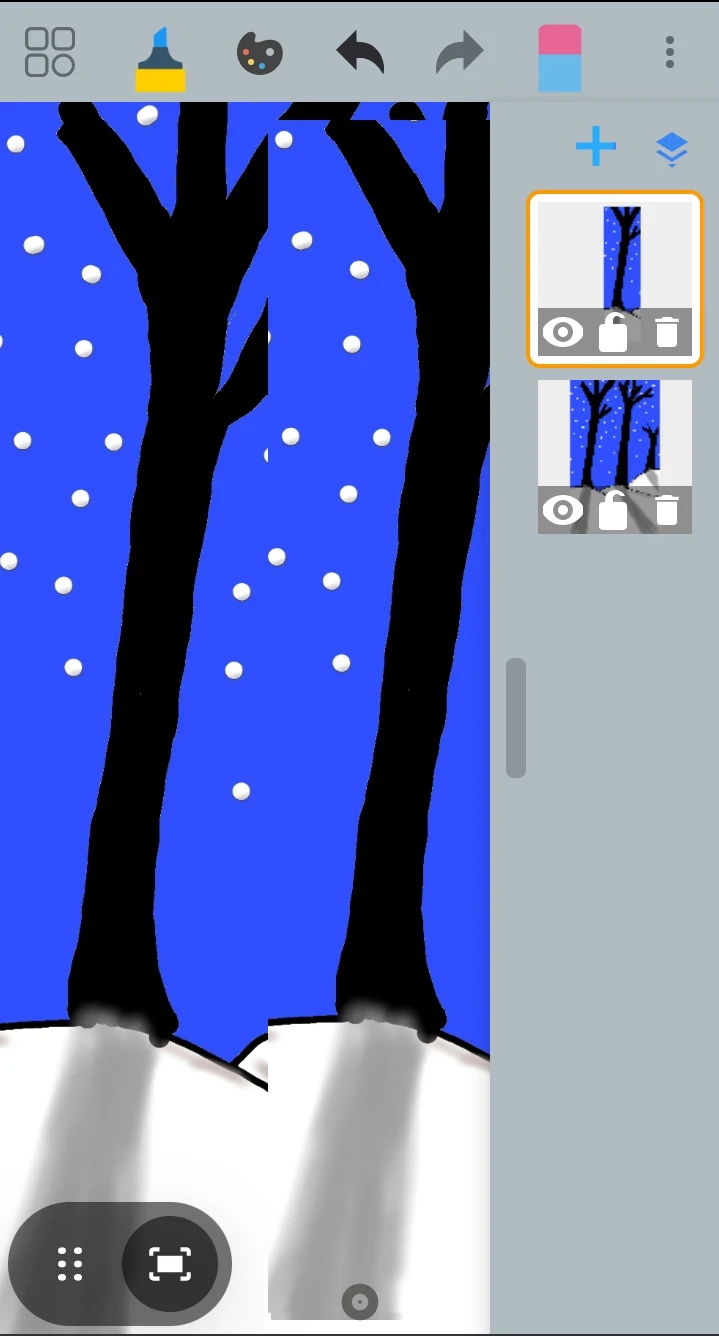
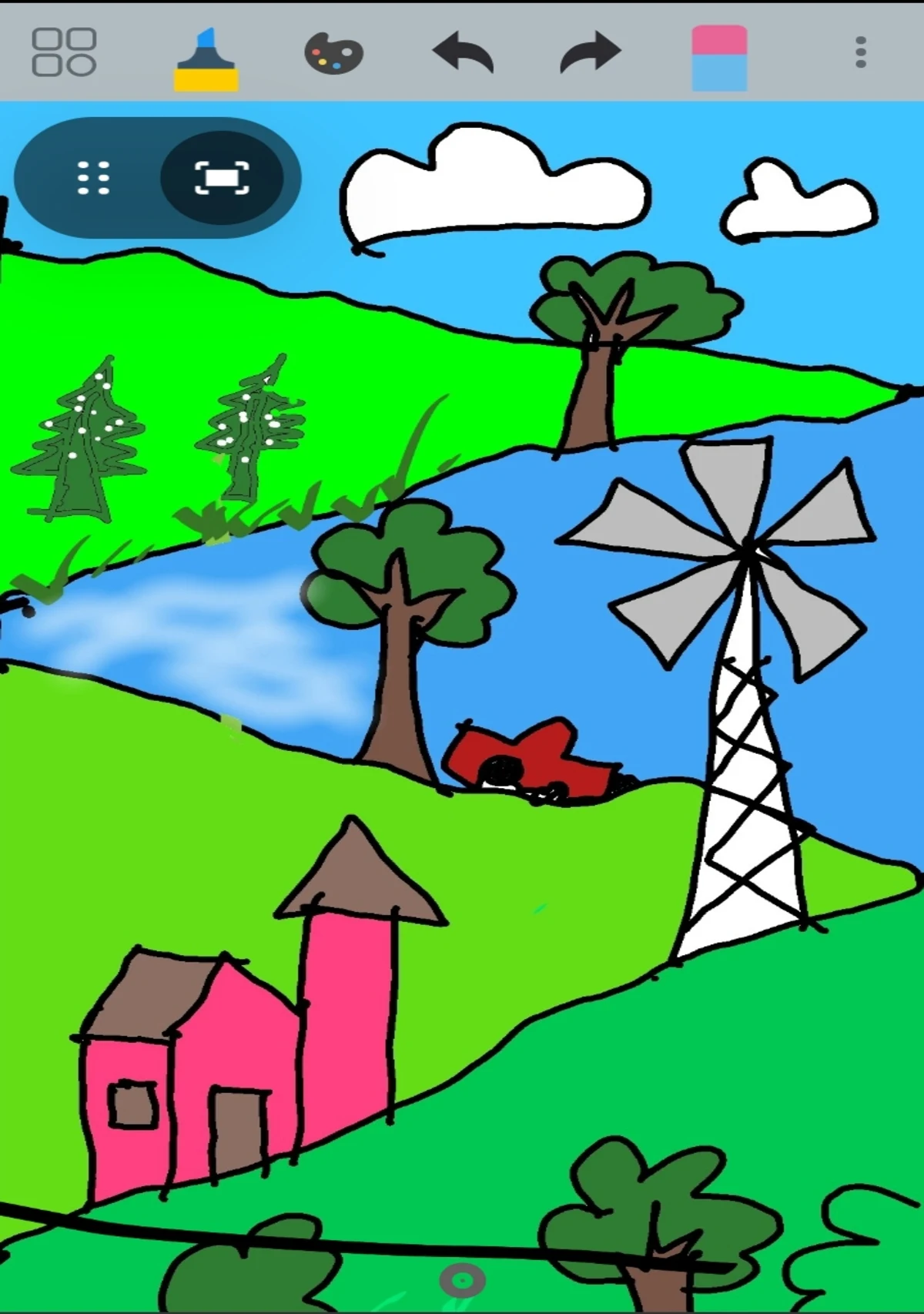
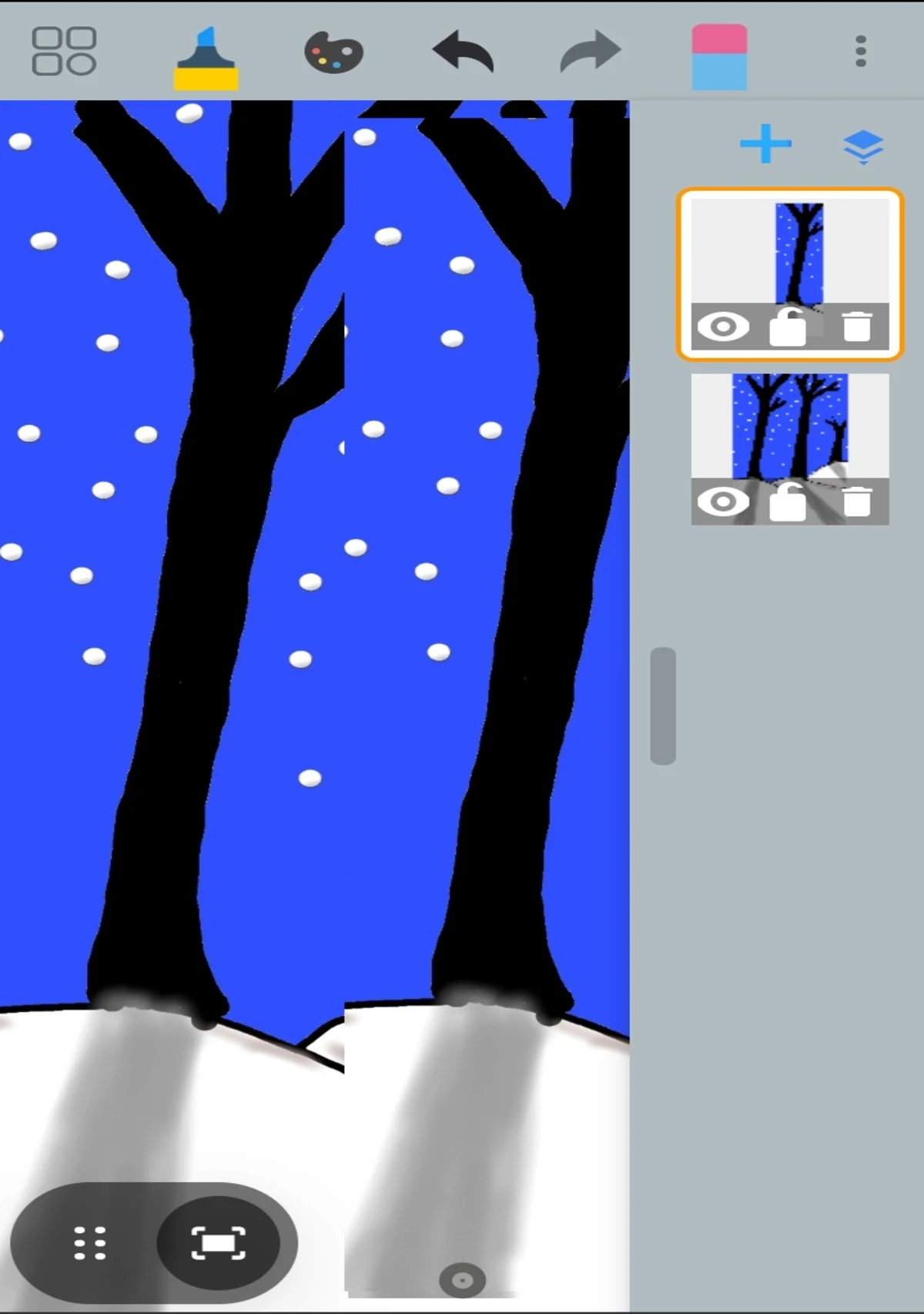
Paint is a mobile drawing app for creating sketches, illustrations, digital artwork, and simple designs. It brings together freehand drawing, coloring, and basic image editing tools, providing a workspace for everything from quick doodles to more detailed creative projects.
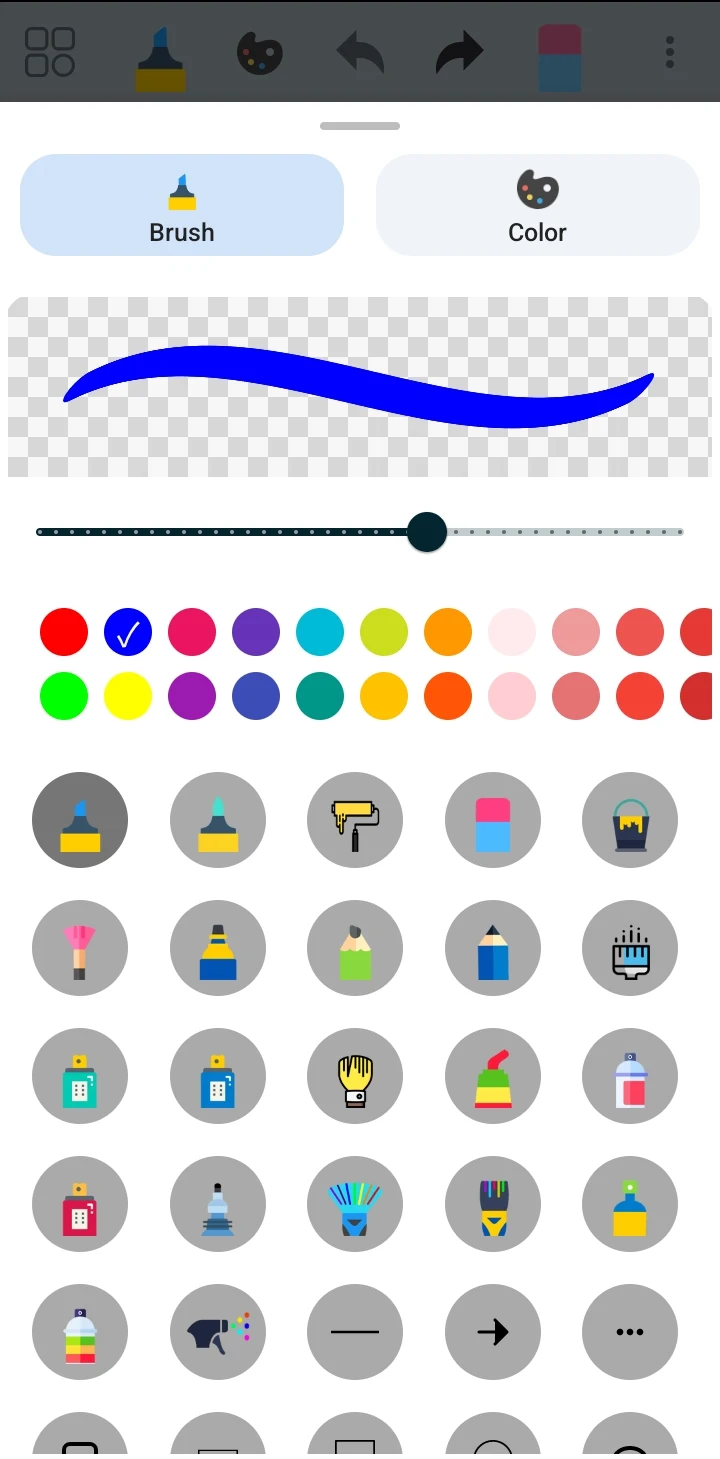
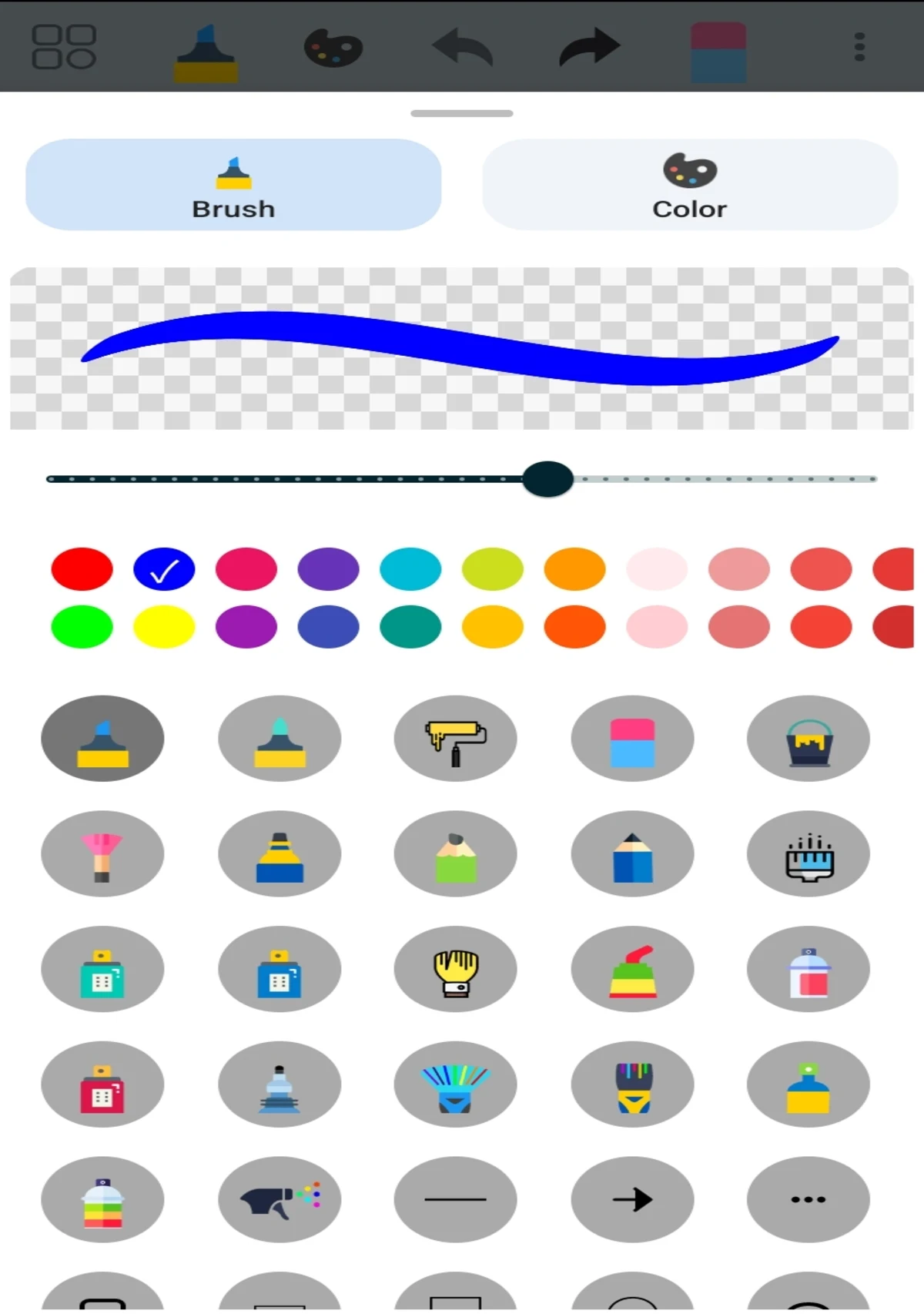
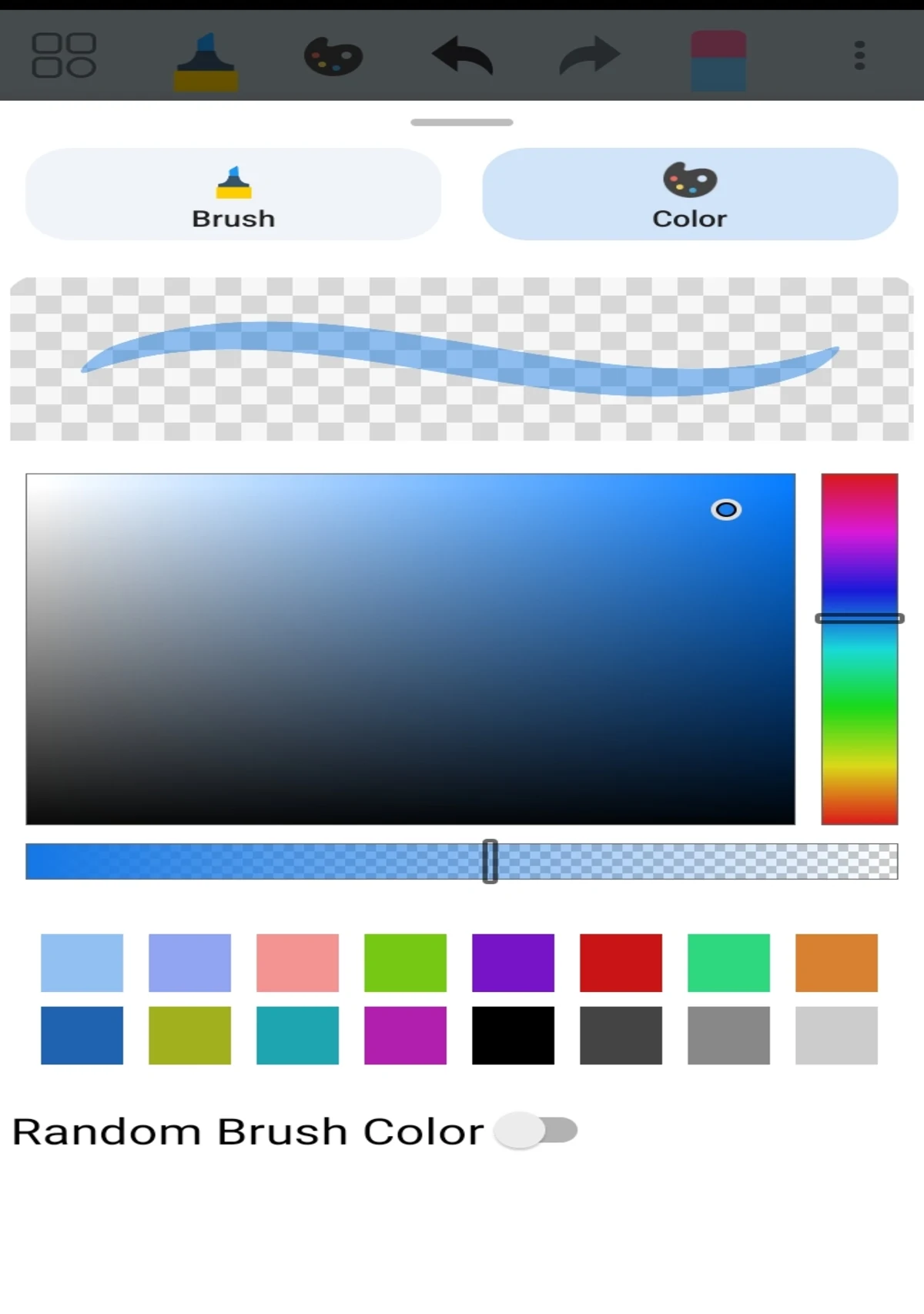
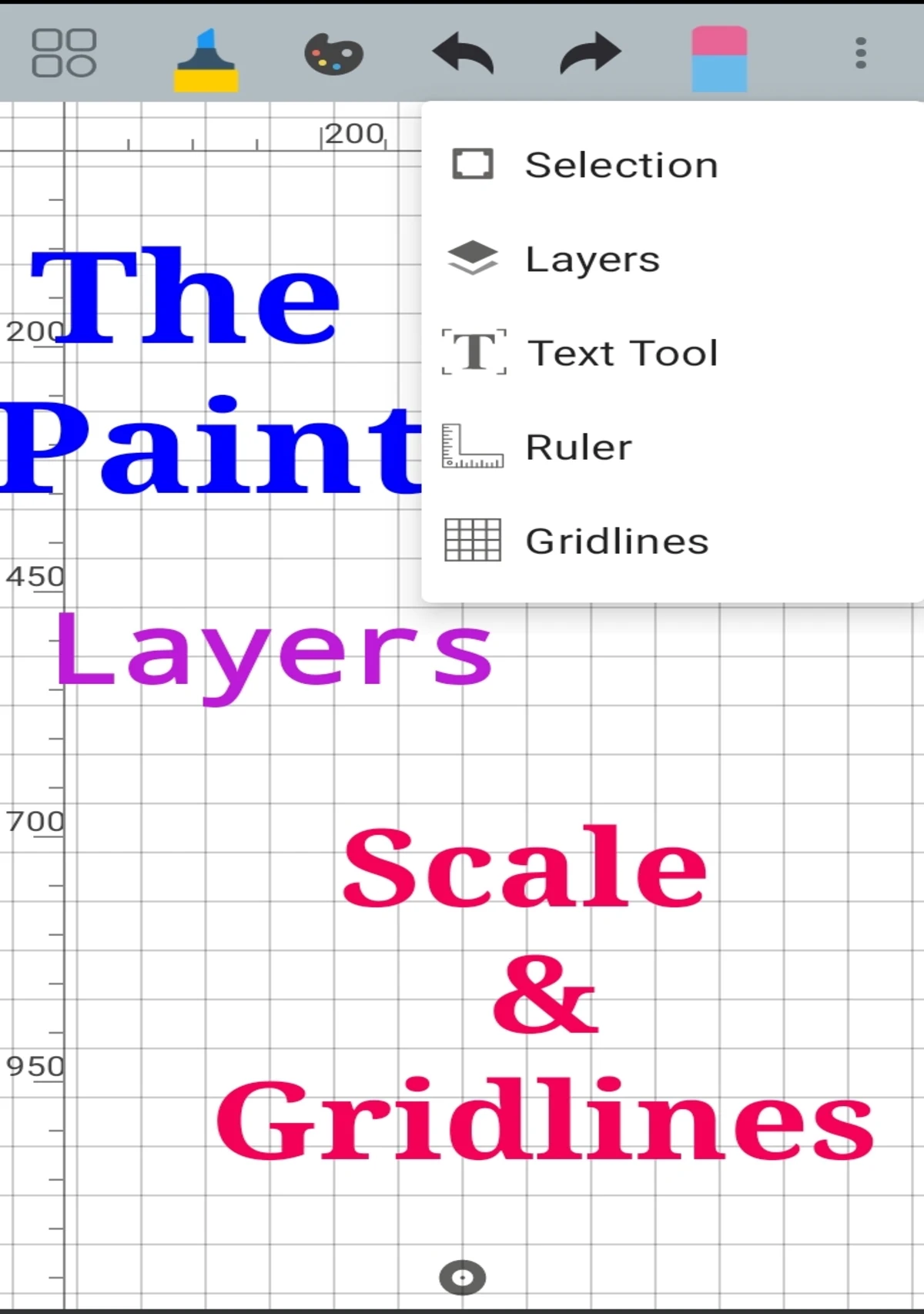
The app offers various drawing instruments, including pens, paintbrushes, calligraphy brushes, fan brushes, flat brushes, rollers, spray tools, and geometric shapes. Users can adjust brush colors and sizes, add text, and use rulers or grid lines to position elements more accurately. A selection of recently used colors is also available for quick access while working.
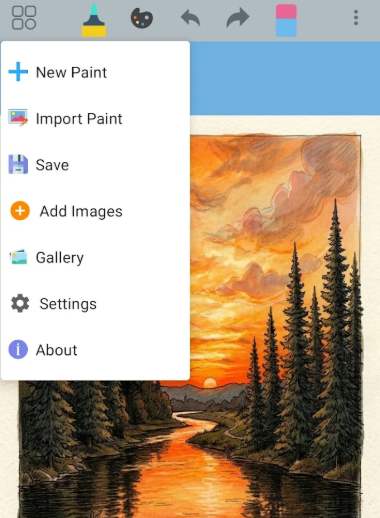
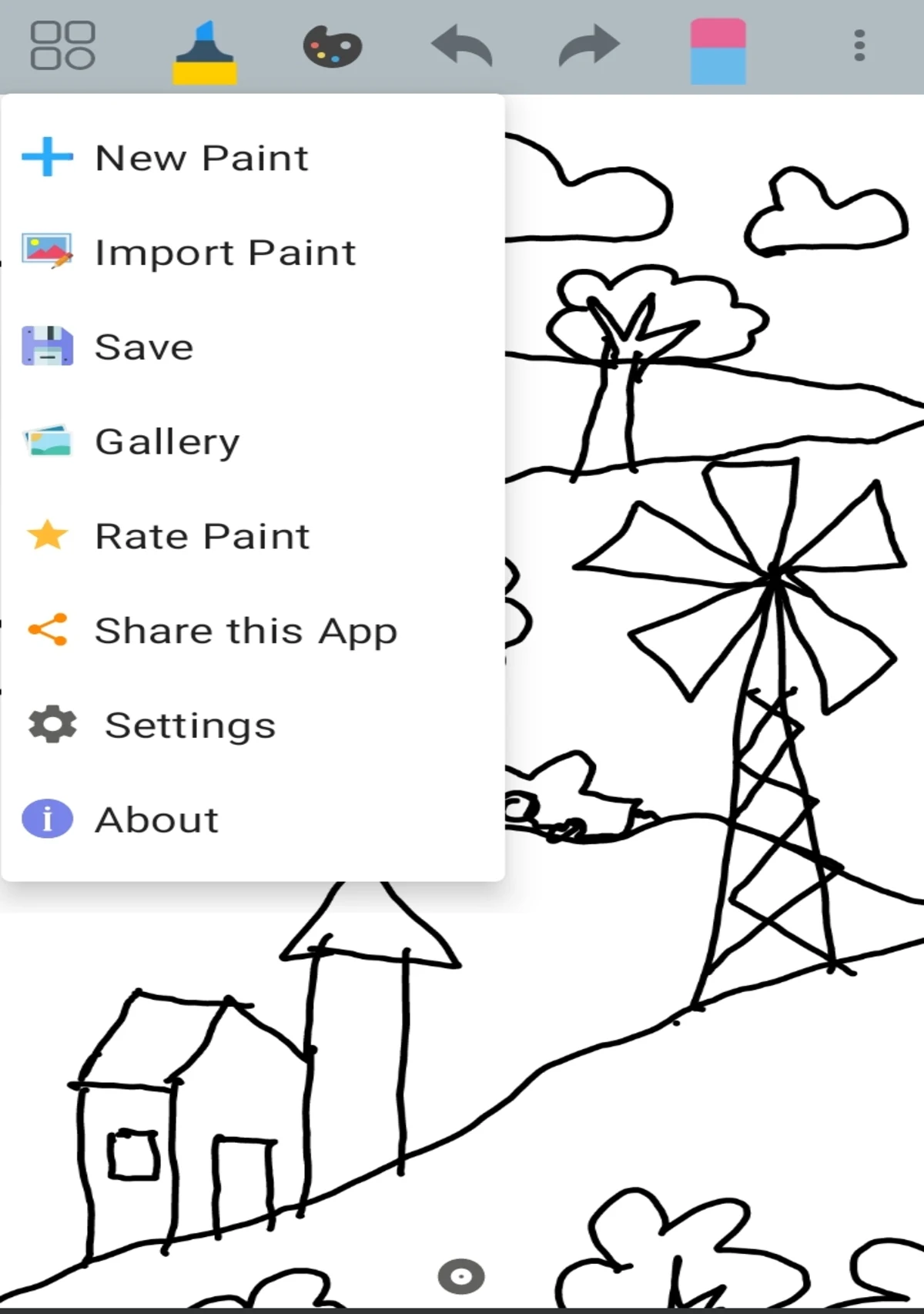
In addition to creating artwork from scratch, Paint lets users import photos from their devices and edit them with drawings, shapes, and text. The canvas can be resized and zoomed in for detailed work. Once a project is complete, users can save it in the built-in gallery or export it as a JPG or PNG file for use in other applications.
Paint provides a straightforward drawing environment for beginners and users who want to make quick edits on their phones. More advanced tools, such as layer support, may be available in paid editions, depending on the version.
2. Key Features
Multiple Drawing Tools: Choose from pens, paintbrushes, calligraphy brushes, fan brushes, flat brushes, rollers, spray tools, erasers, and geometric shapes.
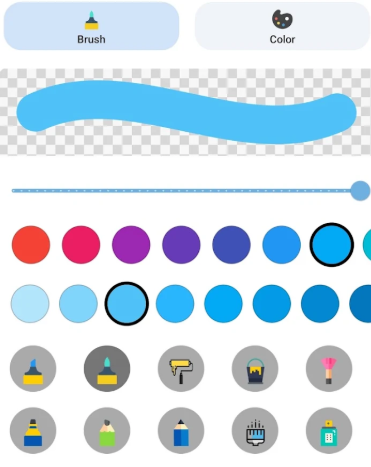
Customizable Brushes: Adjust brush colors and sizes to create different strokes and drawing effects.
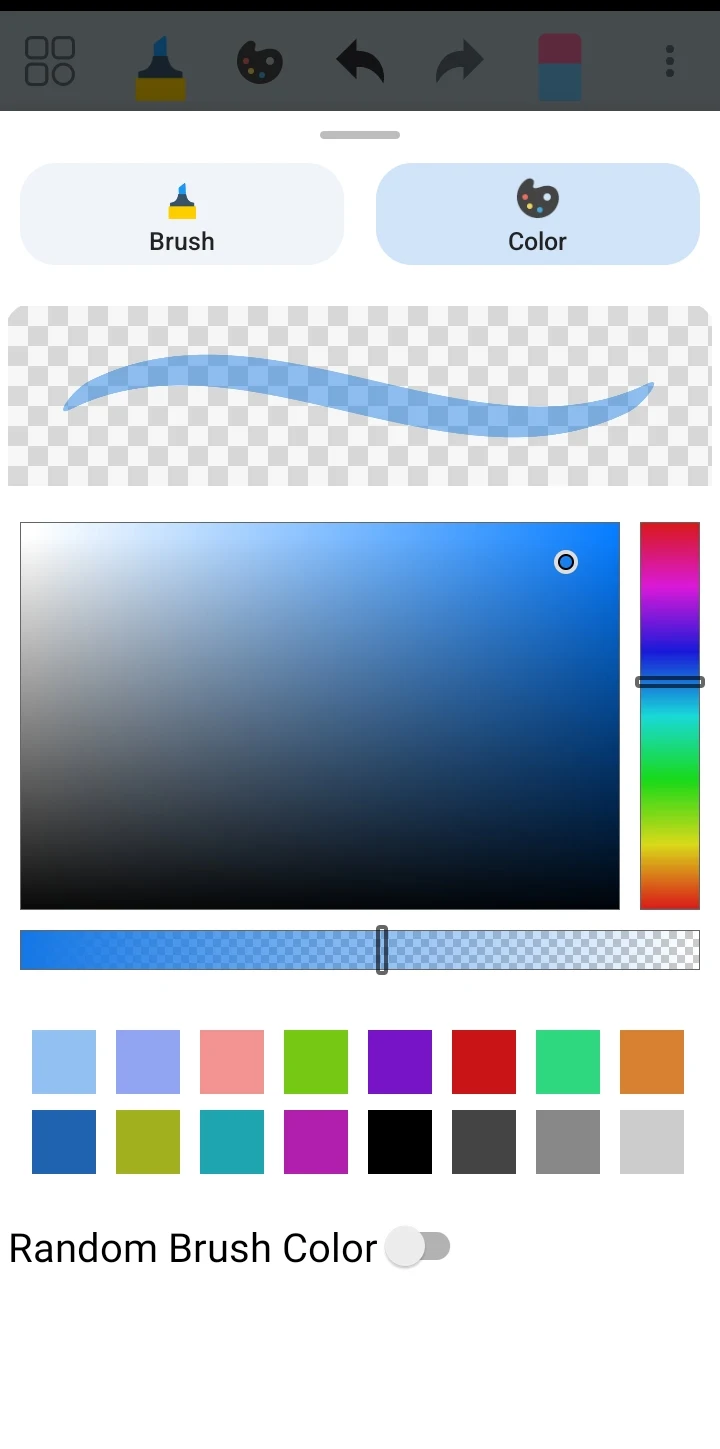
Recently Used Colors: Reuse previously selected colors without having to find them again in the palette.
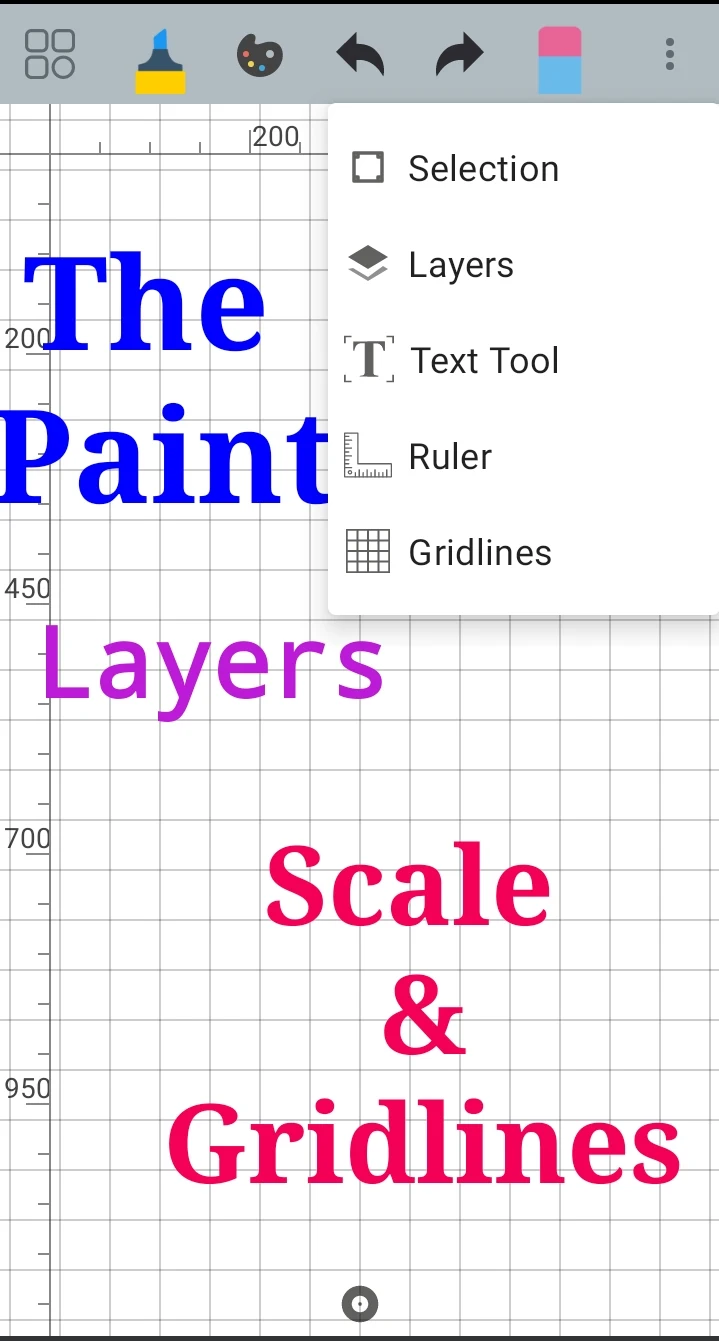
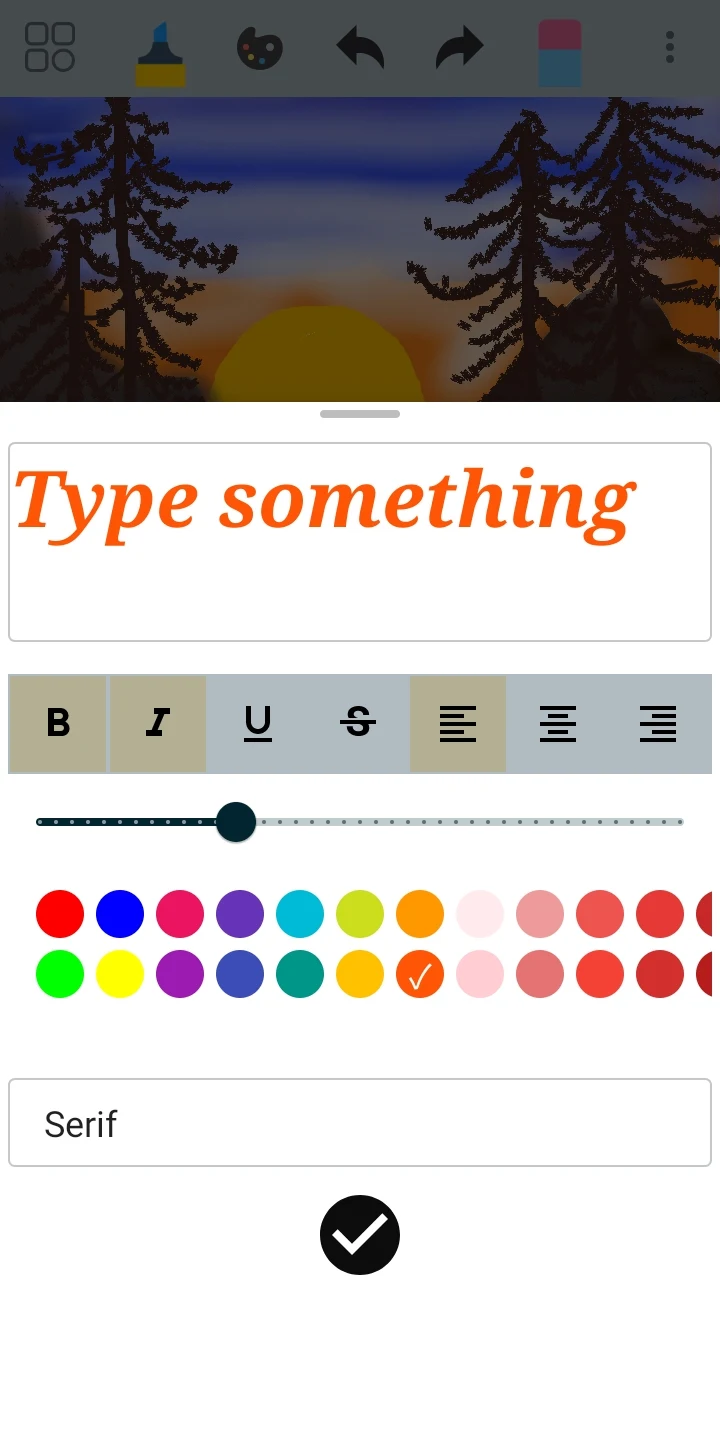
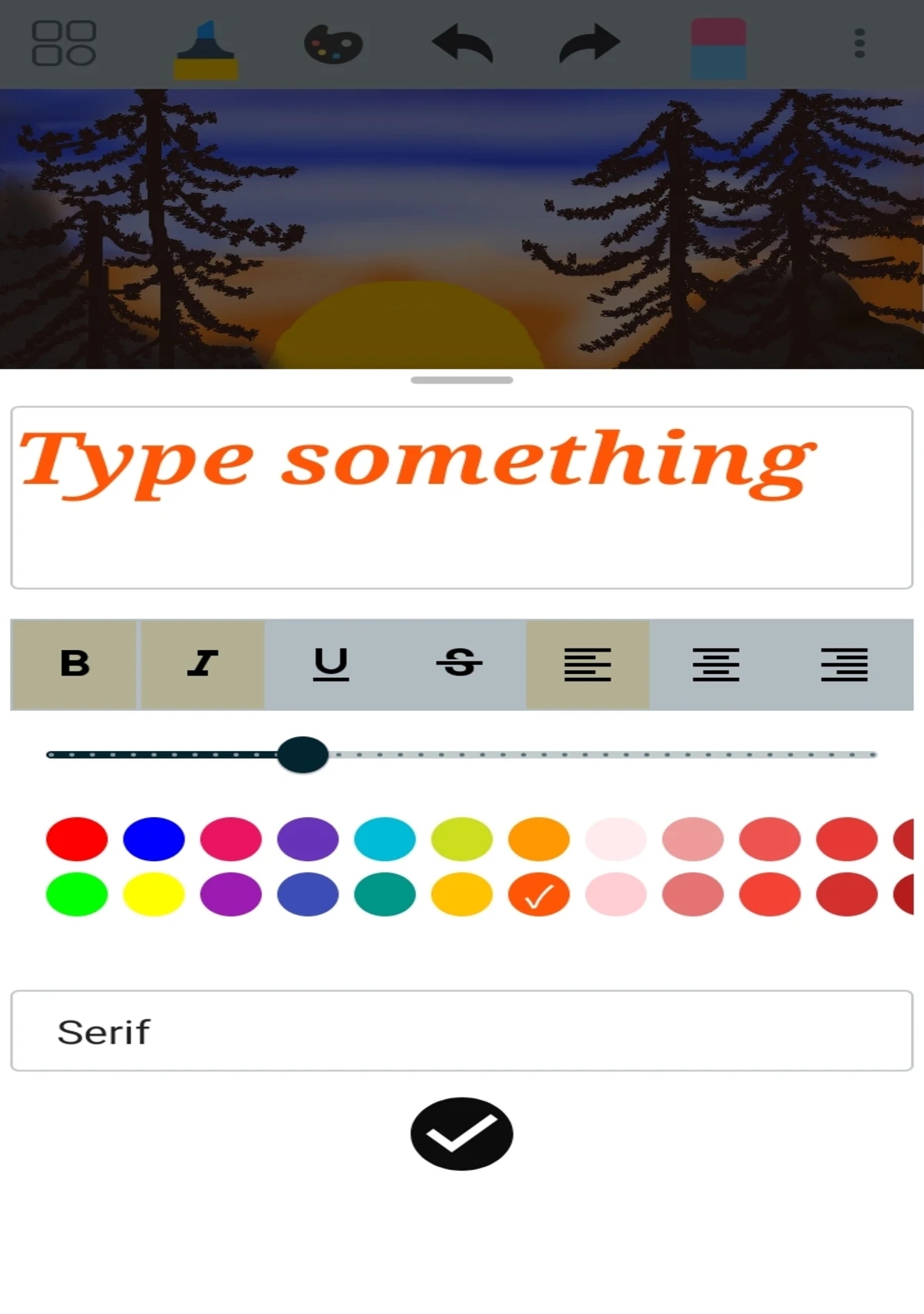
Text Formatting: Add text to artwork and adjust its alignment to the left, center, right, or justified.
Rulers and Grid Lines: Use visual guides to align elements and create more accurately positioned shapes.
Adjustable Canvas: Change canvas dimensions, zoom in on details, and navigate around the drawing area.
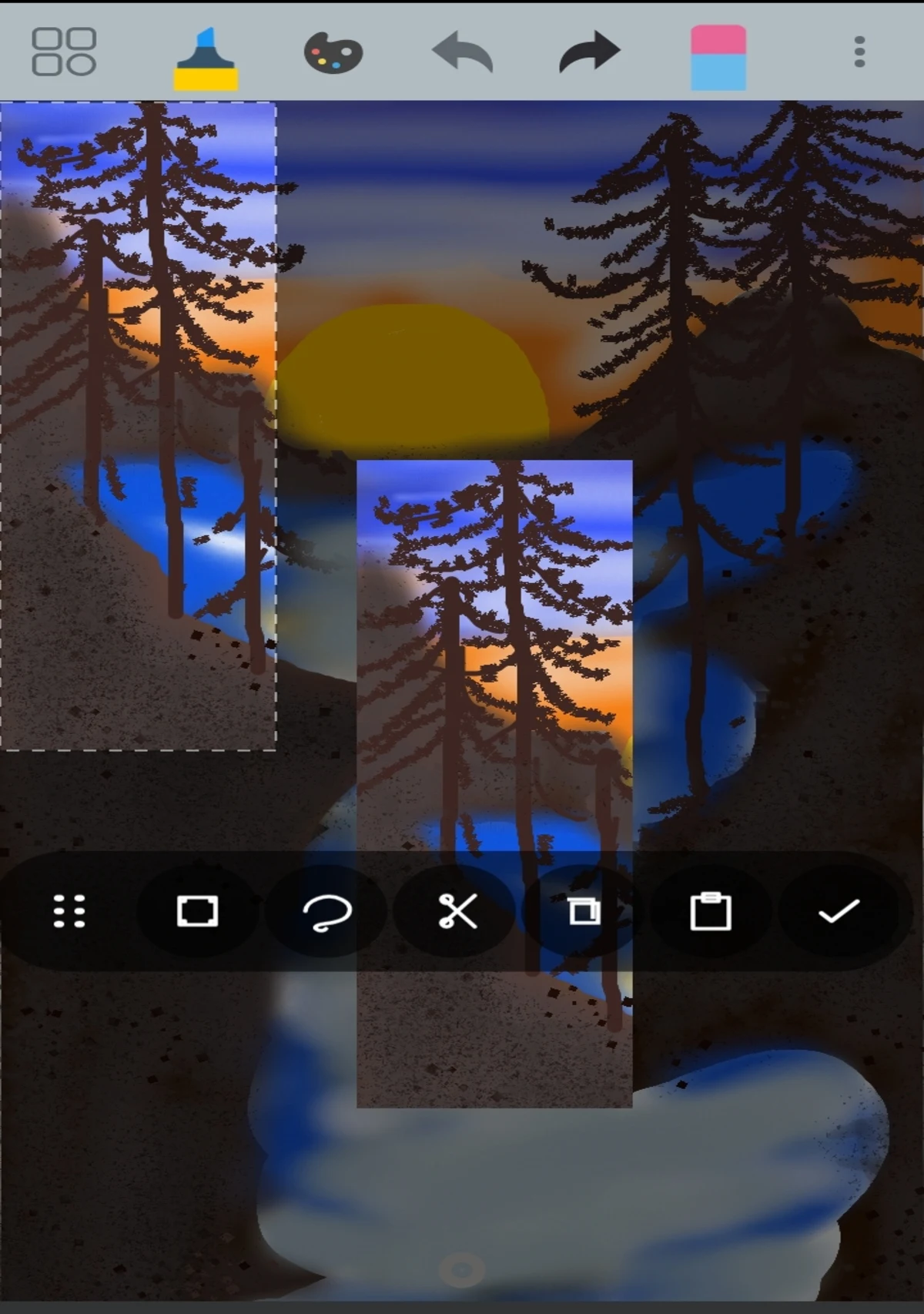
Photo Import and Editing: Open pictures from your device and add drawings, shapes, or text.
Built-in Gallery: Keep completed projects in one place for future access.
Undo and Redo: Reverse recent changes or restore actions that have been undone.
Image Export: Save finished artwork in JPG or PNG format for sharing or use in other applications.
3. How to Use
Create a Canvas: Open Paint and start a new project. Choose an available canvas size or resolution.
Select a Drawing Tool: Pick a brush, pen, shape, or other instrument from the toolbar. Adjust its color and size as needed.
Draw on the Canvas: Use your finger or a compatible stylus to create sketches, color areas, or add shapes. Turn on rulers or grid lines when you need alignment guides.
Add Text or Photos: Use the text tool to insert words, or import an existing picture to use as the starting point for your design.
Make Adjustments: Zoom in to work on smaller details. Use Undo and Redo to correct mistakes or restore previous changes.
Save or Export: Save your work to the built-in gallery or export the finished image as a JPG or PNG file.
4. Frequently Asked Questions
Q1: Is Paint suitable for beginners?
Yes. Its basic drawing tools and straightforward controls make it suitable for beginners who want to practice sketching, coloring, or creating simple illustrations.
Q2: Can I change the canvas size?
Yes, supported versions allow users to adjust canvas dimensions. Open Canvas Settings to check the available sizing options. Resizing may affect the proportions or positioning of existing artwork.
Q3: Can I draw on imported photos?
Yes. Import a picture from your device and use the drawing tools, geometric shapes, and text options to add annotations, decorations, or other elements.
Q4: Which image formats does Paint support for export?
Paint supports JPG and PNG formats. You can save your completed artwork in either format for viewing, sharing, or further editing.
Q5: Does Paint support layers?
Layer support depends on the version. Some paid or advanced editions may include layer tools, while the basic edition may have a more limited set of editing options.
Q6: Can I undo or redo drawing actions?
Yes. Use Undo to reverse your most recent action and Redo to restore an action you previously reversed. These controls help you make corrections without restarting your project.
- Version3.5
- UpdateNov 06, 2026
- Developerlstudios
- CategoryArt & Design
- Requires AndroidAndroid 6+
- Downloads552K+
- Package Namecom.lstudios.sketchboard
- Signature957651bc117a23fe3340eb74cbe8f09b
- Available on
- ReportFlag as inappropriate
-
NameSizeDownload
-
4.66 MB
-
4.66 MB
-
4.65 MB








Provides a wide range of colors
User-friendly interface
Suitable for children and beginners
Ideal for creating flow charts and notes
Intrusive ads are minimal
Encourages artistic skills development
Satisfying results for users
Versatile tool for various art tasks
Shapes can be difficult to drag and position properly
Fails to save actual images accurately
Limited to certain user skill levels
Potential for accidental cropping of pictures
May lack advanced features for experienced artists