
Drawing Pad - Drawing & sketching tool
Unleash your creativity with vibrant colors & customizable pen thickness for effortless drawing & note-taking!
- 1.9 Version
- 1.6 Score
- 172K+ Downloads
- Free License
- 3+ Content Rating

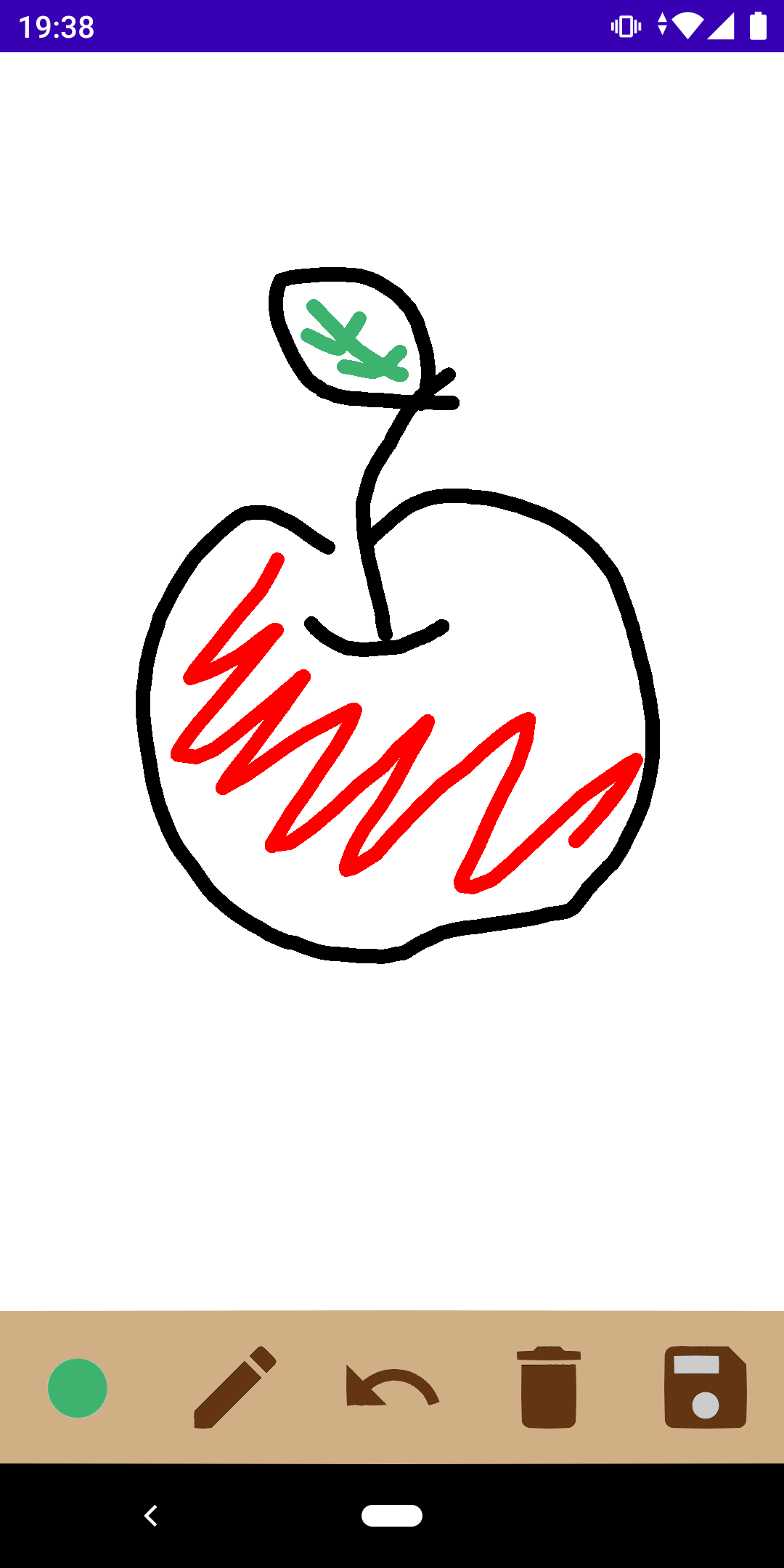
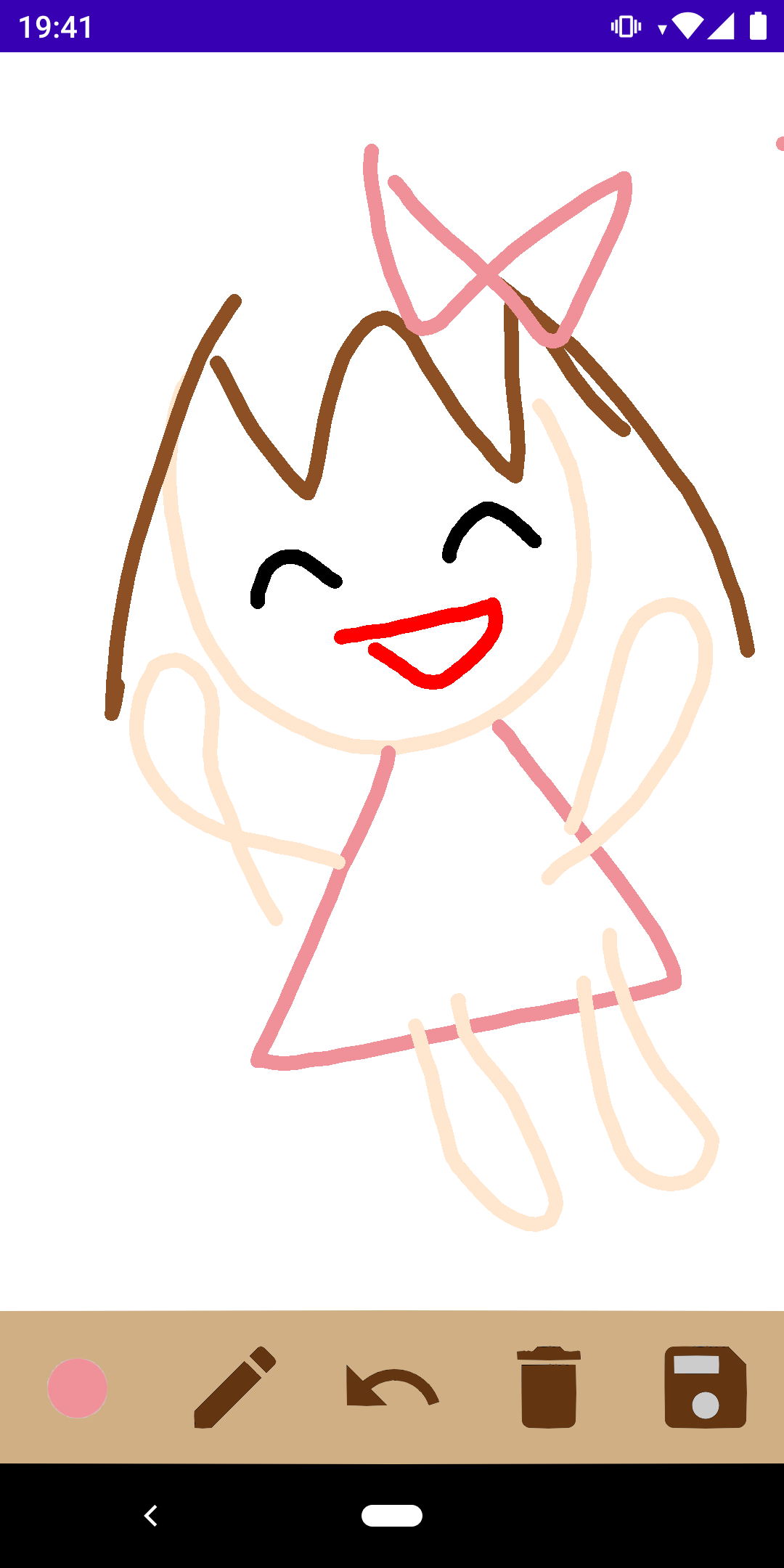
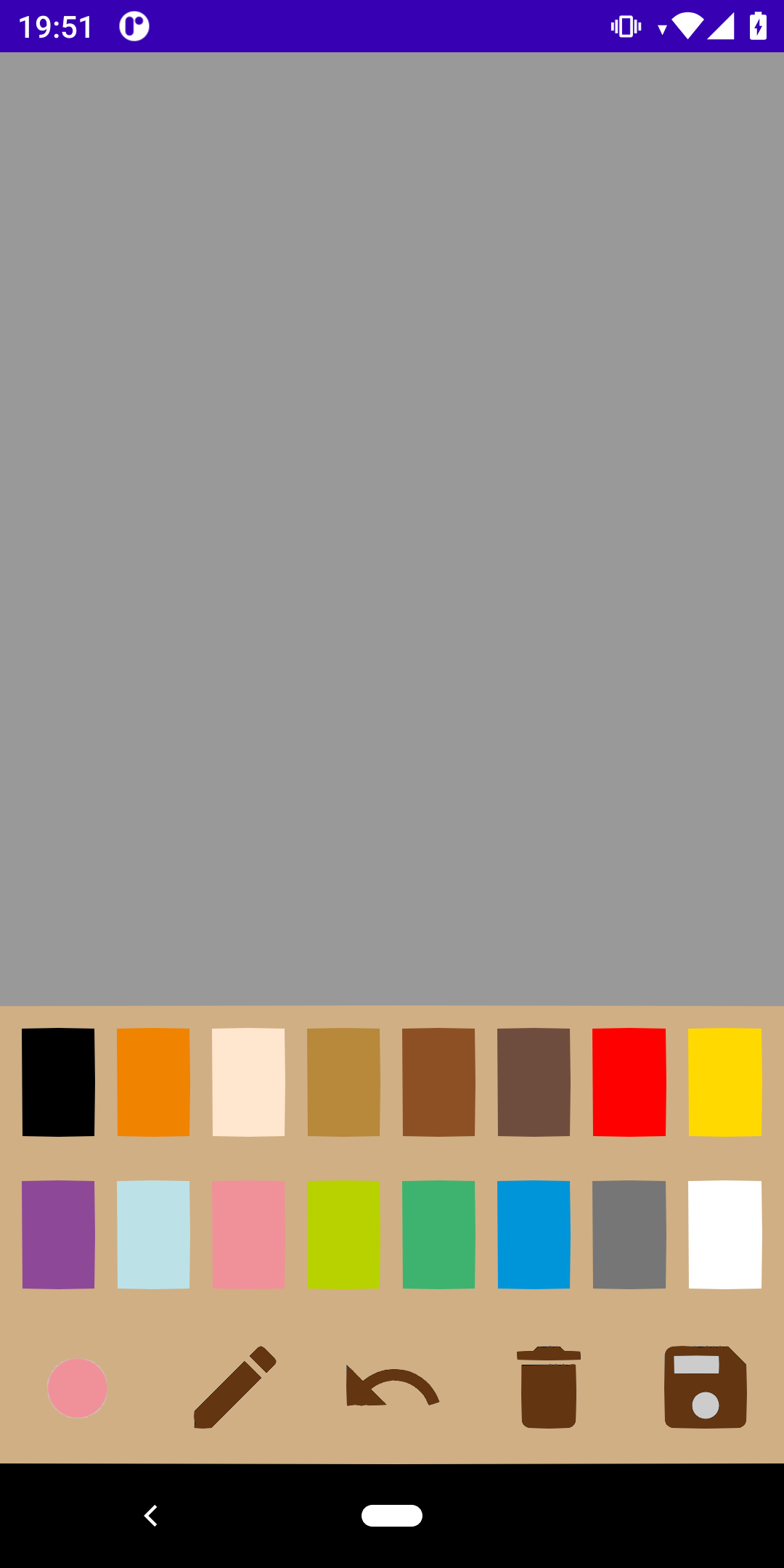
This is a straightforward drawing pad app.
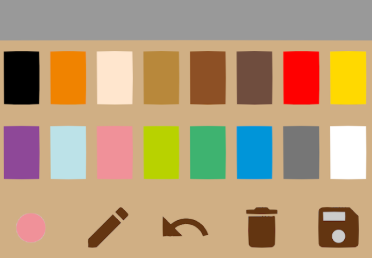
Features:
- It allows for effortless use in creating drawings, taking handwritten notes, graffiti art, and as a sketchbook, among other things.
- There are 16 different colors available.
- You also have the option to adjust the thickness of the pen.
- Additionally, you can save your artwork as an image.
Instructions:
1. **Download and Install**: Search for "Drawing Pad" in the Google Play Store, click to download and install.
2. **Open the App**: After installation, click the app icon to open Drawing Pad.
3. **Select a Brush Tool**: In the toolbar above the drawing interface, click the brush icon and select the desired brush tool from the pop-up menu.
4. **Adjust Brush Properties**: Click the color and weight icons and use the sliders to select the desired color and weight. You can also adjust other brush properties such as opacity as needed.
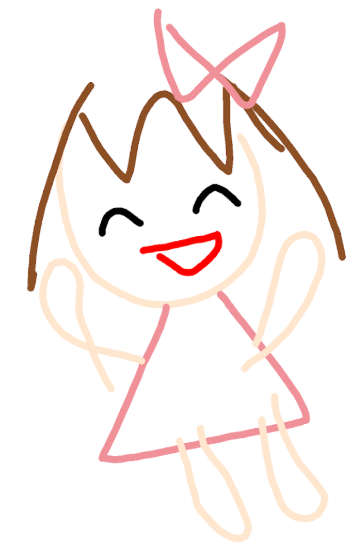
5. **Start Drawing**: Tap and drag your finger or stylus on the canvas to create your drawing.
6. **Use Accessibility**: To undo or redo your last action, tap the Undo or Redo icons in the toolbar above the drawing interface. You can also tap the Sticker icon to select stickers or images to add to your canvas.
7. **Adjust Canvas Size**: Click the Canvas Size icon and enter the desired width and height to resize the canvas.
8. **Save your work**: Once you've finished drawing, tap the Save icon, select a save location, and name your drawing to save it as an image.
FAQs:
1. **Q**: What is the main purpose of the Drawing Pad app?
**A**: It allows you to easily create drawings, keep handwritten notes, doodle, and can also be used as a sketchbook. It supports saving your work as an image.
2. **Q**: What brush customization options does the app offer?
**A**: There are 16 different colors to choose from. You can adjust the brush thickness and set other attributes such as brush opacity.
3. **Q**: How do I download and install this app?
**A**: Search for "Drawing Pad" in the Google Play Store, download, and install.
4. **Q**: What if I make a mistake while drawing?
**A**: Click the Undo or Redo icon in the toolbar at the top of the drawing interface to undo the previous action or redo an undone action.
5. **Q**: Can I add decorative elements to my artwork?
**A**: Yes, click the Sticker icon in the toolbar and select a sticker or image to add to the canvas.
6. **Q:** How do I adjust the canvas size?
**A:** Click the Canvas Size icon, enter the desired width and height values, and you can adjust the canvas size.
7. **Q:** How do I save my artwork after finishing?
**A:** Click the Save icon, choose a save location, and name your artwork to save it as an image.
- Version1.9
- UpdateOct 29, 2026
- Developerrazuma
- CategoryArt & Design
- Requires AndroidAndroid 5.0+
- Downloads172K+
- Package Namejp.razuma.drawingbook
- Signature0fe87ea7f7cf52236d83d5ac728a4b7a
- Available on
- ReportFlag as inappropriate



Extremely low entry barriers
Practical core functions
Lightweight experience
Functionality is too basic
Editing flexibility is insufficient
No sharing or syncing