
XServer XSDL - Linux app streaming & control
Stream apps from Linux PC & run Linux on Android with intuitive touch controls for seamless productivity.

- 1.20.53 Version
- 2.9 Score
- 223K+ Downloads
- Free License
- 3+ Content Rating

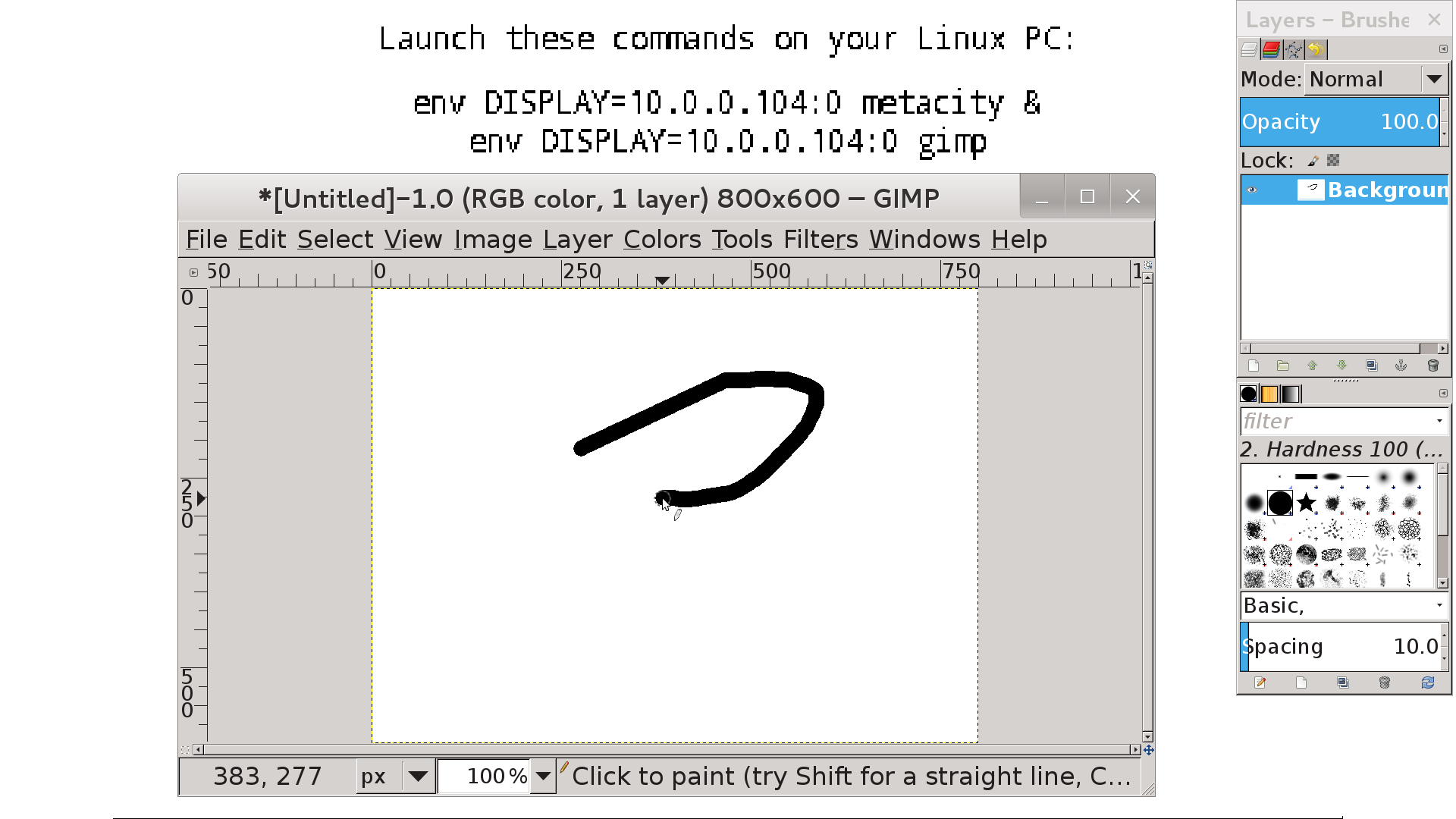
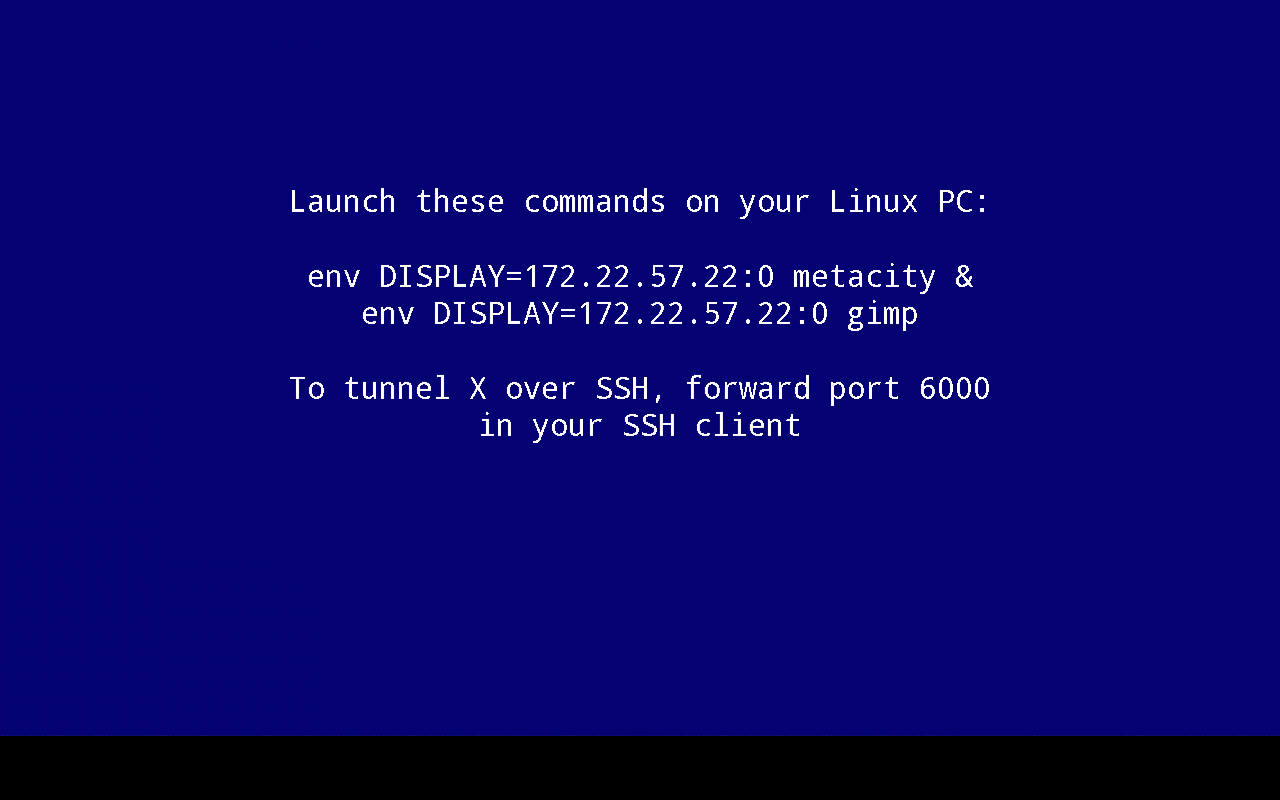
X Window System / X11 server designed for Android, fully operational and includes a PulseAudio server.
Features
- Core Functionality: Android X11 server with integrated PulseAudio, supports streaming Linux programs or launching Linux on Android (requires additional apps).
- Interactions: Two-finger right click, three-finger middle click, two-finger swipe and scroll, support for styluses and Bluetooth mice, and hover support for some devices.
- Input Controls: Return key accesses the keyboard (non-English input is limited to the GUI), hardware menu key sends Ctrl-Z.
- Flexible Configuration: Allows you to disable the gyroscope, set portrait orientation and color depth, customize the display ID and port, and connect to a PC display manager.
- Limitations: No 3D acceleration/OpenGL, requires VirtualGL support; source code and older versions are available.
Noticed
1.This application allows streaming of programs from your Linux computer or launching Linux on your Android device (Linux installation is handled through another app).
Note that 3D acceleration and OpenGL are not available. If you are executing X clients from your PC, consider installing VirtualGL to utilize OpenGL.
2.To perform a right-click, touch the screen with two fingers; for a middle-click, use three fingers. Additionally, you can click the button on your stylus or employ a Bluetooth mouse.
Scrolling through documents can be achieved by swiping with two fingers.
3.Finger hover functionality is available on certain devices. For users with a Galaxy S4/Note 3, enable AirView in your system settings for this feature.
4.Press the Back key to bring up the keyboard. Note that non-English text input isn't supported in terminal applications but functions in GUI ones.
If the Back key is not visible, swipe up from the bottom edge of the screen.
5.If your device has a hardware Menu key, it will send Ctrl-Z, which typically performs an Undo action in many applications.
You have the option to deactivate the gyroscope under Mouse emulation → Advanced → Gyroscope.
Portrait orientation and 24bpp color depth can be activated in Change device config → Video.
6.For custom display numbers, navigate to Change device config → Command line parameters → adjust parameters to XSDL :123, and press OK, where 123 represents your selected display number. XSDL will listen on TCP port 6123. Additional parameters for the X server can also be passed through this dialog.
7.To connect to the display manager on your PC, append the parameter -query your.PC.IP.address to the Xserver command line, followed by configuring your display manager accordingly.
8.For those using XDM, modifications include removing the line starting with :0 from /etc/X11/xdm/Xservers, adding * to /etc/X11/xdm/Xaccess, and setting DisplayManager*authorize: false in /etc/X11/xdm/xdm-config to disable the local X server and permit connections from external addresses.
User Guide
- Runs **X11 + Audio Service** on Android, allowing remote display of Linux programs or local Linux execution.
- Use two fingers for right-click, three fingers for middle-click, and two fingers for scrolling; press the back button to bring up the keyboard.
- Does not support 3D/OpenGL; requires VirtualGL.
- Customizable resolution, portrait mode, display size, and IP address for computer connection.
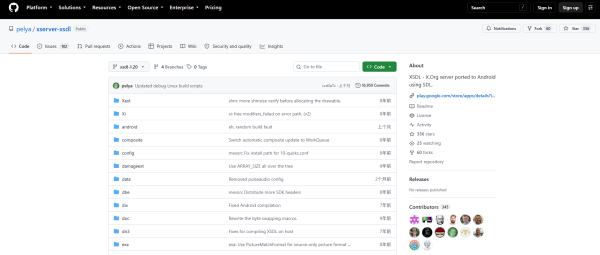
- Source code, APK, and older versions are available for download from the repository.
FAQ
- **Q**: What can XServer XSDL do on my Android device?
- **A**: It allows you to stream programs from a Linux computer to your Android device, or launch a Linux system on your Android device alongside other apps. It also integrates a PulseAudio server for audio-related functions.
- **Q**: If I want to use OpenGL, does this app support it?
- **A**: XServer XSDL itself does not support 3D acceleration or OpenGL. If you want to use OpenGL from a PC running an X client, consider installing VirtualGL.
- **Q**: How do I right-click and middle-click in apps?
- **A**: Right-click by touching the screen with two fingers, and middle-click by touching the screen with three fingers. Alternatively, you can click the button on a stylus or use a Bluetooth mouse to perform the corresponding actions.
- **Q**: I'm using a Galaxy S4/Note 3. Are there any special functions?
- **A**: Yes. For Galaxy S4/Note 3 users, you can use the hover feature by turning on AirView in the system settings.
- **Q**: How do I bring up the keyboard for input in an app?
- **A**: Pressing the device's Back button brings up the keyboard. However, please note that non-English text input is not supported in terminal apps. It works fine in GUI apps. If your device doesn't have a visible Back button, swiping up from the bottom edge of the screen will also bring it up.
- **Q**: If my device has a hardware Menu key, what does it do in apps?
- **A**: By default, the device's hardware Menu key sends Ctrl-Z, which is often used to undo in many apps. You can also disable the gyroscope function under Mouse emulation → Advanced → Gyroscope.
- **Q**: I want to change the screen orientation and color depth of my app. Can I do that?
- **A**: Yes. Under Change device config → Video, you can activate portrait mode and set a 24bpp color depth.
- **Q**: How can I customize the display number of an application?
- **A**: Go to Change device config → Command line parameters, adjust the parameter to XSDL:123 (where 123 represents your selected display number), and click OK. Once configured, XSDL will listen on TCP port 6123. This dialog box also allows you to pass other X server parameters.
- **Q**: I want to connect to the display manager on my PC. How do I do this?
- **A**: Add the parameter -query your.PC.IP.address to the Xserver command line and configure the display manager on your PC accordingly. For example, if using XDM, you need to make the following changes: delete the line beginning with :0 from /etc/X11/xdm/Xservers, add * to /etc/X11/xdm/Xaccess, and set DisplayManager*authorize: false in /etc/X11/xdm/xdm-config to disable the local X server and allow connections from external addresses.
- **Q**: How do I use the SHM extension in a Linux chroot environment?
- **A**: First, follow the instructions to obtain the libandroid-shmem.so file from the specified source, copy it into the chroot environment, and set it as an executable file. Before executing other commands, run the command export LD_PRELOAD=/path/to/libandroid-shmem.so in the chroot environment.
- **Q**: I want to obtain the APK file and older versions of the app. Where can I find them?
- **A**: APK files for sideloading and older versions can be obtained from the corresponding repository. Additionally, the app's source code is available from a dedicated repository for further exploration and research.
- Version1.20.53
- UpdateSep 29, 2026
- Developerpelya
- CategoryTools
- Requires AndroidAndroid 5.0+
- Downloads223K+
- Package Namex.org.server
- Signaturefd09bf5ac41c17828e6bf465ae927970
- Available on
- ReportFlag as inappropriate
-
NameSizeDownload
-
34.03 MB
-
30.57 MB
-
30.26 MB










Quick loading and self-configuration
Compatible with popular terminals like Termux and UserLand
Faster than traditional VNC sessions
Good configurability for font scaling and resolution
Smooth rendering for remote X applications
Supports Bluetooth keyboards and mice
Works well on a variety of Android devices
Ability to run desktop Linux environments such as LXDE
Cursor behavior can be glitchy and unresponsive
Limited support for some Android versions, causing crashes
Interface looks outdated and could be cleaner
Difficulties with mouse scrolling and cursor location accuracy
Occasional performance issues when using resource-heavy applications
Missing features like touch input customization
Configuration settings can be cumbersome to manage
Not fully compatible with Chrome OS or Android TV