
LADB Connect - ADB Shell Access & Control
Unlock your device’s potential with seamless ADB shell access for effective control & management.
- 1.3.0 Version
- 2.2 Score
- 242K+ Downloads
- In-app purchases License
- 3+ Content Rating

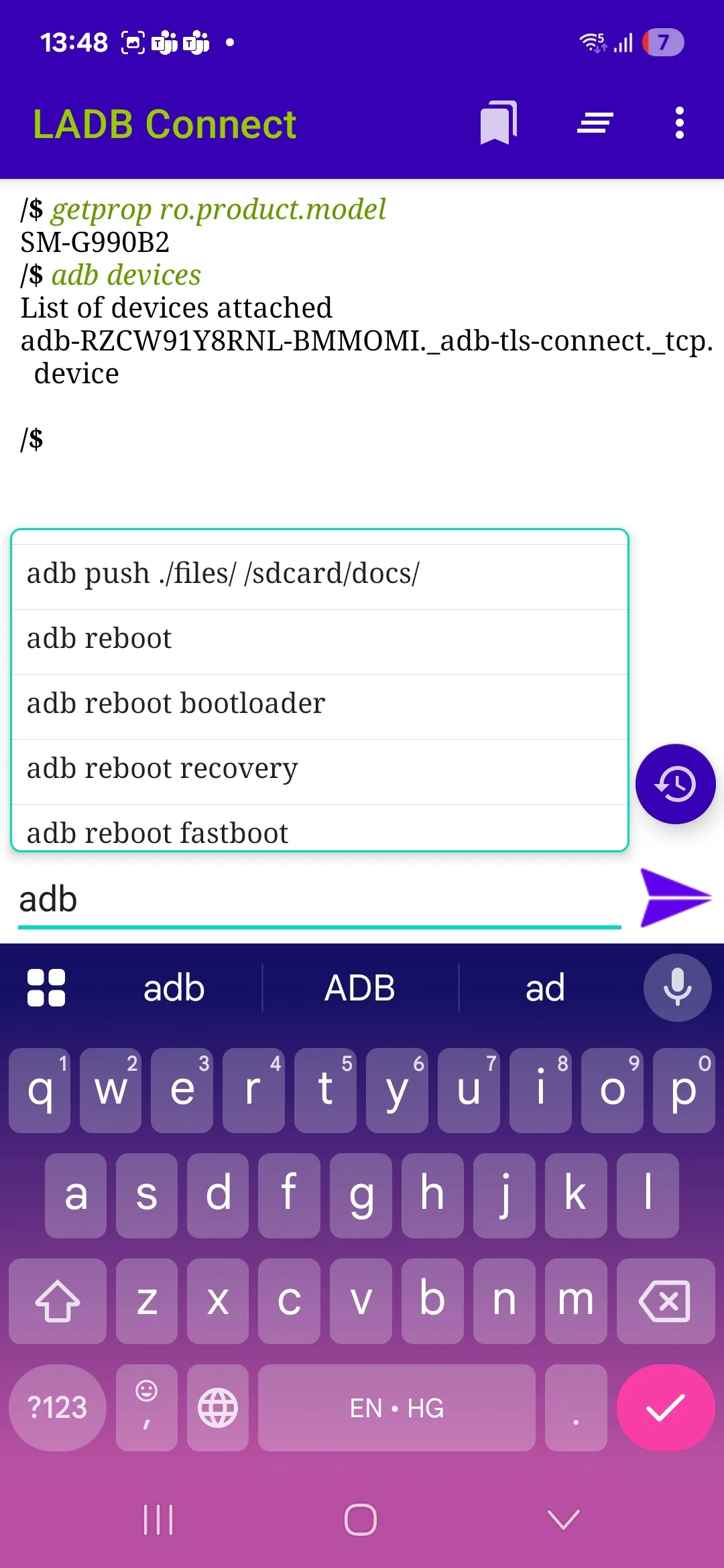
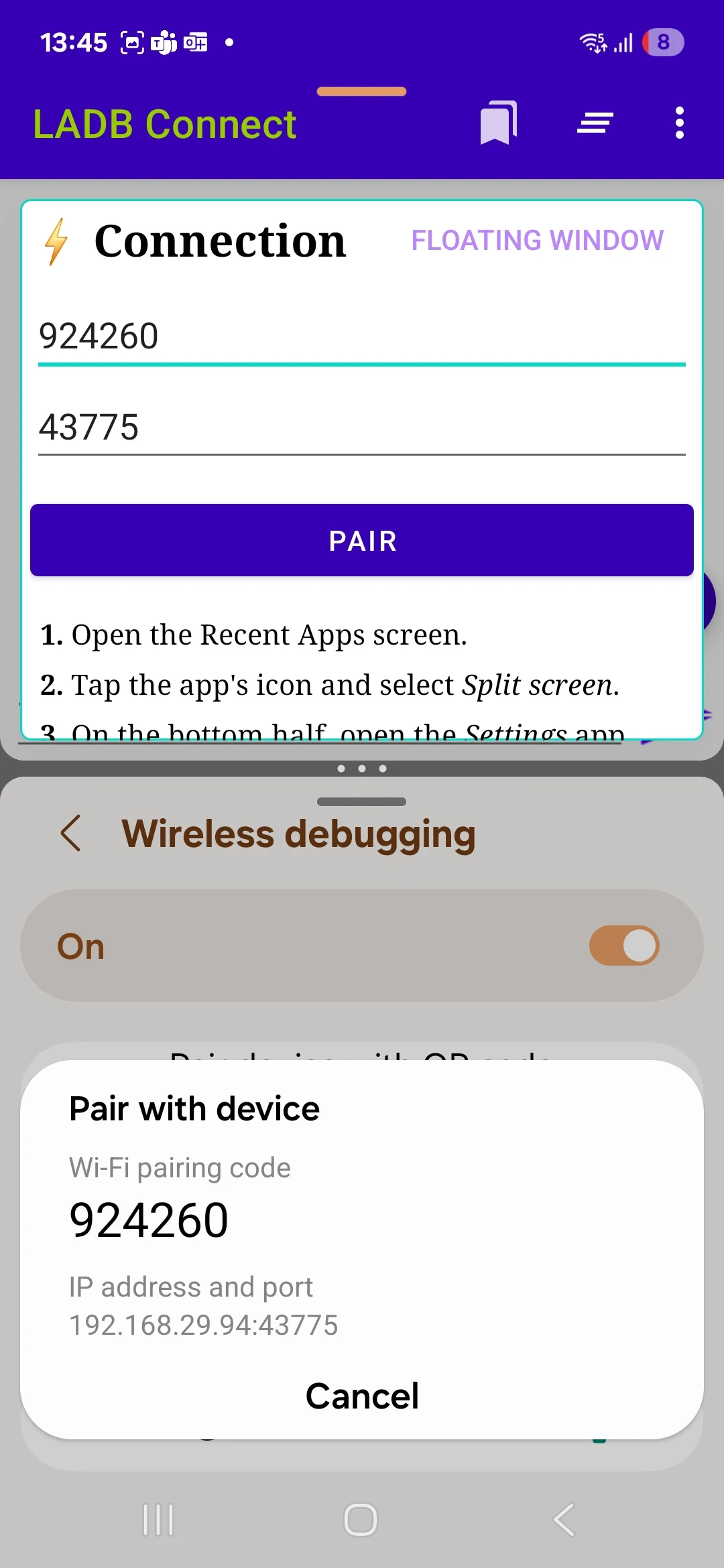
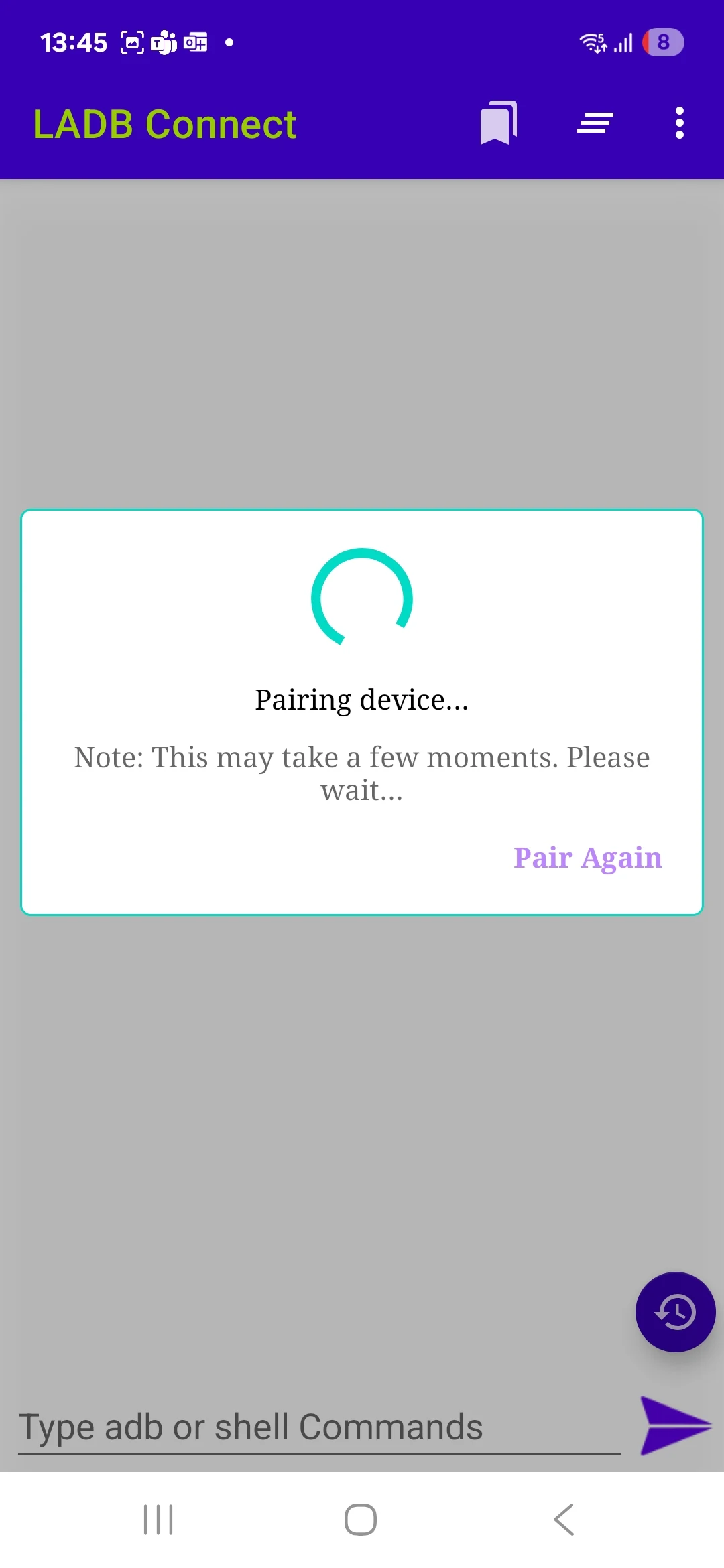
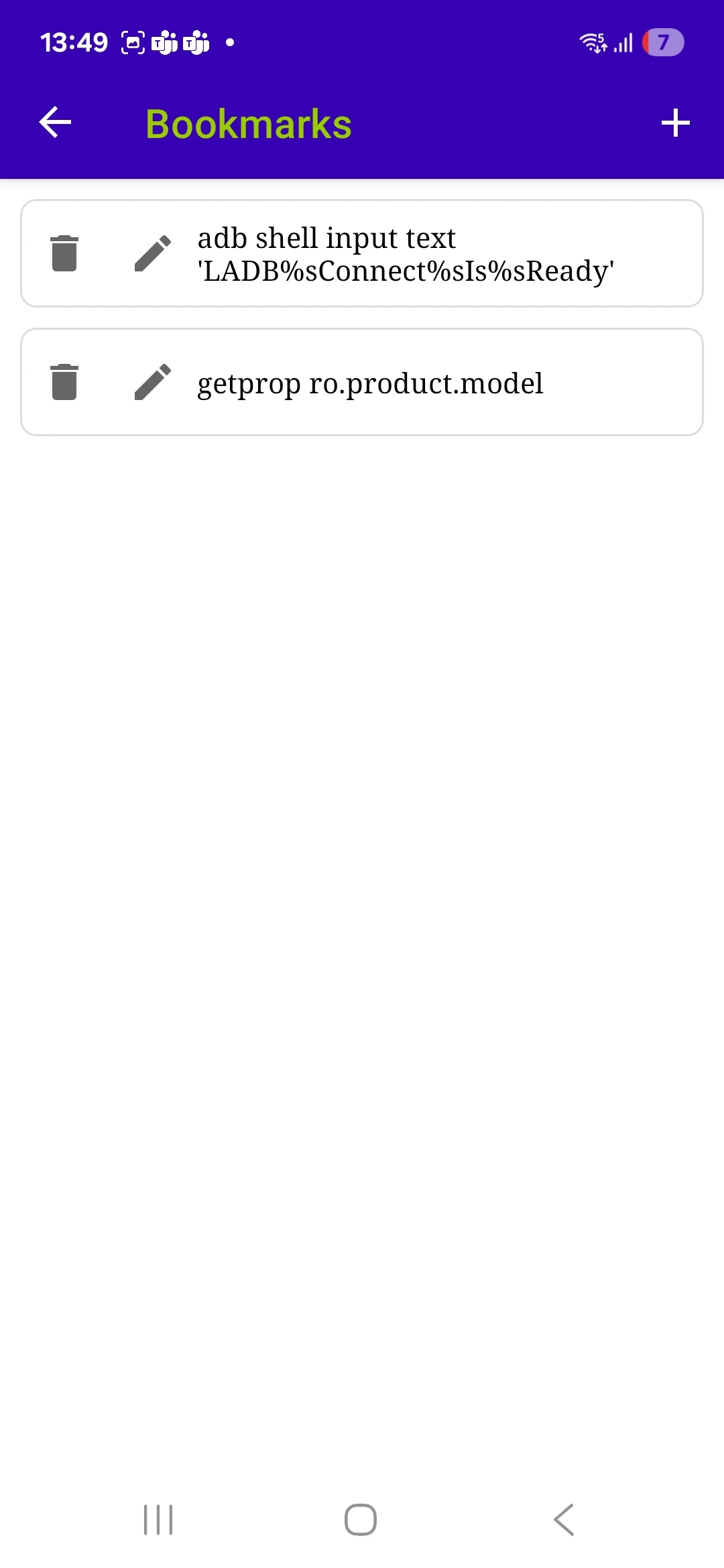
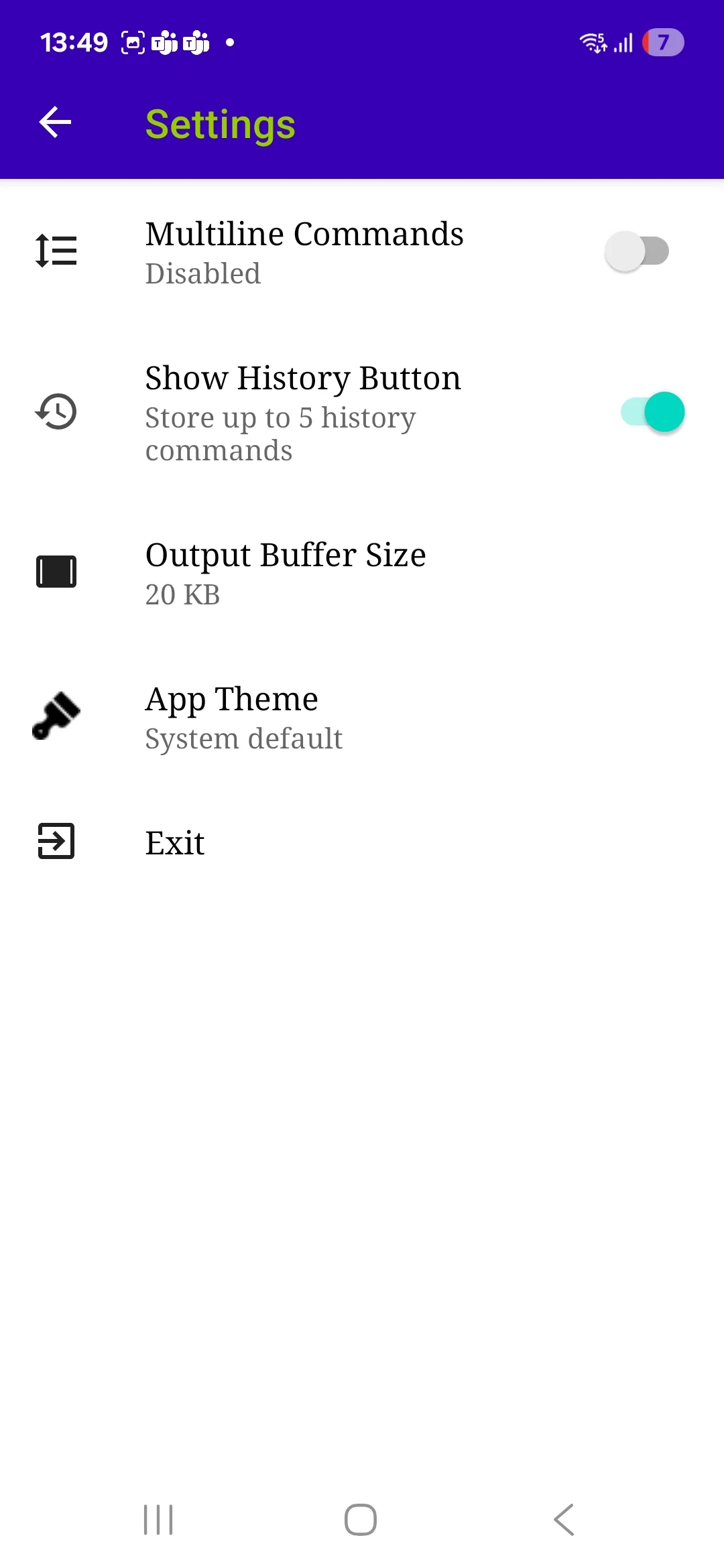
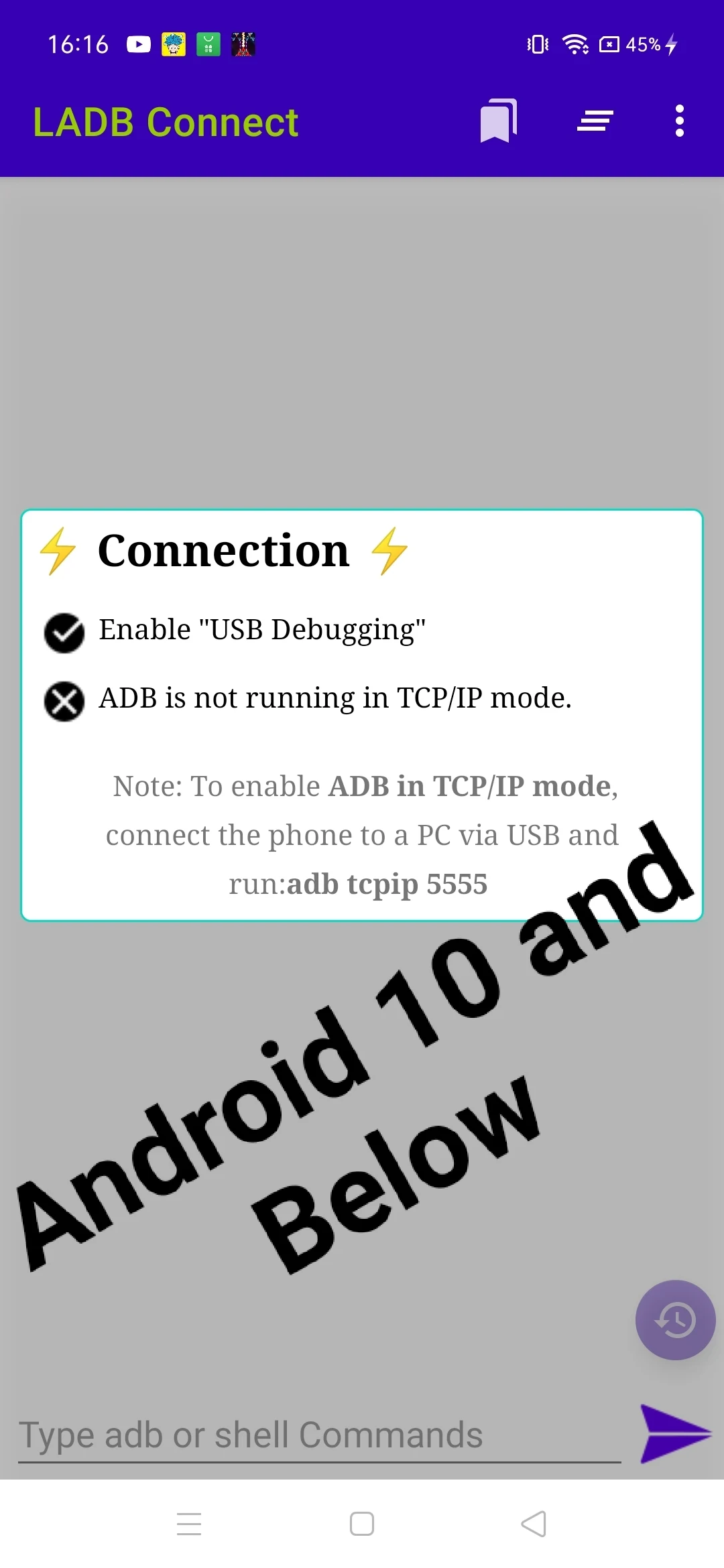
To locally access ADB and execute ADB Shell Commands.
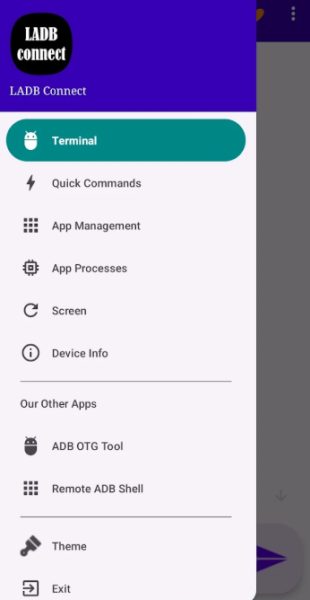
Setup Instructions:
----- For Android 11 and above
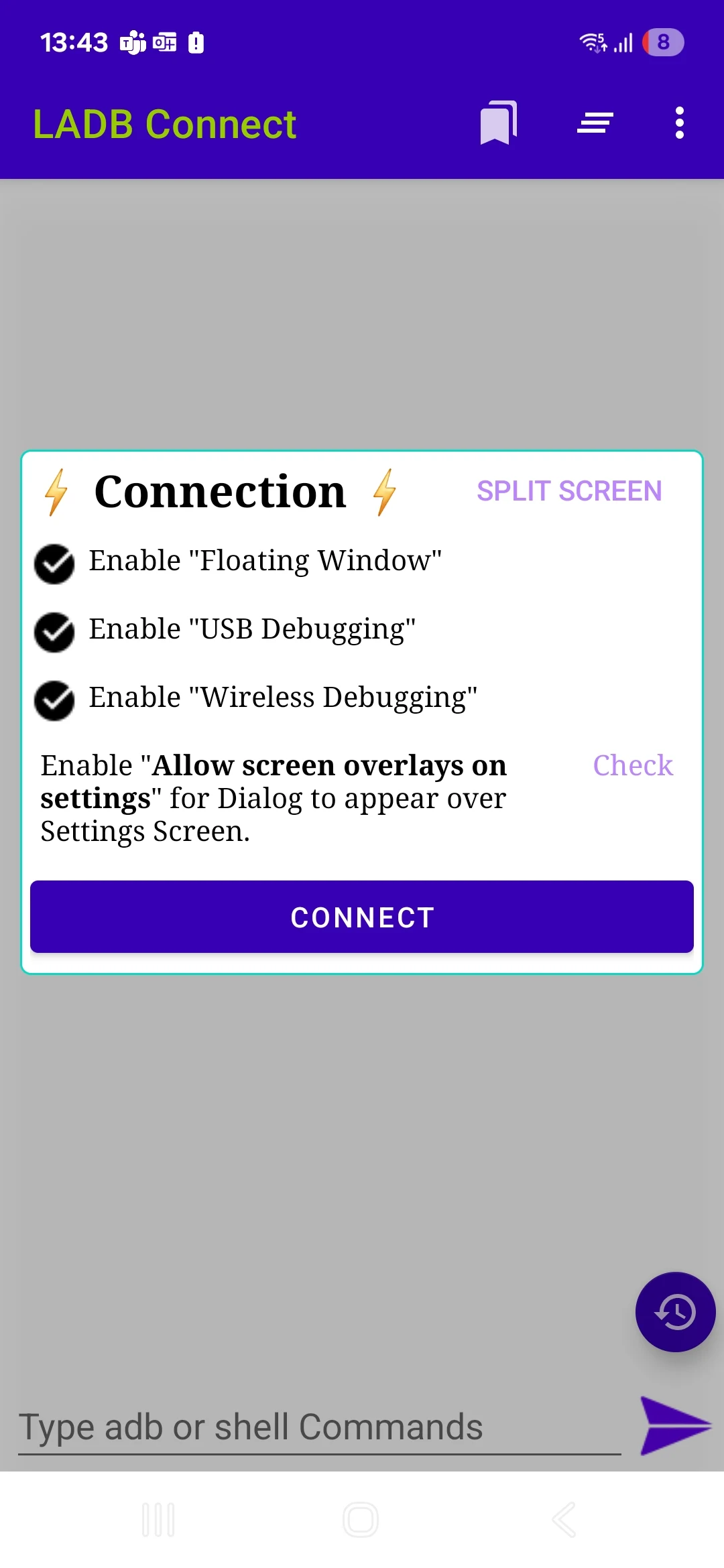
1.Activate Developer Options -> About -> Build Number -> Tap 7 times
2.In Developer Options -> Activate "Wireless Debugging"
3.In Developer Options -> Activate "USB Debugging"
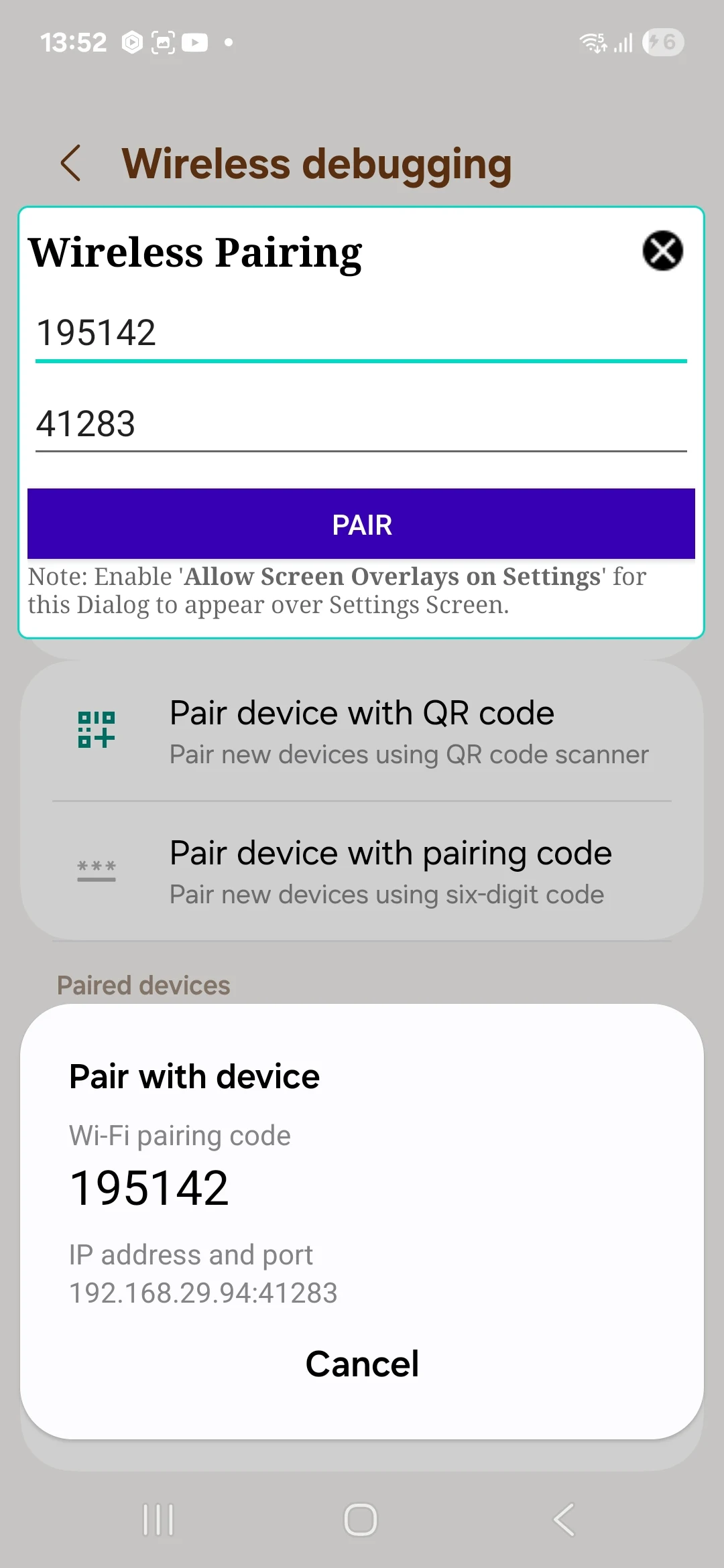
4.In Developer Options -> Enable "Allow screen overlays on settings" for the pairing dialog to display over the settings interface.
5.Grant "Floating Window" permission to the App
Choose Connect -> Input Pairing Code and Port in the Floating window (All guidance provided within the App)
----------- For Android 10 and earlier
1.Activate Developer Options -> About -> Build Number -> Tap 7 times
2.In Developer Options -> Activate "Wireless ADB Debugging"
3.In Developer Options -> Activate "USB Debugging"
Features:
1. **Convenient Local ADB Access**:
Enable ADB connections and Shell command execution directly on your Android device, eliminating the need for a computer, simplifying the debugging process.
2. **Cross-Version Compatibility**:
Adapters are available for Android 11 and above, and Android 10 and earlier, covering all major Android versions.
3. **Clear Operation Process**:
Step-by-step instructions are provided, from enabling developer options to completing the connection. Detailed pairing instructions are also provided within the app.
4. **Reasonable Permission Control**:
Requires only necessary debugging permissions (such as USB debugging and wireless debugging) and floating window permissions, ensuring connection stability while minimizing privilege usage.
5. **Focused and Practical Functionality**:
Core functionality revolves around ADB connections and Shell command execution, eliminating redundant functionality to meet the debugging needs of developers and advanced users.
Application Review:
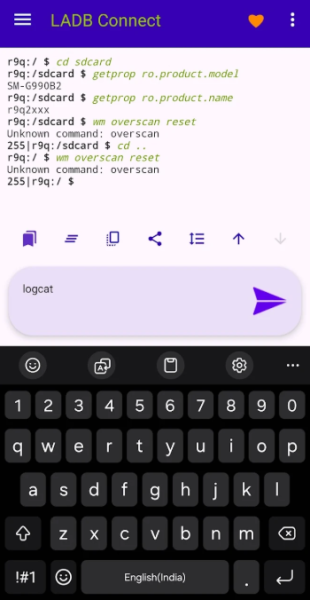
This local ADB tool app is convenient and practical, allowing you to execute ADB Shell commands directly on your Android device without a computer. It's compatible with Android 10 and earlier, and Android 11 and above. The operation process is clearly guided; simply enabling developer options, debugging permissions, and the necessary floating window permissions is all that's needed to complete the connection. Its functions are focused and concise, meeting the debugging needs of developers while also facilitating device management for advanced users. However, compatibility issues may arise on some heavily customized systems due to permission restrictions.
FAQs:
1. **Q**: Can LADB be used without a computer?
A: Yes. LADB's core feature is its support for local direct access to ADB. Without a computer, you can connect and execute shell commands directly on your Android device. This is very convenient for situations where you don't have a computer or need to debug on the go.
2. **Q**: Why does Android 11 and above require the floating window permission when connecting with LADB?
A: Android 11 and above will display a verification window during the pairing process. The floating window permission is required to display this pop-up on the settings screen, ensuring that the user can enter the pairing code and port number to complete the connection verification.
3. **Q**: When enabling developer options, what should I do if I tap the version number seven times in a row and nothing happens?
A: It may be due to incorrect click rhythm or number of taps. We recommend slowing down the tapping speed to ensure each tap is recognized. If this still doesn't work, check if your device has any special settings (for example, some brands require a lock screen password first) or restart the device and try again.
4. **Q**: Does LADB support all Android devices?
A: While it supports most mainstream Android devices, it's primarily designed for Android 10 and above. It also works with older versions (e.g., prior to Android 10), but the connection process is simpler. However, some deeply customized systems may not function properly due to permission restrictions.
5. **Q**: What can I do with ADB after a successful connection?
A: After connecting, you can execute various ADB Shell commands, such as viewing device information, installing/uninstalling apps, modifying system settings, and debugging apps. This is suitable for developer testing or advanced user device management.
6. **Q**: Why does Android 11 and above require a pairing code, while older versions don't?
A: This is due to differences in Android system security mechanisms. Android 11 and above enhance wireless debugging security, requiring device authentication via a pairing code and port. Older versions have simpler wireless ADB debugging security mechanisms, making the connection process more straightforward.
- Version1.3.0
- UpdateOct 19, 2026
- DeveloperGaming Tech Ventures
- CategoryTools
- Requires AndroidAndroid 8.0+
- Downloads242K+
- Package Nameapp.ladb.connect
- Signaturea88635b26ebb71d850f1118b53dd3629
- Available on
- ReportFlag as inappropriate
-
NameSizeDownload
-
18.50 MB
-
18.45 MB
-
19.20 MB












Highly useful for managing system apps
Effective in removing unwanted apps
Works well on some Android versions
Provides control over background processes
Offers floating window feature for convenience
Positive impact on device performance
Many users express gratitude and satisfaction
Saves time with shell command execution
Compatibility issues with newer Android versions
Server connection problems frequently reported
Unusable on certain devices due to app design flaws
Heavy bugs leading to poor user experience
Requests for unnecessary permissions raise concerns
Frustration with activation failures
Confusion caused by incorrect naming in settings
Slow connection times contribute to dissatisfaction